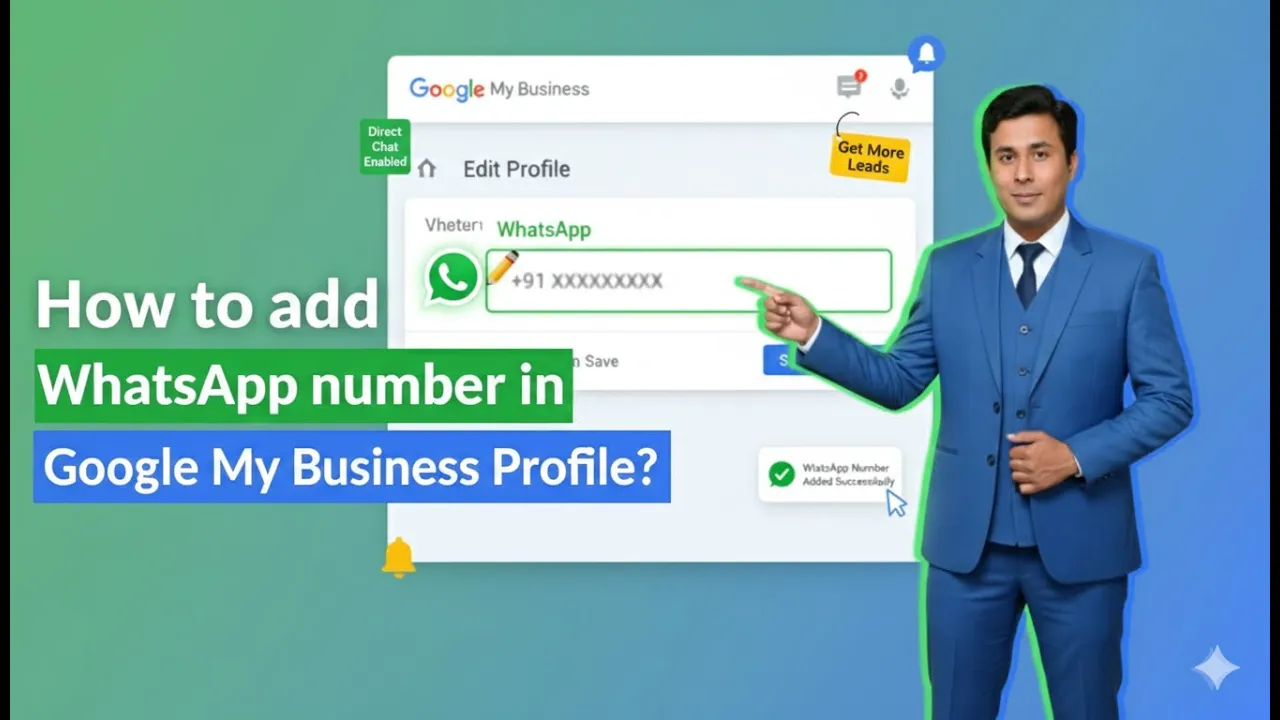
In this article, we learn how to update the WhatsApp number in a Google My Business listing profile. Many students often ask how to add or update a WhatsApp phone number in their Google My Business listing. This guide explains the complete process in a clear and simple manner.
Updating the WhatsApp number in a Google My Business listing helps customers directly connect with a business through WhatsApp chat. This article explains how to perform this update step by step using the Google My Business profile.
Importance of WhatsApp Chat in Google My Business Listing
Google My Business listing allows businesses to add a chat option so that customers can contact them easily. By adding a WhatsApp number, businesses make it convenient for users to start a direct conversation.
This feature helps improve communication and makes it easier for customers to reach the business without calling.
Accessing Your Google My Business Listing Profile
To update the WhatsApp number, you first need to access your Google My Business listing. This is done by searching for your business name on Google.
It is important to use the same Gmail ID that was used while creating the Google My Business listing. Only then will the business profile management options appear.
Searching for Your Business on Google
You need to search for your business name directly on Google while logged in with the correct Gmail ID. Once the business appears in the search results, you can manage and edit the profile from there.
This method allows you to access your business profile without visiting any separate dashboard.
Editing the Google My Business Profile
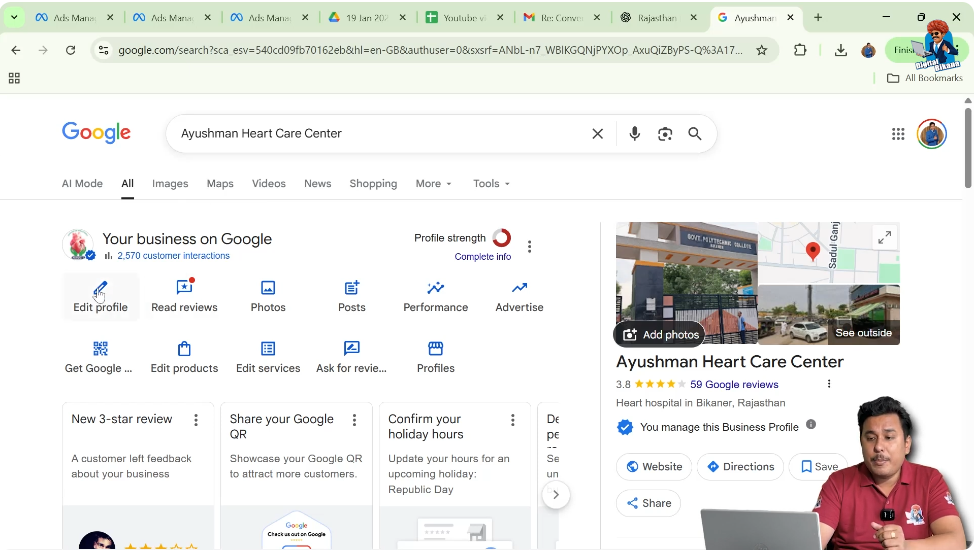
After your business profile appears in the search results, you need to click on the “Edit profile” option. This opens the profile editing section where different business details can be updated.
From this section, you can scroll down to find the chat-related settings.
How to add WhatsApp number in Google My Business Profile?
Step 1: Open the Edit Profile Section
Accessing Profile Editing Options
Once your business profile is visible on Google, click on the “Edit profile” option. This allows you to edit different sections of your Google My Business listing.
You need to scroll down within this section to locate the chat option.
Step 2: Locate the Chat Option
Finding the Chat Section
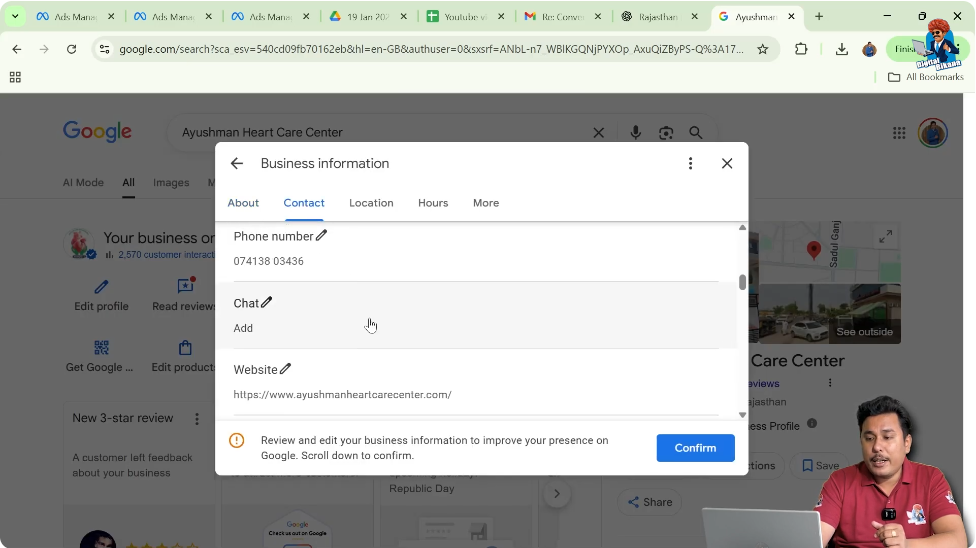
In the edit profile section, there is an option labeled “Chat.” This section is specifically used to add or update chat-related contact options.
You need to click on the chat option to proceed further.
Step 3: Select WhatsApp as Chat Option
Choosing WhatsApp for Business Chat
After clicking on the chat option, you need to select WhatsApp. This tells Google that you want to use WhatsApp as the chat platform for your business listing.
Once WhatsApp is selected, you can add the required chat link.
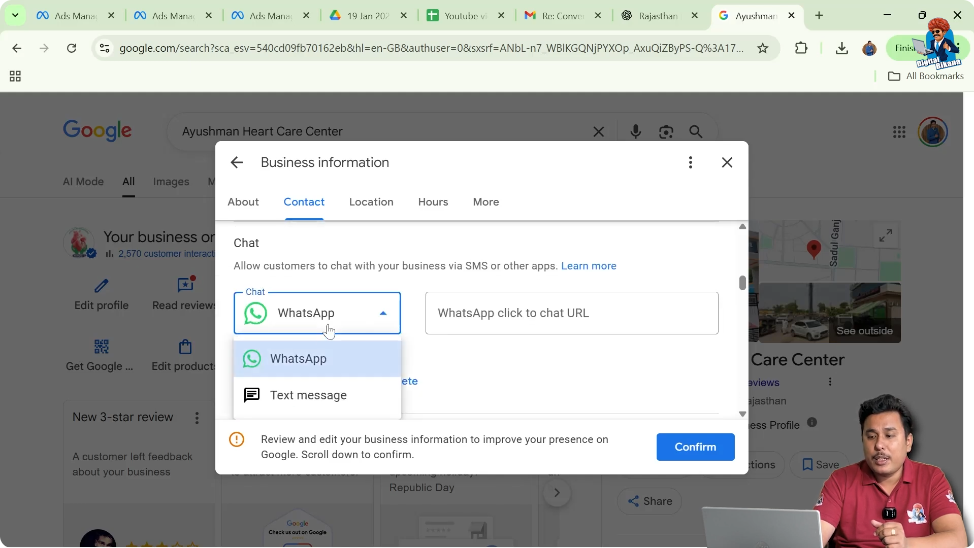
Step 4: Understand WhatsApp Click to Chat URL
What is WhatsApp Click to Chat URL
WhatsApp Click to Chat URL is a special link format that allows users to directly start a chat with your WhatsApp number without saving it.
This URL needs to be entered correctly for the WhatsApp chat option to work properly.
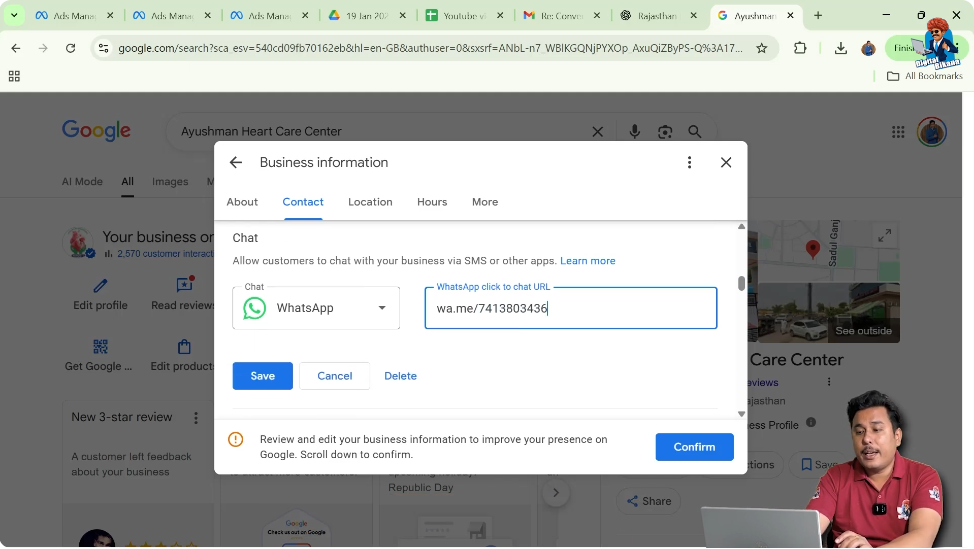
Step 5: Enter the Correct WhatsApp URL Format
WhatsApp Click to Chat URL Format
There is a proper format for entering the WhatsApp chat URL. The format is:
wa.me/yourmobilenumber
You need to replace “yourmobilenumber” with your actual WhatsApp mobile number. The number should be entered without any spaces or special characters.
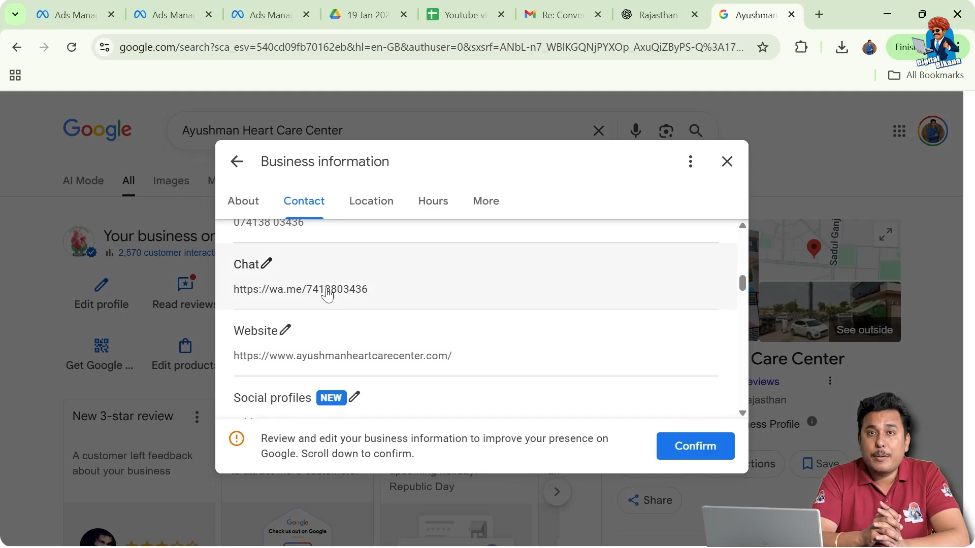
Step 6: Save the Updated WhatsApp Number
Saving the Changes
After entering the WhatsApp Click to Chat URL, you need to click on the “Save” button. Once saved, the WhatsApp number is automatically updated in your Google My Business listing profile.
This completes the process of updating the WhatsApp number.
Verification of WhatsApp Number Update
After saving the changes, the updated WhatsApp chat option becomes visible in the Google My Business listing. This confirms that the WhatsApp number has been successfully added or updated.
Customers can now use this option to directly start a WhatsApp chat with the business.
Common Questions About WhatsApp Update in Google My Business
Many students ask how to add a WhatsApp phone number to their Google My Business listing. The process explained above answers this question clearly.
The key points are:
- Use the same Gmail ID
- Access the edit profile section
- Select chat option
- Choose WhatsApp
- Enter correct wa.me URL format
- Save the changes
Role of Google My Business in Customer Communication
Google My Business listing plays an important role in helping customers contact a business. By adding a WhatsApp number, businesses provide an additional communication channel.
This makes customer interaction easier and more direct.
Managing Google My Business Listing Effectively
Updating contact details such as WhatsApp number ensures that the business information remains accurate and up to date. This helps customers trust the business listing and communicate without difficulty.
Regularly checking and updating profile details is an important part of managing a Google My Business listing.
Use of Gmail ID in Profile Management
It is essential to remember that all profile edits can only be done using the Gmail ID that was used to create or claim the Google My Business listing.
Using a different Gmail ID will not show the profile management options.
Connection Between Google My Business and WhatsApp
By integrating WhatsApp chat into the Google My Business listing, businesses allow users to initiate conversations directly from Google search results.
This integration helps businesses stay connected with customers in a simple and efficient way.
Final Confirmation of WhatsApp Update
Once the WhatsApp number is saved, the update is completed instantly. There is no additional verification required for updating the WhatsApp chat number.
The updated WhatsApp number becomes active and visible in the Google My Business listing profile.
Conclusion
Updating the WhatsApp number in a Google My Business listing is a simple and straightforward process. By searching for the business name using the correct Gmail ID, accessing the edit profile section, and entering the WhatsApp Click to Chat URL in the proper format, businesses can easily enable WhatsApp chat.
This feature helps improve customer communication and makes it easier for users to connect with the business directly. Regular updates to the Google My Business listing ensure accurate information and better interaction with customers.

Related Posts