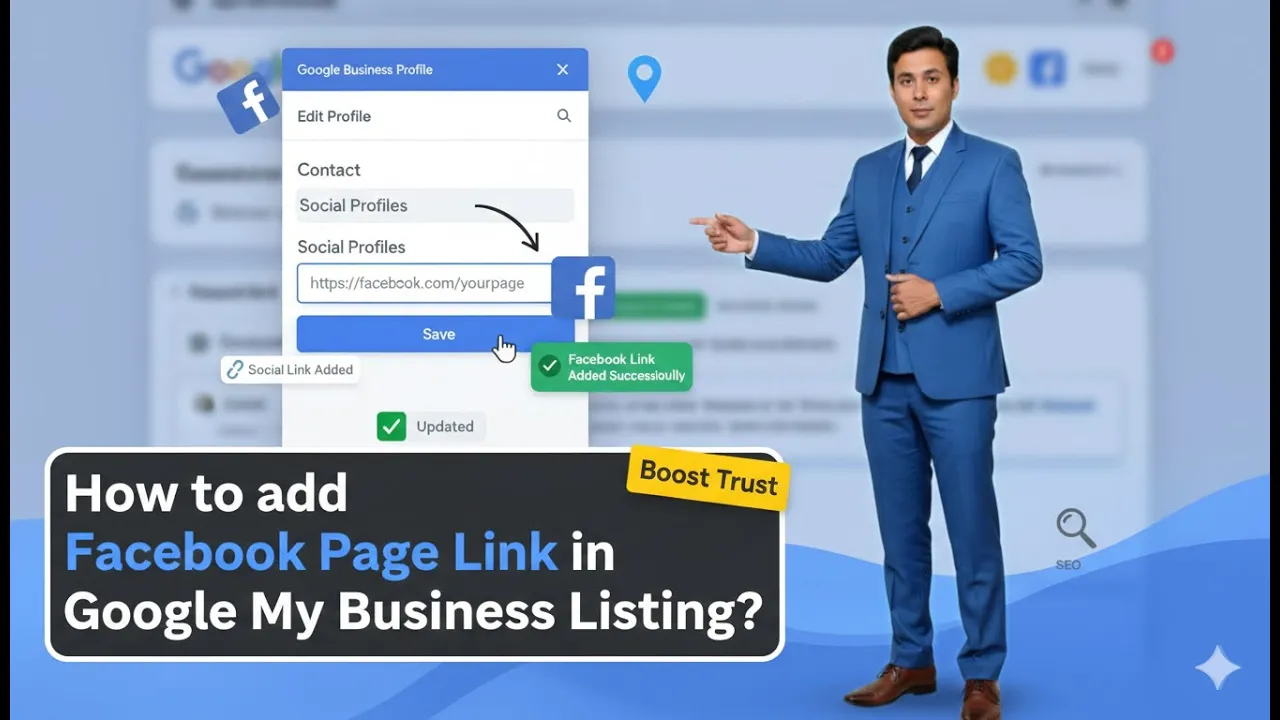
In this article, we learn how to add social media links in a Google My Business profile listing. Adding social media links in a Google My Business listing is a feature provided by Google. At present, this feature is available as a beta feature.
Since this feature is still under testing and experiment mode, it is not available on all Google My Business profiles. Some business listings may show the option to add social media links, while others may not. This article explains both situations in detail and describes how social media links can still appear in a business listing even if the feature is not available.
Understanding the Beta Nature of Social Media Links Feature
The option to add social media links directly in a Google My Business profile is a new feature introduced by Google. As it is currently in beta mode, it is not enabled for all business profiles.
This means that two different business listings can behave differently. In one listing, the social media profile option may not appear at all, while in another listing, the option may be clearly visible inside the edit profile section.
Because this feature is still under experimentation, users should not panic if they do not see it in their business listing. Google may make this feature available to all profiles in the future.
Checking Availability of Social Media Links Option
When you edit a Google My Business listing, you may notice that the option to add social media links is missing in some profiles. This does not mean there is an error or a problem with your listing.
In some business listings, the social profile feature is visible when clicking on the edit profile button. In others, it may not be present at all. This difference exists because Google is testing this feature on selected profiles only.
Automatic Addition of Social Media Links by Google
Even if the social media links feature is not available in your Google My Business profile, Google can still add your social media links automatically.
Google uses its spiders and robots to crawl the internet and the web. When these systems identify that a business already has social media profiles, Google may automatically link those social media profiles to the corresponding Google My Business listing.
This process is completely automatic, and users cannot manually control it.
Role of Google Crawlers and Robots
Google spiders and robots continuously crawl the internet to collect information. When they find social media profiles related to a business, they analyze the data and may connect those profiles to the correct Google My Business listing.
This automatic linking happens without any manual request. Businesses do not need to submit social media links for this process to occur.
Importance of Business NAP Consistency
For Google to correctly link social media profiles to a business listing, business NAP consistency is very important. NAP stands for Name, Address, and Phone number.
If you are creating social media profiles such as a Facebook page, Instagram account, LinkedIn profile, or YouTube channel, you must ensure that:
- The business name is the same everywhere
- The business address is the same everywhere
- The business phone number is the same everywhere
Google uses these details to identify whether a social media profile belongs to the same business.
Risks of Inconsistent Business Information
If different names, addresses, or phone numbers are used across multiple social media profiles, Google may treat those profiles as belonging to different businesses.
This can prevent Google from linking social media profiles to the correct Google My Business listing. Therefore, it is important not to make the mistake of using different business names for the same business across platforms.
Social Media Platforms Considered by Google
Google can automatically link various social media platforms to a business listing when it finds consistent information. These platforms may include:
- YouTube
Once Google identifies these profiles as belonging to the same business, it may show them in the Google My Business listing automatically.
Manual Method to Add Social Media Links (If Feature Is Available)
If the social media links feature is available in your Google My Business profile, you can manually add your social media links. This section explains how to do that.
How to add Social Media Links in Google My Business?
Step 1: Open the Edit Profile Option
Accessing Profile Editing Section
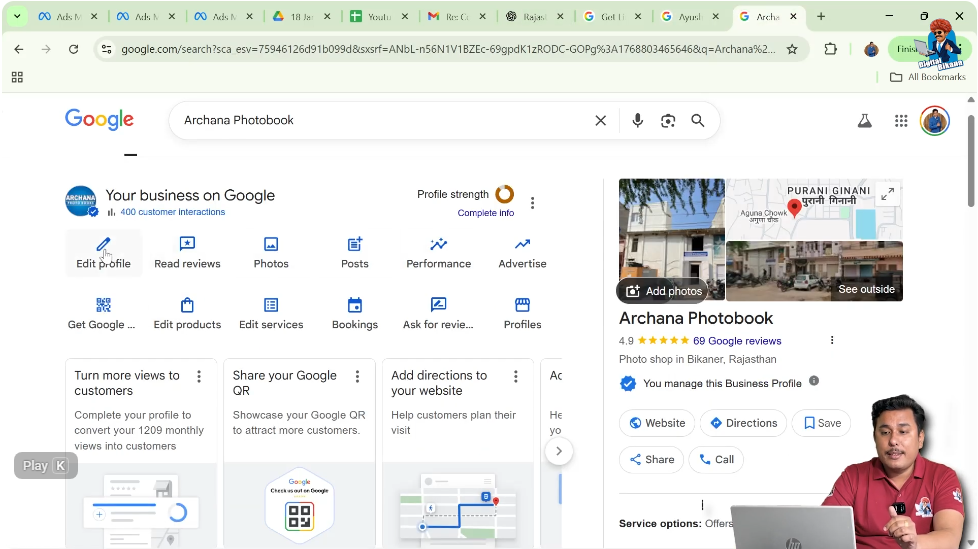
To begin, search for your business name on Google using the same Gmail ID that was used to create the Google My Business listing. Once the business appears, click on the edit profile button.
This opens the profile editing interface where different business details can be managed.
Step 2: Locate the Social Profile Section
Finding the Social Profile Feature
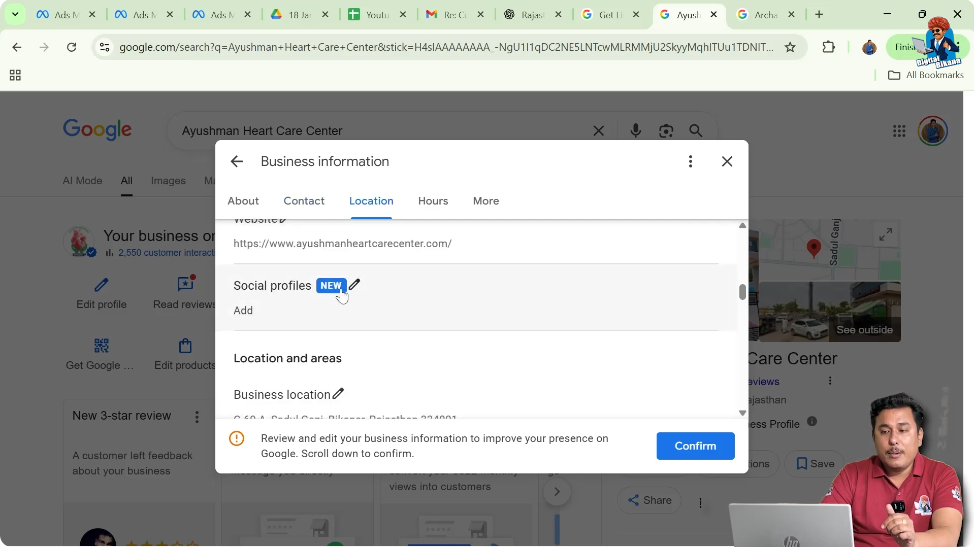
Inside the edit profile section, look for the social profile option. This option will be visible only if the feature is enabled for your business listing.
If the option is not available, it means the feature has not yet been activated for your profile.
Step 3: Click on Edit Icon for Social Profiles
Opening Social Media Edit Mode
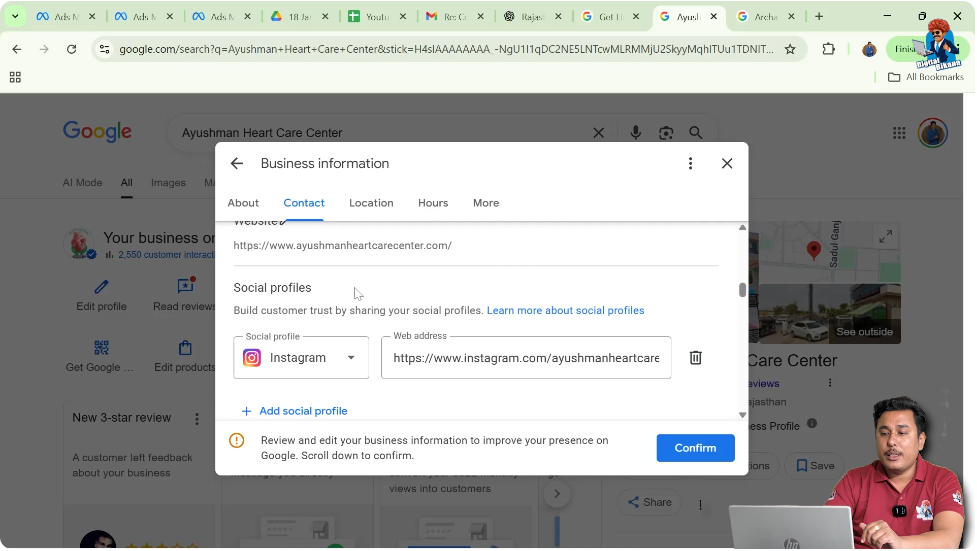
To add or manage social media links, click on the pen or edit icon near the social profile section. This allows you to view existing social media links and add new ones.
Step 4: Add an Existing Social Media Profile
Viewing Added Social Media Links
If you have already added a social media profile, such as an Instagram link, it will be visible in this section. You can review it before adding more profiles.
Step 5: Add a New Social Media Profile
Using the Add Profile Option
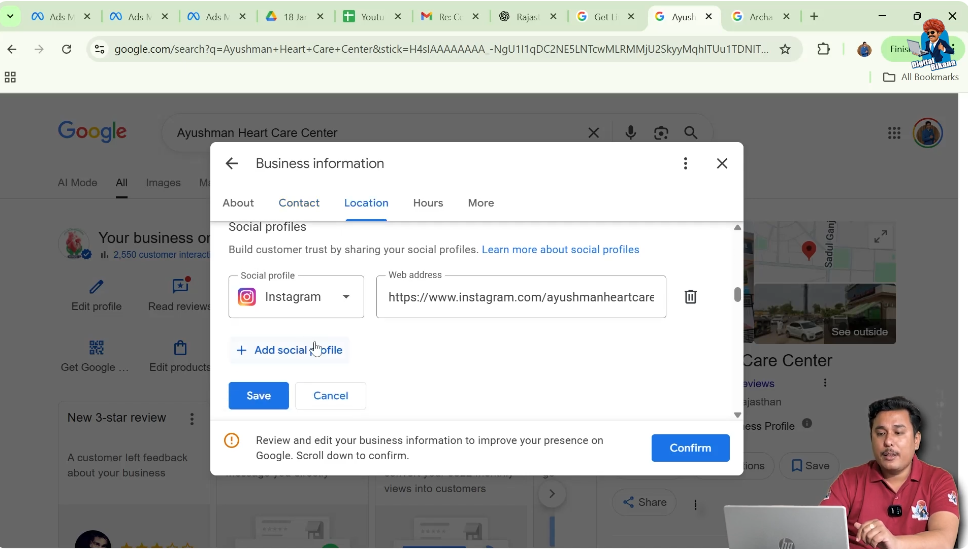
To add another social media profile, click on the “Add profile” button. This opens a list of supported social media platforms.
You can select the platform where your business is active.
Step 6: Select the Social Media Platform
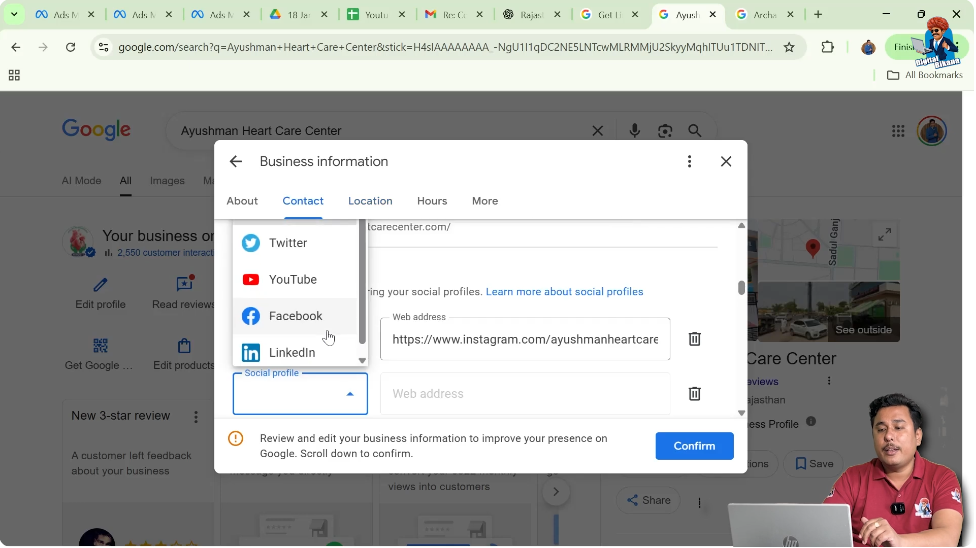
Choosing the Correct Platform
From the available options, you can select platforms such as YouTube, LinkedIn, Facebook, Twitter, or Pinterest, depending on where your business has an active presence.
Step 7: Enter the Social Media Profile URL
Adding Correct Profile Link
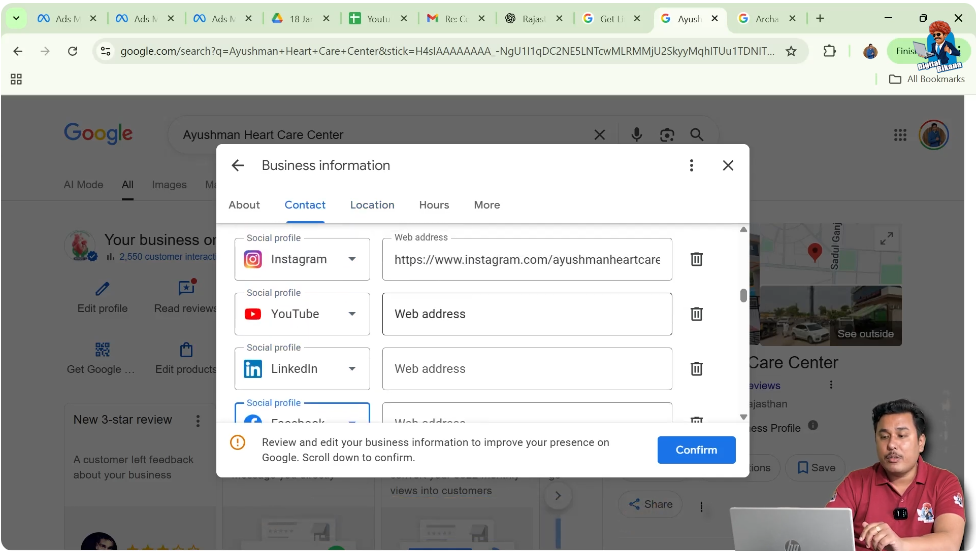
After selecting the platform, you need to enter the correct channel URL or page URL. For example, you can enter:
- YouTube channel URL
- LinkedIn page URL
- Facebook page URL
Make sure the URL belongs to your business profile.
Step 8: Save the Social Media Links
Completing the Process
Once the URL is entered, click on the save button. The social media link will then be added to your Google My Business profile.
This completes the process of manually adding social media links.

What to Do If Feature Is Not Available
If the social media profile option is not visible in your business listing, there is no need to worry. This is because the feature is still in beta mode and under testing.
In such cases, the best approach is to maintain consistent business information across all your social media profiles and wait for Google to automatically link them.
Contacting Google Support
If required, you can also take support from the Google support team. However, the automatic linking process of social media profiles is managed by Google systems and cannot be manually forced.
Future Availability of Social Media Links Feature
Since the feature is still being tested, it is expected that Google may roll it out to all business profiles in the future. Once fully launched, all businesses may get the option to manually add social media links directly.
Until then, businesses should focus on consistency and accuracy across all online platforms.
Conclusion
Adding social media links to a Google My Business profile helps strengthen a business’s online presence. While the direct option to add social media links is currently available only as a beta feature, Google can still automatically link social media profiles through its crawlers.
If the feature is available in your profile, you can easily add platforms like Instagram, YouTube, LinkedIn, Facebook, Twitter, and Pinterest by entering the correct profile URLs. If the feature is not available, maintaining consistent business name, address, and phone number across all social media platforms helps Google identify and link the correct profiles.
Understanding both manual and automatic methods ensures that your Google My Business listing remains accurate, connected, and visible across multiple online platforms.

Related Posts