
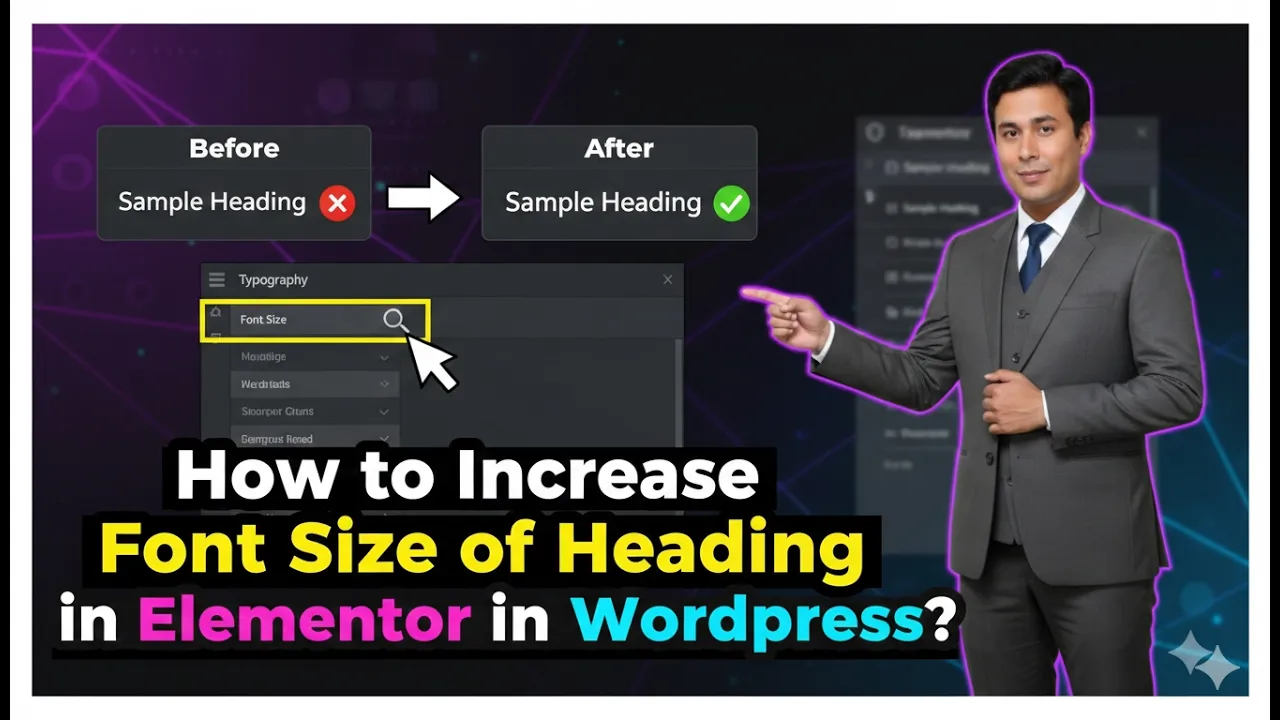
In this article, we will learn how to adjust the font size of a heading text in Elementor. Elementor is a powerful page builder that allows you to design and customize your website without coding. One of the most important aspects of website design is typography, and adjusting the font size of headings plays a crucial role in improving readability and visual hierarchy.
This guide explains the complete process step by step, starting from selecting the heading widget to modifying its typography settings.
Adding a Heading Widget in Elementor
Before adjusting the font size, you need to have a heading element on your webpage.
Understanding Heading Widget
The heading widget in Elementor allows you to add titles and headings to your page. It is commonly used for section titles, page headings, and important text elements.
Creating a Section and Adding Heading
To begin, you need to create a section and place a heading widget inside it. Once the heading is added, you can proceed with editing it.
Selecting the Heading for Editing
After adding the heading widget, the next step is to select it for editing.
Identifying the Editable Area
When you move your cursor over the heading, a highlighted box appears around it. This indicates that the element is selectable.
Steps to Select Heading
Step 1: Hover Over the Heading
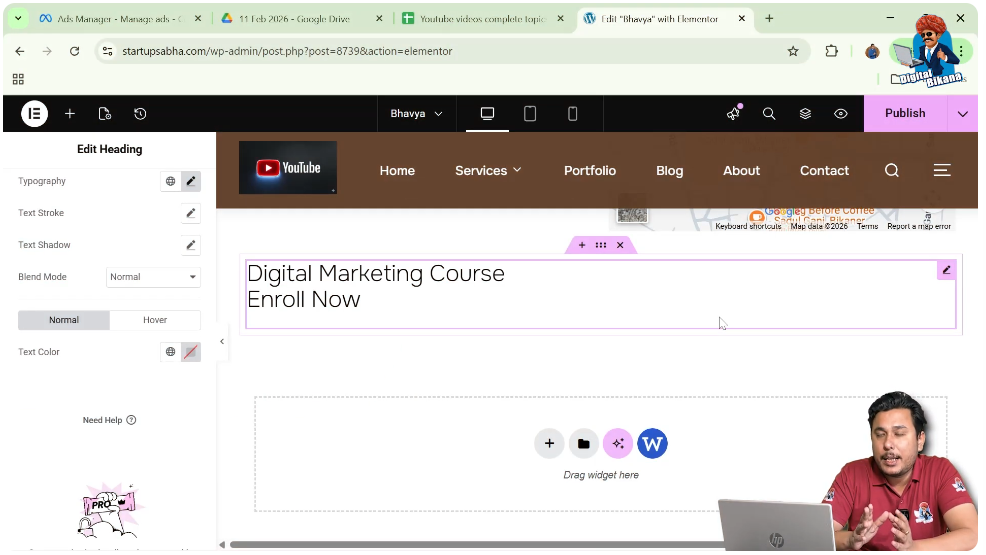
Move your cursor over the heading text. A highlighted box will appear around it.
Step 2: Click on the Pen Icon
In the top-right corner of the highlighted box, you will see a pen (edit) icon. Click on this icon to open the editing options.
Once selected, the editing panel will appear on the left side of the screen.
Understanding Elementor Editing Panel
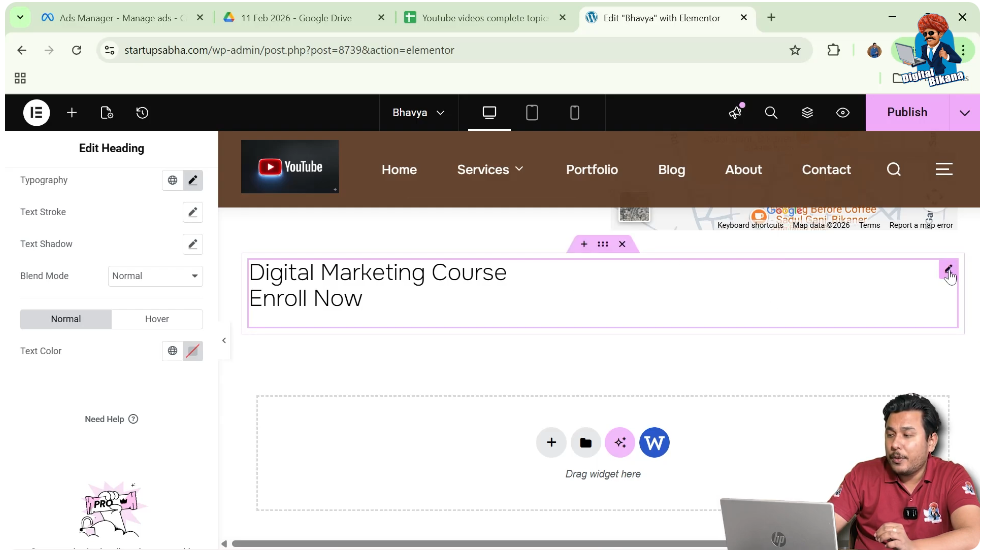
After clicking the edit icon, you will see multiple settings in the left-side toolbar.
Available Settings
The Elementor panel provides three main options:
- Content Settings
- Style Settings
- Advanced Settings
Each of these options controls different aspects of the heading.
Navigating to Style Settings
To adjust the font size, you need to access the Style settings.
Importance of Style Settings
The Style tab allows you to control the appearance of the heading, including font size, color, typography, and spacing.
Steps to Open Style Settings
Step 1: Click on Style Tab
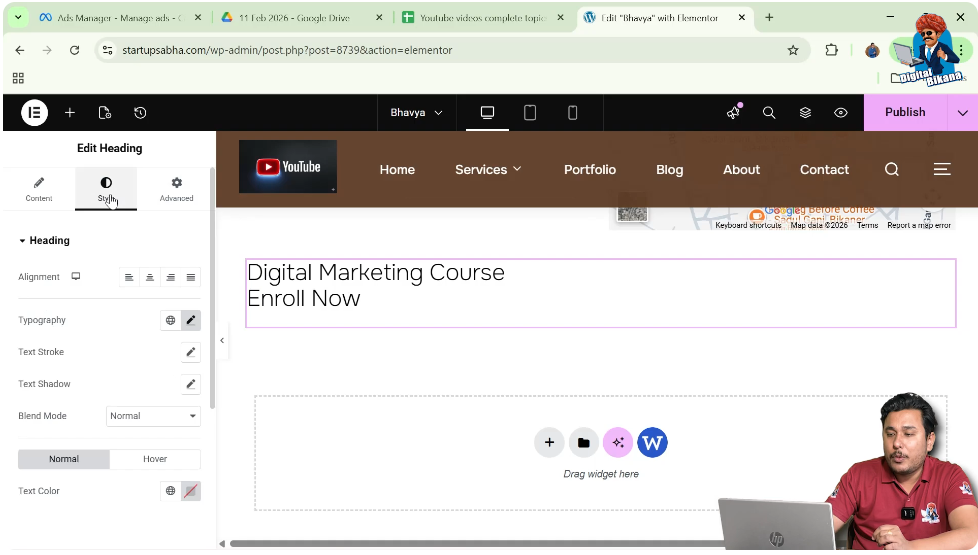
In the left toolbar, click on the Style option.
Step 2: Locate Heading Settings
Within the Style tab, you will find options related to the heading design.
Accessing Typography Settings
Typography settings allow you to control the font properties of the heading.
Understanding Typography
Typography includes font size, font family, weight, line height, and spacing. Adjusting these settings helps improve the overall design.
Steps to Access Typography
Step 1: Find Typography Option
In the Style tab, locate the Typography option under heading settings.
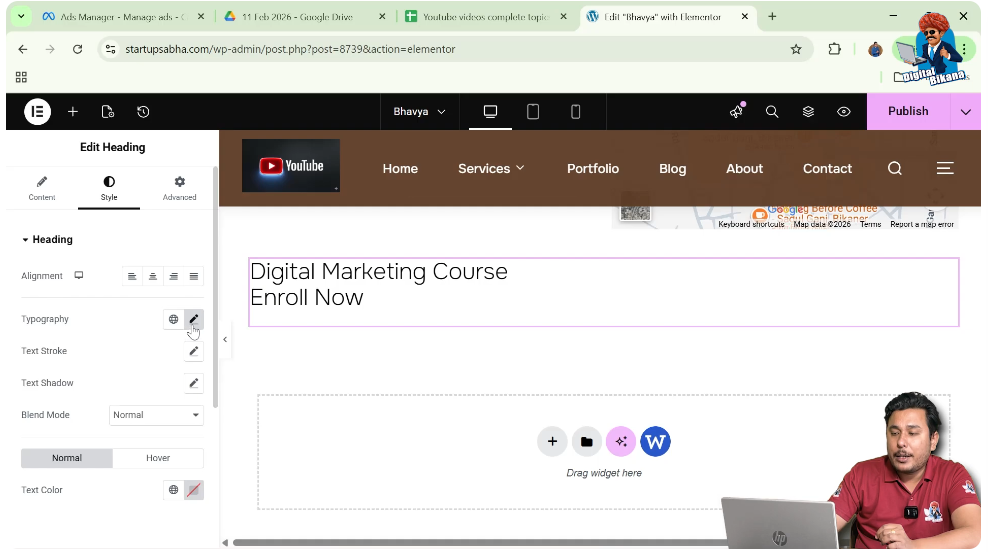
Step 2: Click on the Pen Icon
Click on the pen icon next to Typography to enable editing.
Once enabled, multiple typography controls will appear.
Adjusting the Font Size
Now comes the main step—changing the font size of the heading.
Understanding Font Size
Font size determines how large or small your heading text appears. It plays a key role in readability and visual hierarchy.
Steps to Change Font Size
Step 1: Locate Size Option
In the Typography settings, find the Size option.
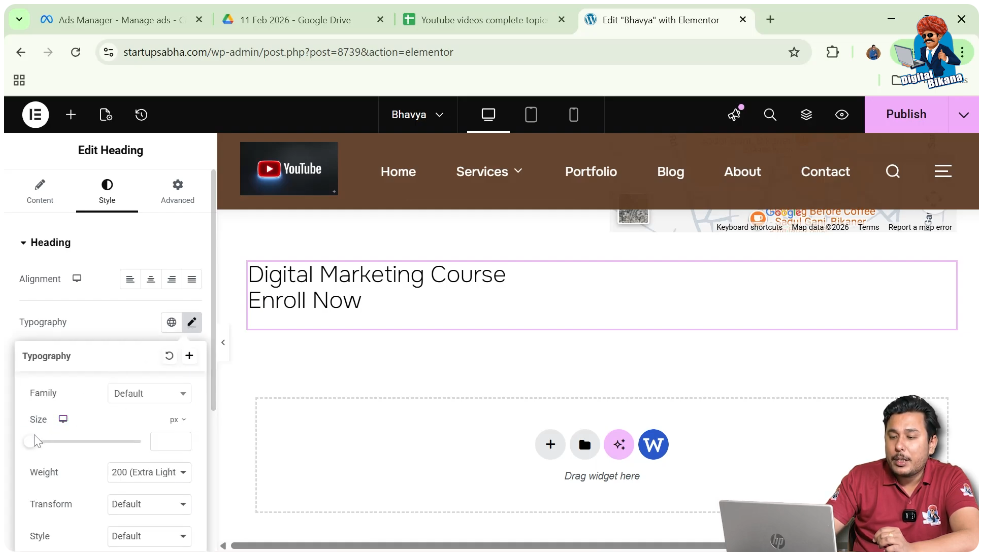
Step 2: Adjust the Value
Increase or decrease the size value according to your requirement.
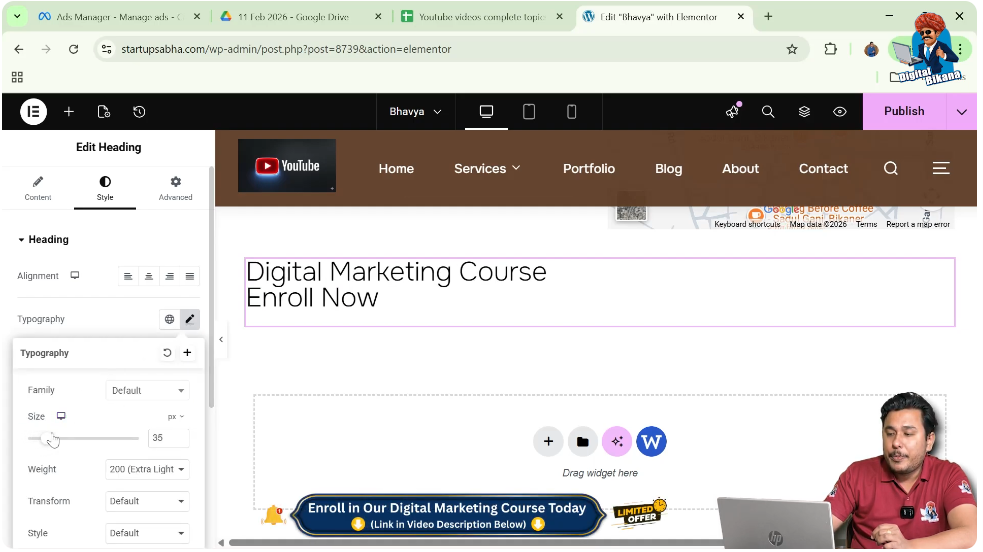
Step 3: Observe Changes
As you adjust the size, the heading text will change instantly on the screen.
This allows you to choose the perfect size for your design.
Importance of Proper Font Size
Choosing the right font size is essential for creating an effective website design.
Improving Readability
A proper font size ensures that your content is easy to read for users.
Creating Visual Hierarchy
Headings with appropriate sizes help organize content and guide users through the page.
Enhancing User Experience
Well-sized headings make your website look professional and improve user engagement.
Tips for Better Typography
To make the most out of Elementor typography settings, consider the following tips.
Maintain Consistency
Use consistent font sizes across similar headings to maintain a uniform design.
Use Responsive Settings
Ensure that the font size looks good on all devices, including mobile and tablet.
Avoid Over-Sizing
Do not make headings excessively large, as it can disrupt the layout.
Balance with Other Elements
Ensure that the heading size complements other elements on the page.
Final Output and Result
After completing all the steps, your heading will have:
- A properly adjusted font size
- Improved readability
- Better visual hierarchy
- A more professional appearance
These improvements enhance the overall design of your webpage.
Conclusion
Adjusting the font size of a heading in Elementor is a simple yet essential step in website design. By selecting the heading, navigating to Style settings, accessing Typography, and adjusting the font size, you can easily customize the appearance of your text.
Elementor provides flexibility and real-time preview, allowing you to make precise adjustments. By following the steps explained in this article, you can effectively control heading sizes and create a visually appealing and user-friendly website.

Related Posts


