
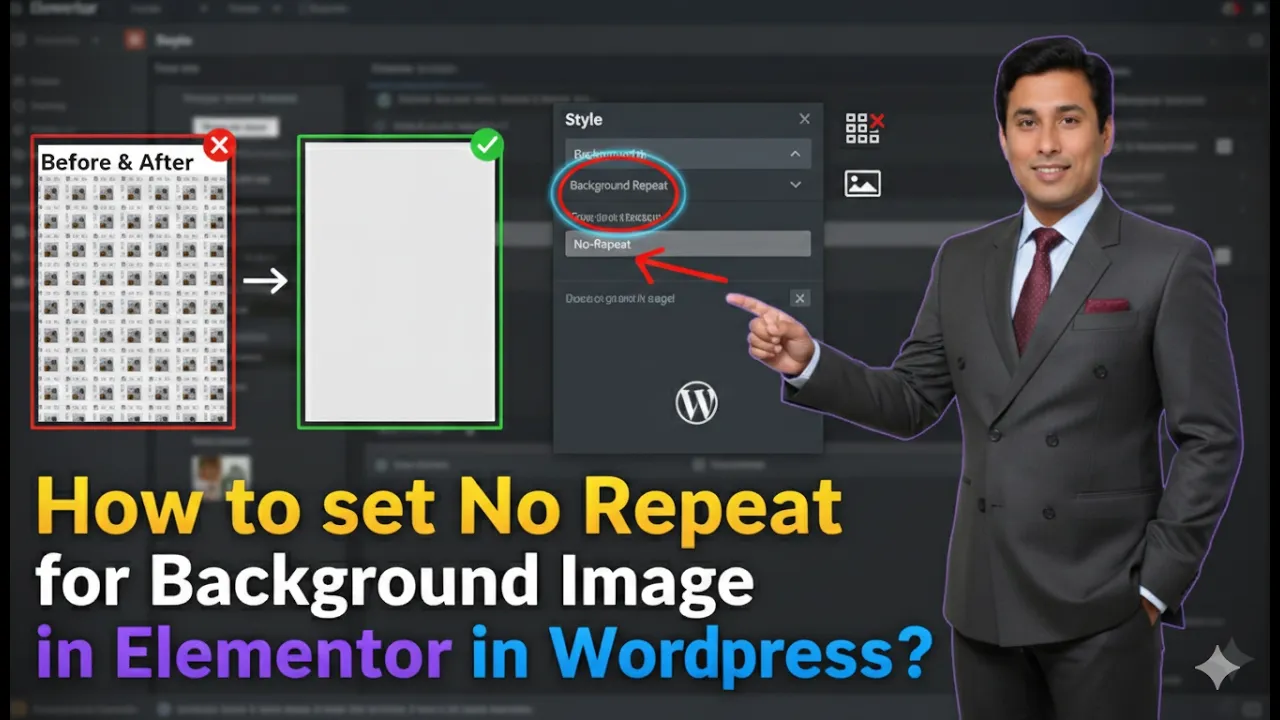
Setting a background image to no repeat in Elementor is an important step in improving the visual appearance of your website. When a background image repeats, it can make the design look cluttered and unprofessional. By disabling the repeat option, you can ensure that your image displays cleanly and properly within the container.
In this article, we will explain how to set a background image to no repeat in Elementor step by step. Each step is described in detail so that you can easily follow and apply it on your WordPress website.
Accessing the Elementor Editor
To begin, you need to open Elementor and start editing your web page.
As shown in the process, you are inside the Elementor editor and working on a web page. To add or modify a background image, you first need a container.
Creating a New Container
Step 1: Click on Plus Icon
Click on the plus icon displayed in the middle of the screen.
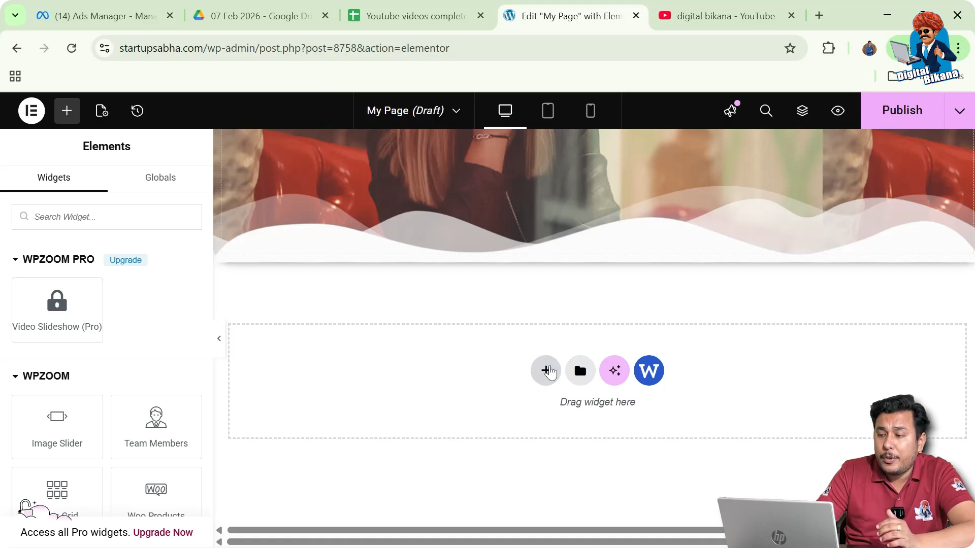
Step 2: Select Layout
Choose the layout type:
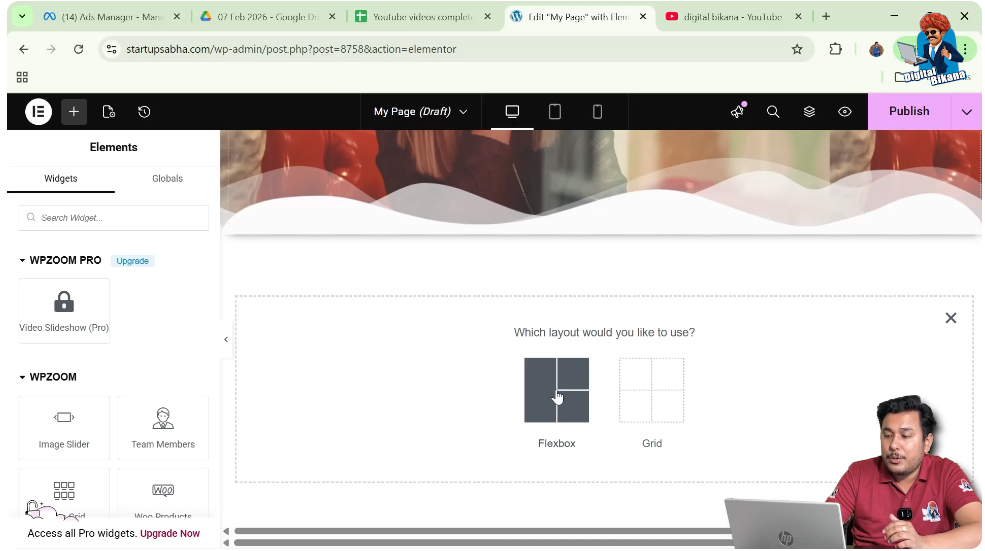
Step 3: Choose Structure
Select the direction as:
- Column
This creates a new container on your page.

Editing the Container
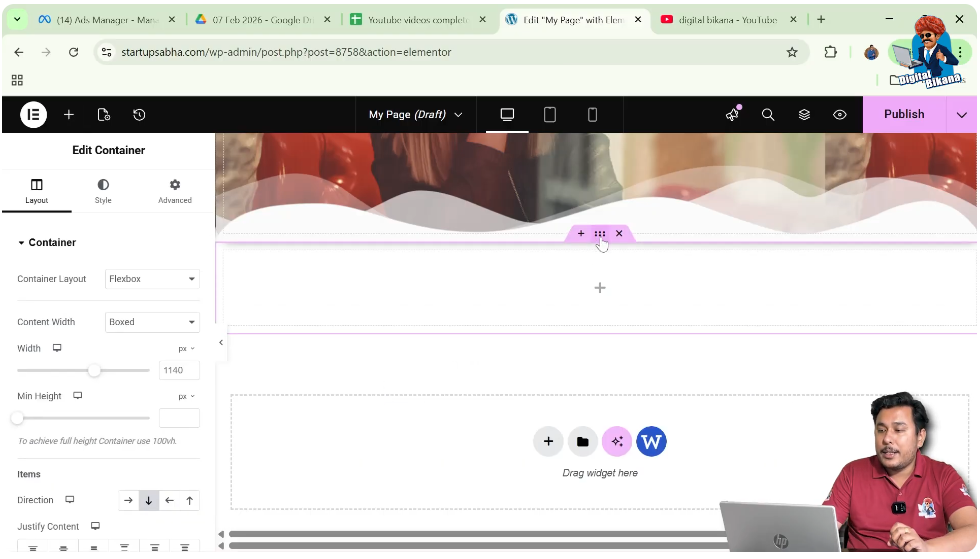
Step 4: Click on Edit Container
Click on the six-dot icon above the container.
This opens the container settings in the left-side toolbar.
Navigating to Style Settings
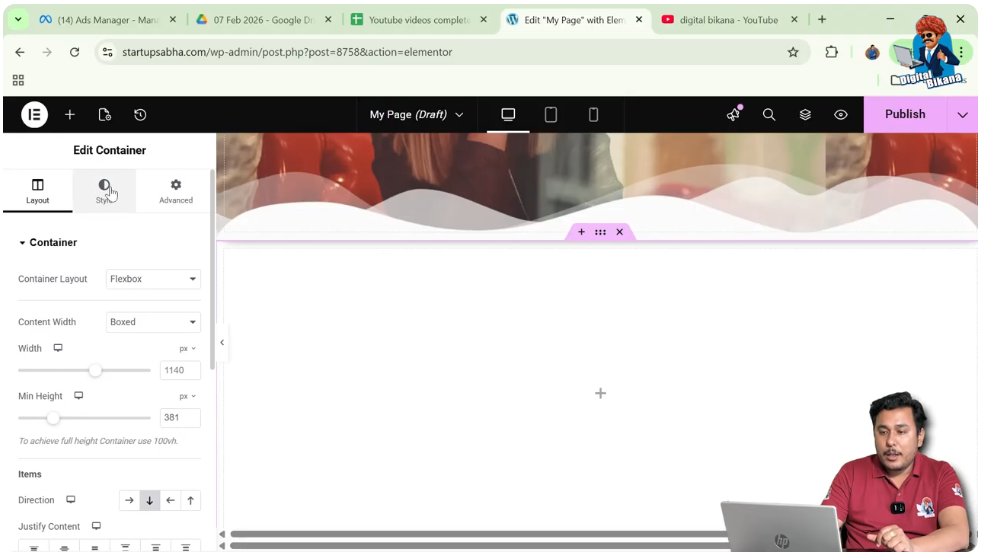
Step 5: Open Style Tab
In the left-side toolbar, you will find:
- Layout
- Style
- Advanced
Click on the Style tab.
Adding Background Image
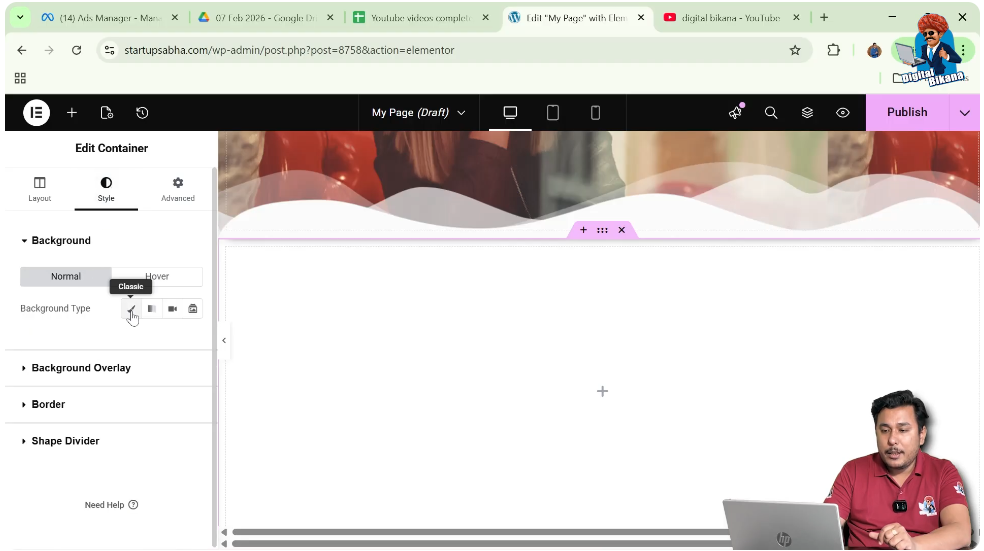
Step 6: Select Background Type
In the background section:
- Choose Classic as the background type
Step 7: Choose Image
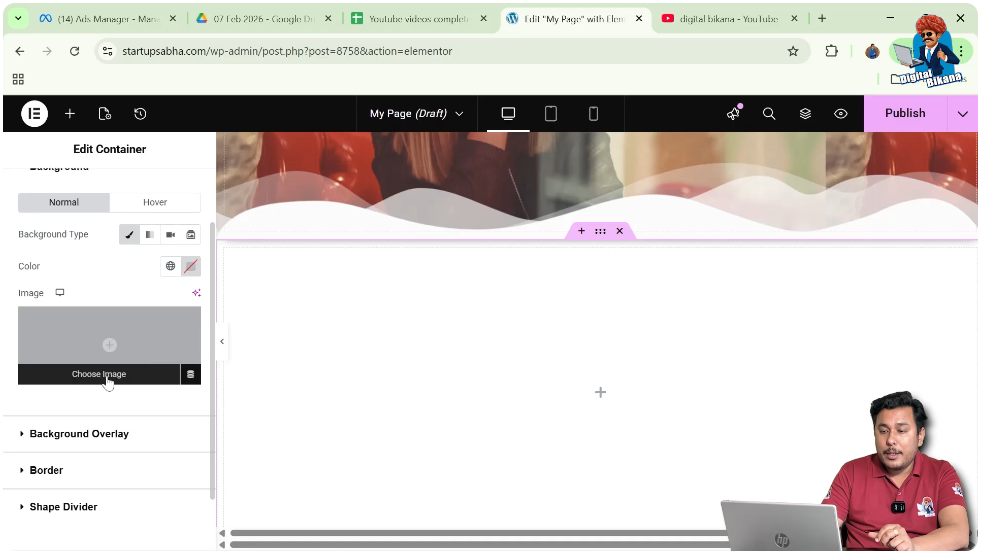
Click on Choose Image and select an image from:
- Media Library
- Or upload a new image
Click on Select to apply the image.
Adjusting Container Height
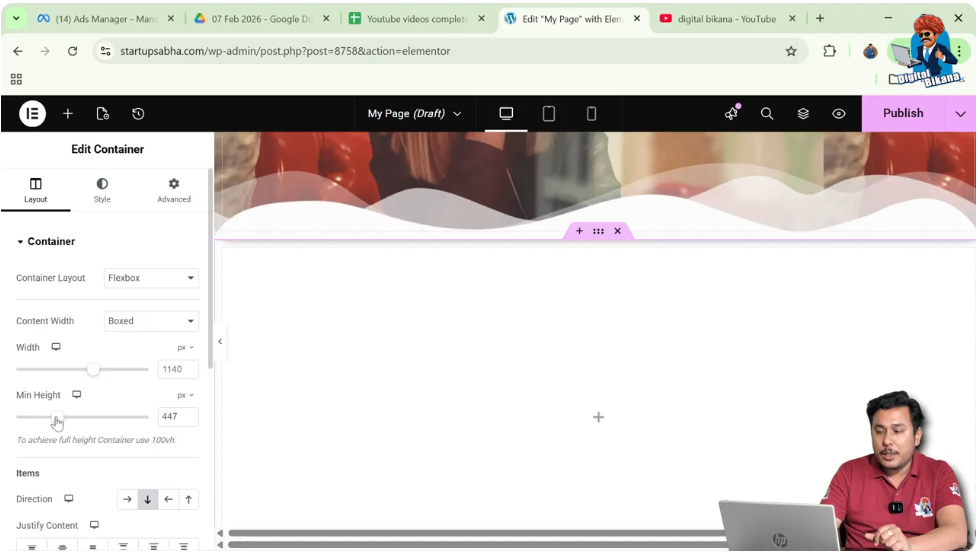
Step 8: Increase Height
Go to the Layout tab and increase the container height using the minimum height option.
This ensures the background image is clearly visible.
Adjusting Image Position
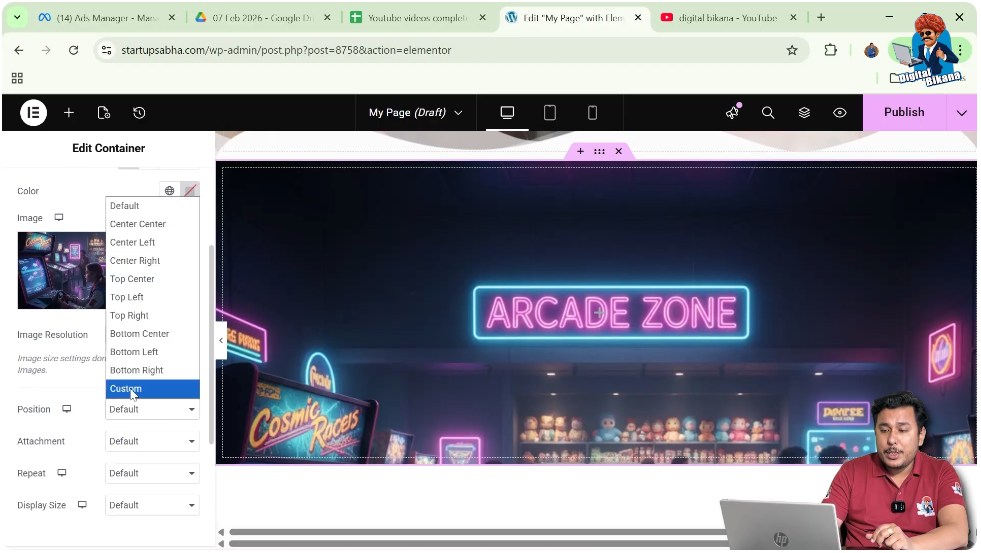
Step 9: Set Position
Go back to the style settings and:
- Set position to Custom
- Adjust the Y-axis to move the image upward
Understanding Image Repeat Issue
When the image size is smaller than the container:
- The image starts repeating
- This happens especially when display size is set to default
- Lower image resolution also causes repetition
Adjusting Display Size
Step 10: Change Display Size
You can fix repetition by:
- Setting display size to Cover
This stretches the image to fit the container.

Changing Image Resolution
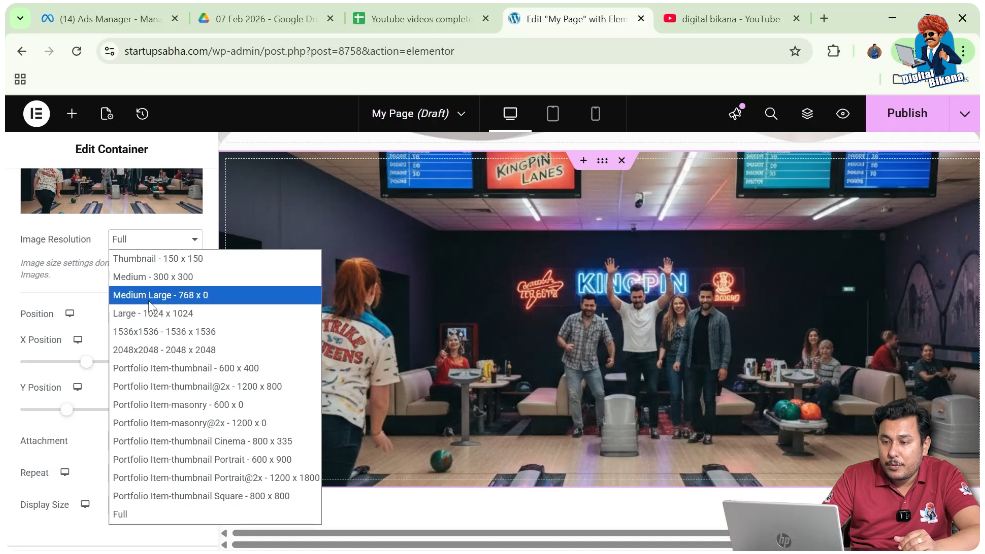
Step 11: Select Image Resolution
If the resolution is too small:
- The image repeats
You can try:
- Medium
- Large
- Full
Setting No Repeat
Step 12: Select No Repeat Option
In the background settings:
- Locate the Repeat option
- Select No Repeat
This ensures the image appears only once.

Understanding Repeat Options
Elementor provides multiple repeat options:
- Repeat
- Repeat-X
- Repeat-Y
- No Repeat
Repeat
Repeats image both horizontally and vertically.
Repeat-X
Repeats image horizontally.
Repeat-Y
Repeats image vertically.
No Repeat
Displays the image only once without repetition.
Practical Example
In the demonstrated process:
- A container is created
- Background image is added
- Container height is increased
- Image resolution is adjusted
- Image starts repeating
- No repeat option is selected
This results in a clean background image display.
Benefits of No Repeat Background
Clean Design
Prevents cluttered appearance.
Better Visual Control
Ensures image displays as intended.
Professional Look
Improves overall website design.
Common Mistakes to Avoid
Using Small Images
Low resolution images cause repetition.
Ignoring Display Size
Default display size may repeat images.
Not Adjusting Container Height
Small height may hide image properly.
Best Practices
- Use high-quality images
- Set display size to cover
- Combine with no repeat option
- Adjust positioning carefully
Final Understanding
Setting a background image to no repeat in Elementor involves adding the image, adjusting its size and position, and selecting the no repeat option from background settings.
Conclusion
The no repeat feature in Elementor helps you maintain a clean and professional design. By understanding how image resolution, display size, and repeat settings work together, you can control how your background images appear.
By following the steps explained in this guide, you can easily set your background images to no repeat and improve your website design.

Related Posts


