If you have created a website and published multiple web pages or blog posts, you may assume that all of them are automatically indexed on Google. However, that is not always the case. Many website owners later realize that a significant number of their pages are not indexed in Google Search results. As a result, they do not receive the expected traffic.
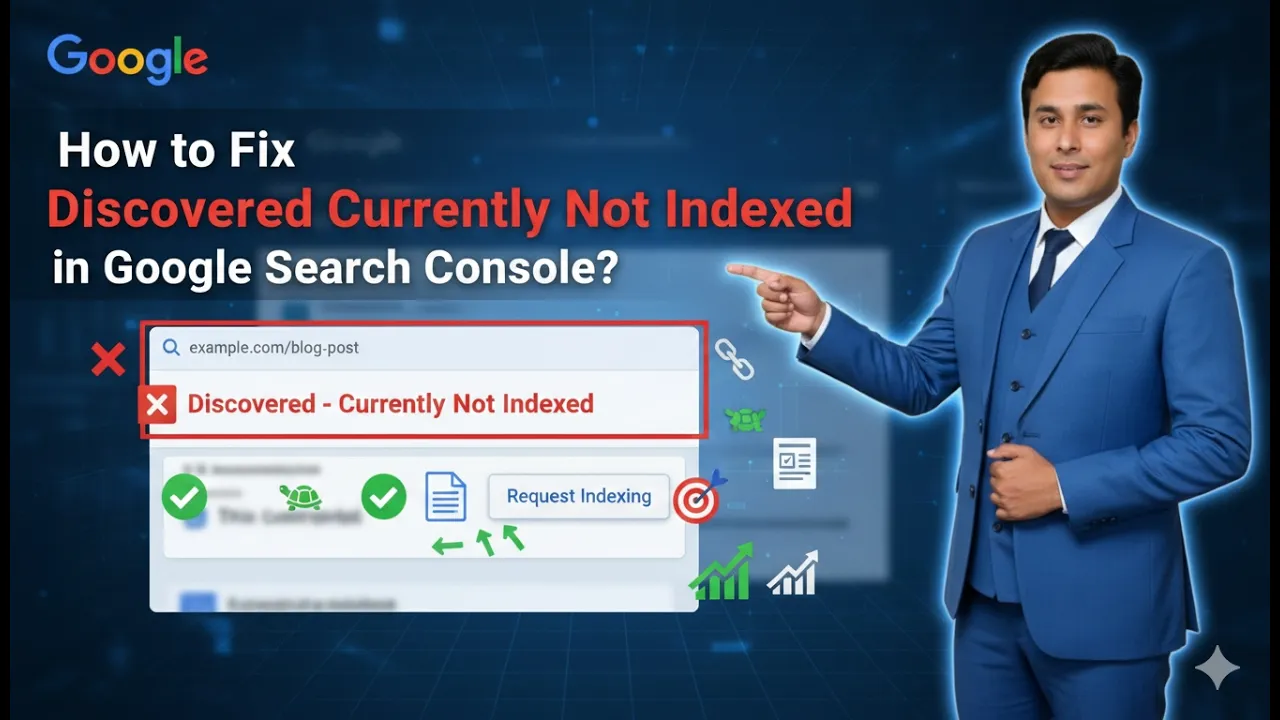
One common issue you may see in Google Search Console is “Discovered – Currently Not Indexed.” In this article, we will understand what this issue means, why it happens, and how you can fix it step by step using Google Search Console.
Understanding the “Discovered – Currently Not Indexed” Issue
When you log in to your Google Search Console dashboard, you can check whether your web pages are indexed or not. If some of your pages fall under the “Discovered – Currently Not Indexed” category, it means that Google has found those pages but has not added them to its search engine results yet.
In simple words, Google’s crawlers have discovered your page while crawling your website, but the page has not been indexed and is not appearing in Google Search results.
This can be frustrating, especially when you have invested time and effort into creating content.
How to Check the Indexing Status in Google Search Console
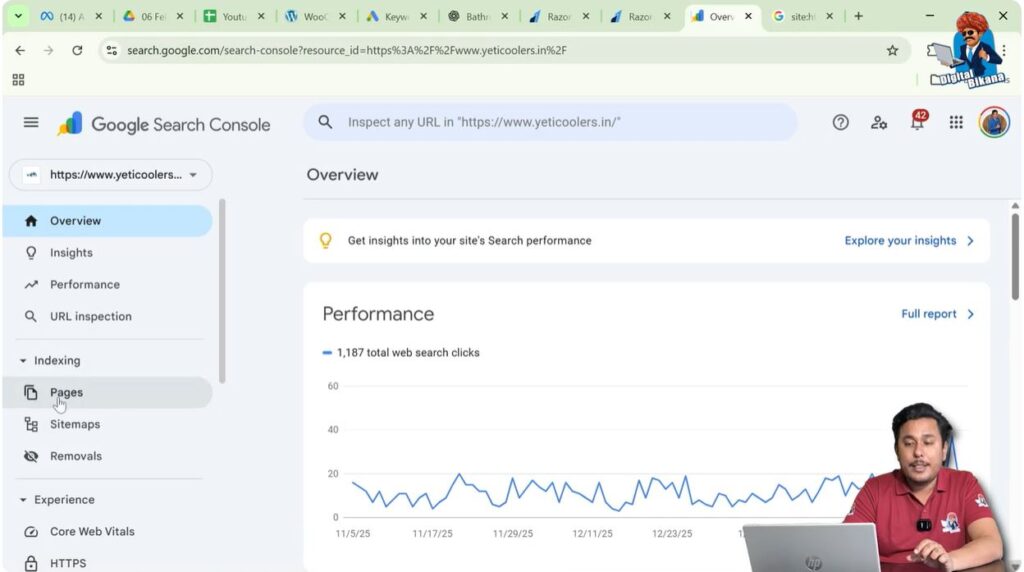
Navigate to the Pages Section
To check this issue in your Google Search Console:
Step 1: Open Google Search Console Dashboard
Log in to your Google Search Console account.
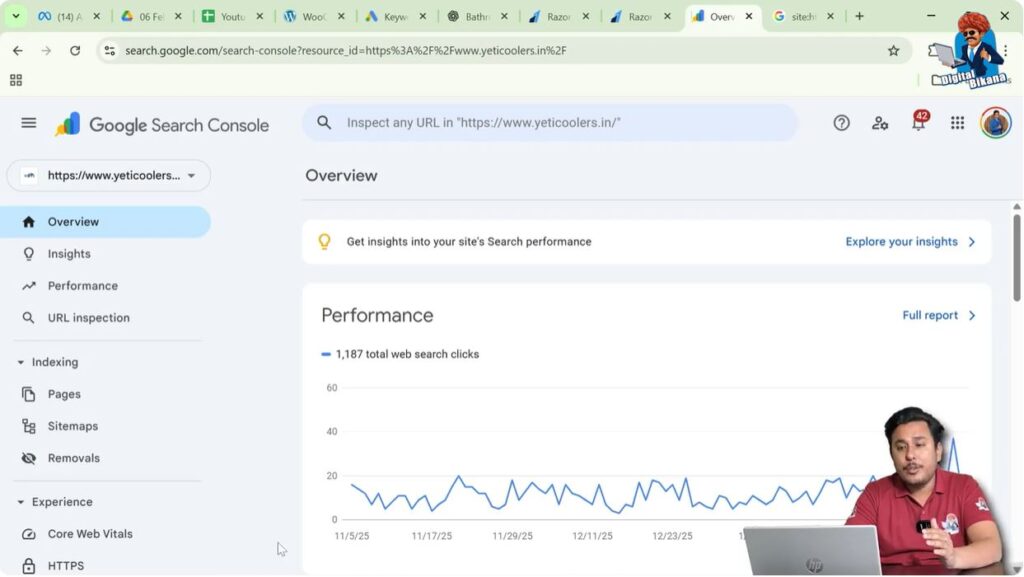
Step 2: Click on “Indexing”
In the left-side toolbar, you will find the Indexing option.
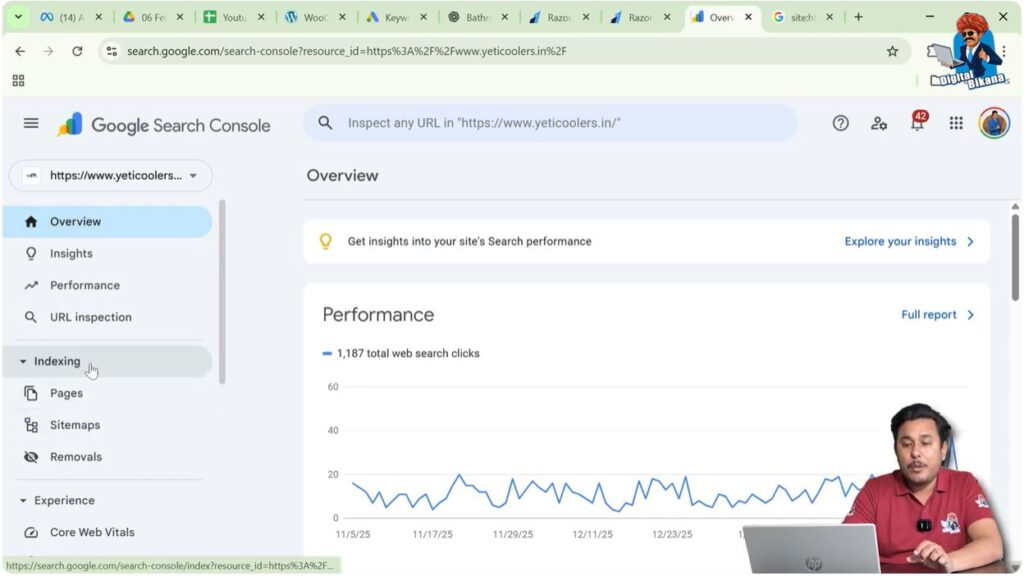
Step 3: Click on “Pages”
Under the Indexing section, click on Pages.
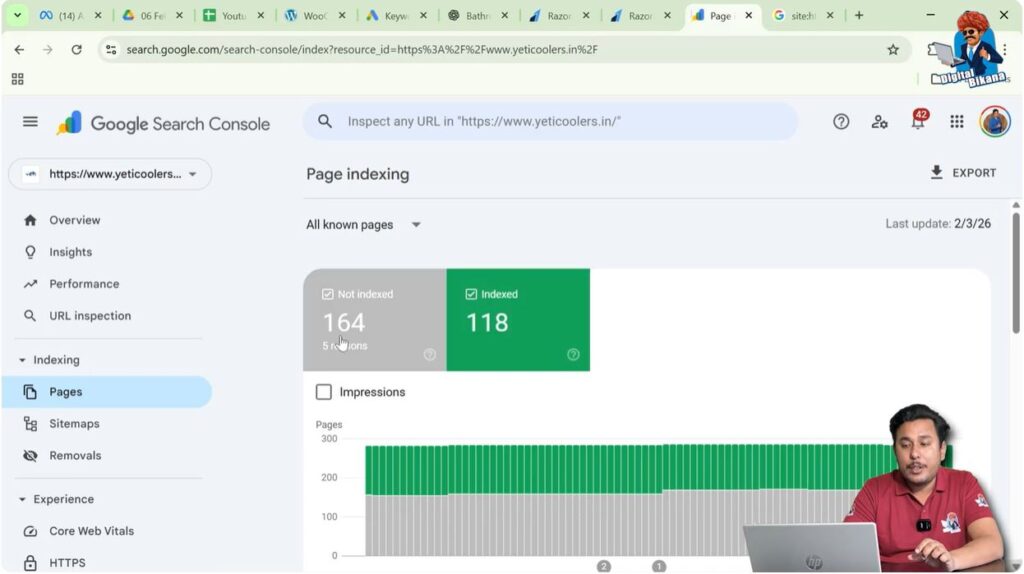
Here, you will see a summary of your indexed and non-indexed pages. For example, it may show something like:
- 118 pages indexed
- 164 pages not indexed
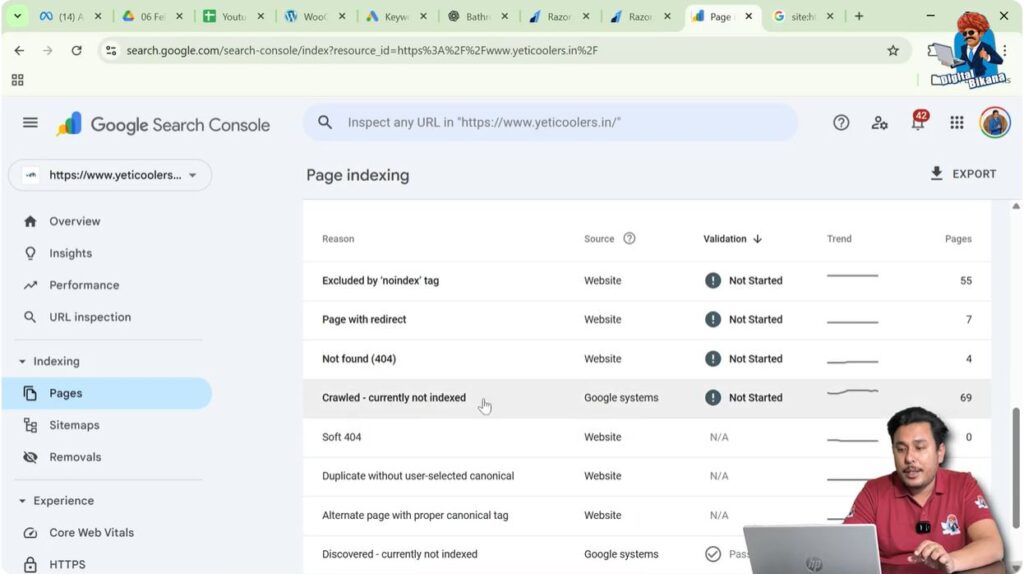
When you scroll down, you will see different types of indexing issues, such as:
- Crawled – Currently Not Indexed
- Excluded by ‘noindex’ tag
- Discovered – Currently Not Indexed
For now, we are focusing only on Discovered – Currently Not Indexed.
What Does “Discovered – Currently Not Indexed” Mean?
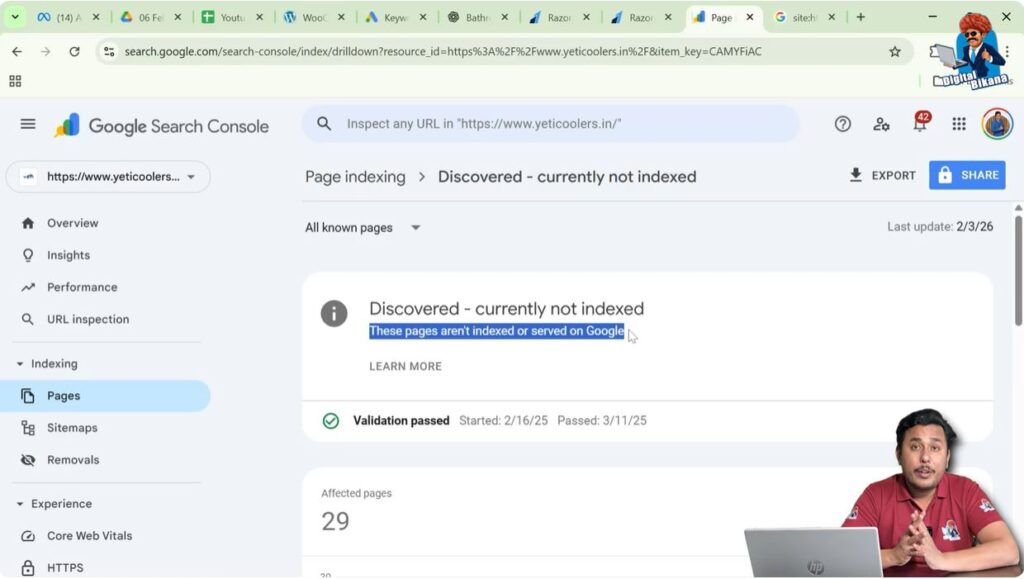
If it shows that 29 pages are “Discovered – Currently Not Indexed,” it means:
- Google has discovered these pages.
- Google crawlers or spiders have found them.
- However, Google has not indexed them in the Search Engine Result Pages (SERPs).
These pages are not being served on Google search results, even though Google is aware of their existence.
Possible Reasons for This Issue
There can be several reasons why Google has discovered your page but not indexed it. Some of the common reasons include:
Low-Quality or AI-Written Content
If the content on that page is poorly written, lacks readability, or appears to be low-quality AI-generated content, Google may decide not to index it.
Duplicate Content
If you have copied content from another website, and that content already exists on the internet, Google may ignore your version. Google generally avoids indexing duplicate content.
Lack of Content Depth
If your content does not cover the topic in detail and lacks depth, it may not be considered valuable enough to be indexed.
Non-Unique or Obvious Content
If the content is not unique or only contains very obvious information that does not add value, Google may skip indexing it.
Page Speed Issues
If the page takes too much time to load, it could also be a reason for non-indexing.
Robots.txt Blocking
If your robots.txt file is blocking that particular page, Google may not index it.
Orphan Pages
If the page does not have internal links from other pages on your website, it becomes an orphan page. Google may not prioritize such pages for indexing.
No Backlinks
If the page does not have any backlinks from other websites, Google may not consider it important enough to index.
There can be many other reasons, but these are some of the common ones.
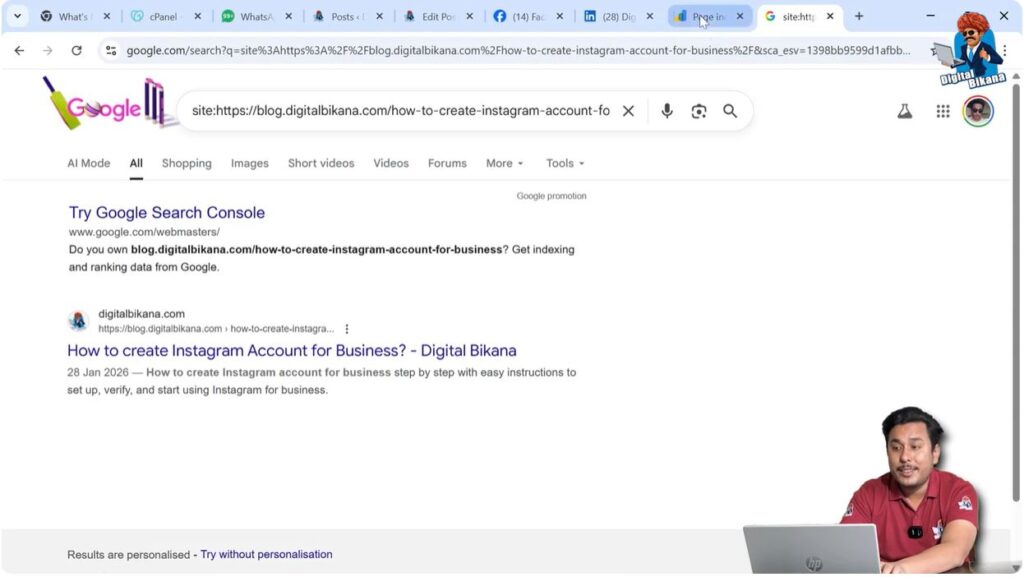
How to Check If a Page Is Indexed Using the “Site:” Operator
Before requesting indexing, you can manually check whether the page is indexed or not.
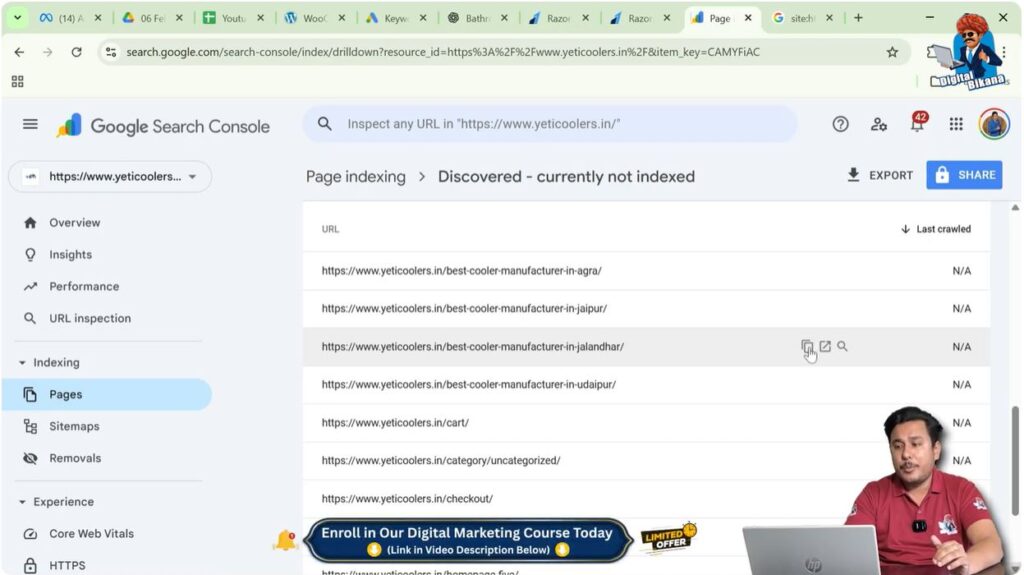
Step 1: Copy the URL
Go to the list of affected pages under “Discovered – Currently Not Indexed” and copy one of the URLs.
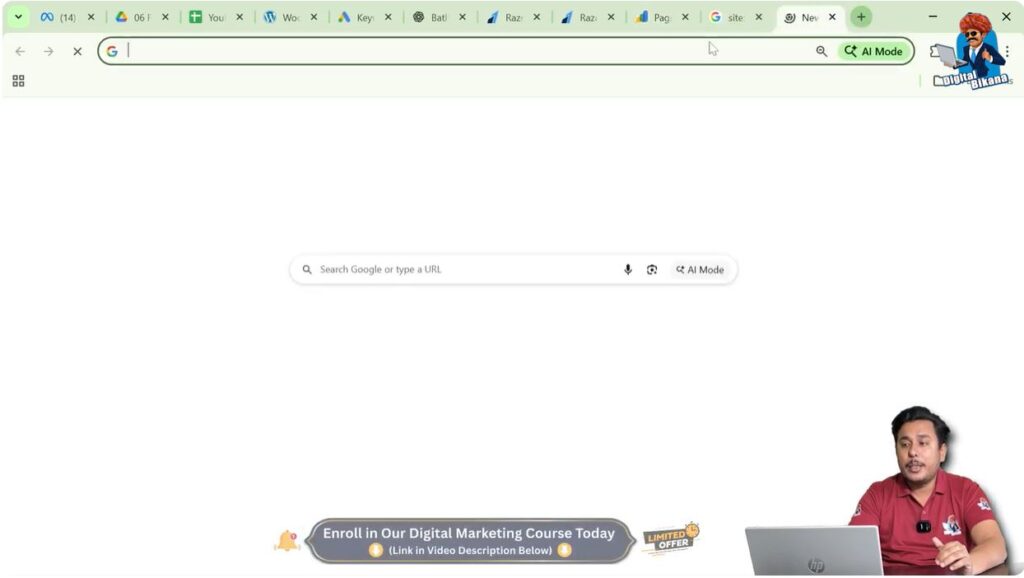
Step 2: Open a New Google Tab
Open a new tab in your browser.
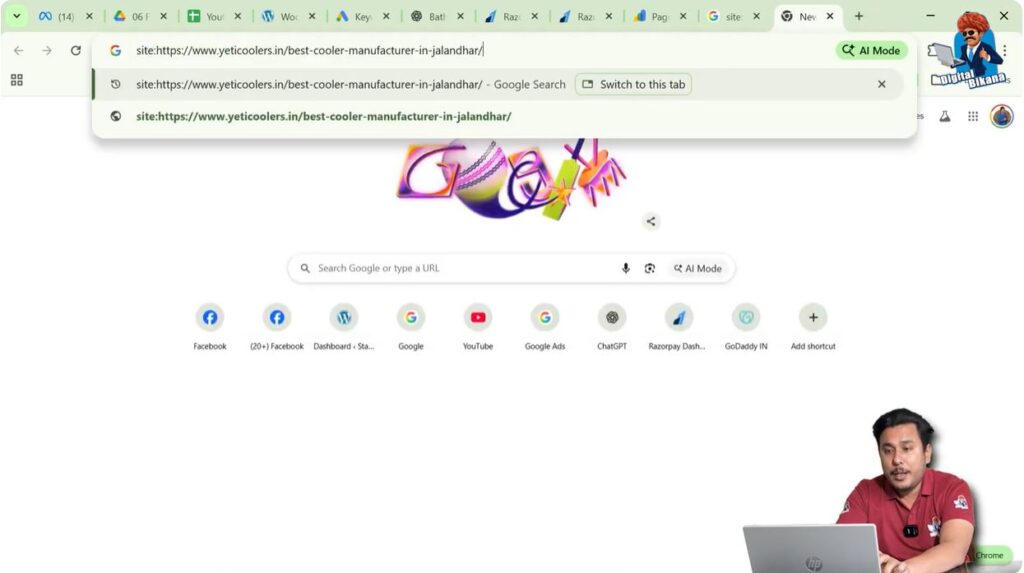
Step 3: Use the Site Operator
In the Google search bar, type:
site:yourpageURL
Replace “yourpageURL” with the full URL of the page.
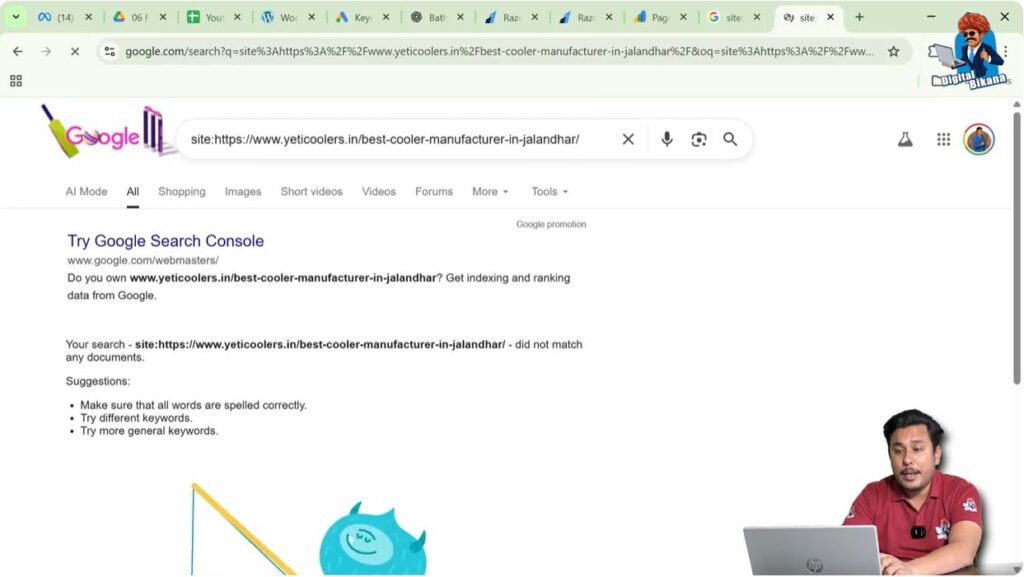
Step 4: Press Enter
If no result appears, it means the page is not indexed in Google Search.
How to Request Indexing in Google Search Console
If you confirm that the page is not indexed, you can request indexing through Google Search Console.
Step 1: Go Back to Google Search Console
Return to your Google Search Console dashboard.
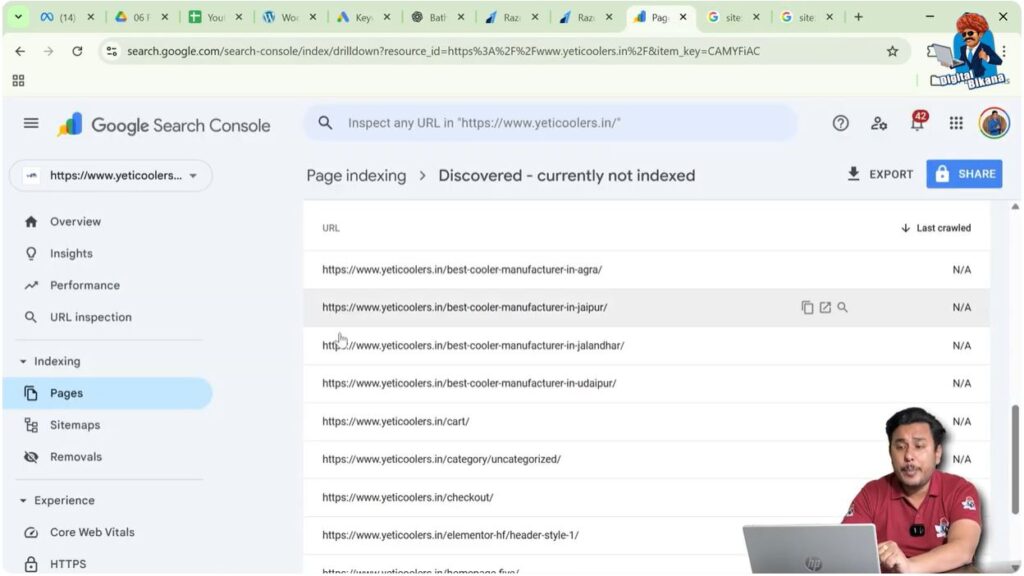
Step 2: Paste the URL in the Inspection Bar
At the top of the dashboard, you will see a search bar that says “Inspect any URL.”
Paste the copied URL into this bar and press Enter.
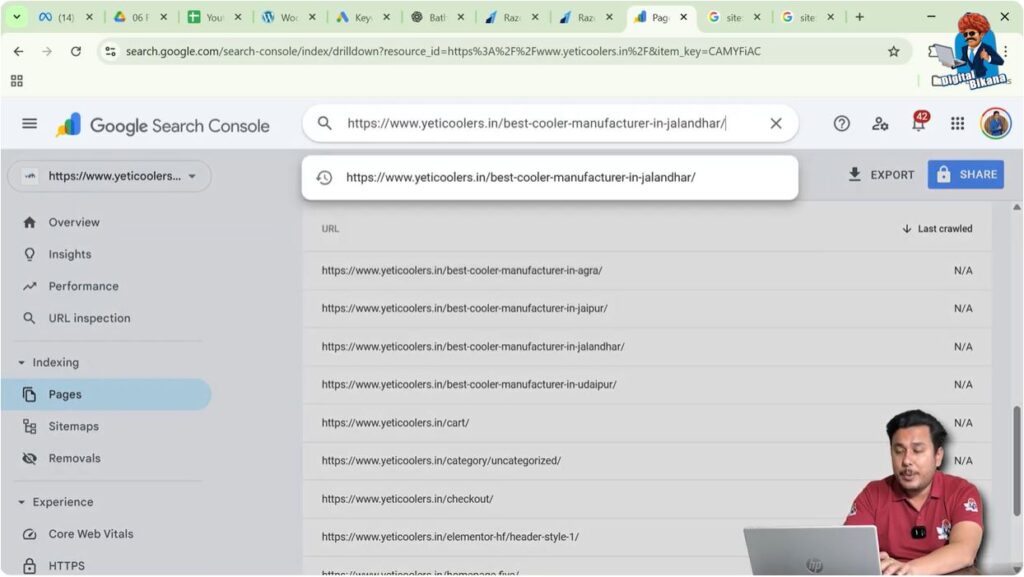
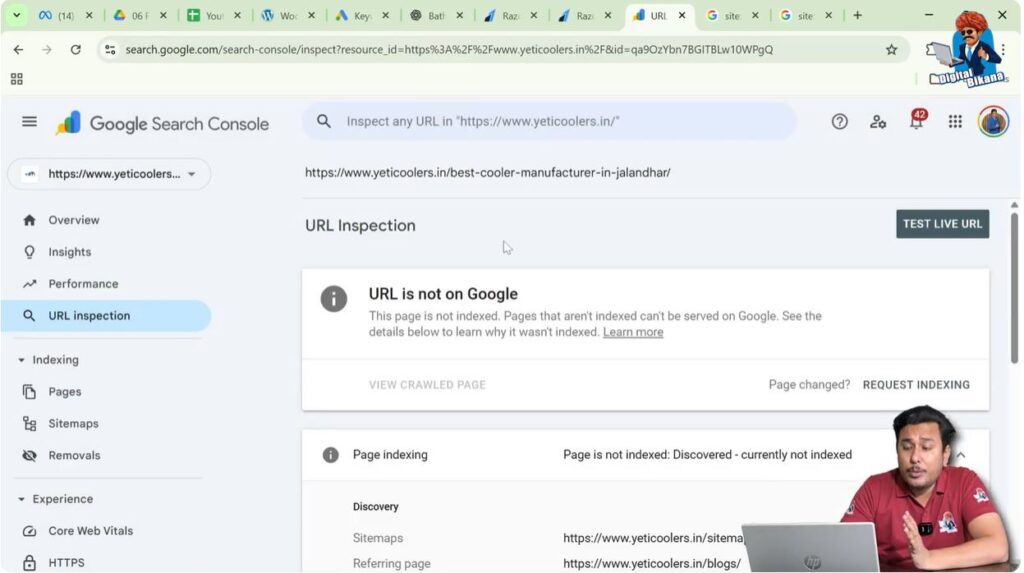
Step 3: Check URL Inspection Details
You will see details like:
- Last crawl date
- Indexing allowed
- Page fetch
- Crawl status
In some cases, it may show “Not applicable” for several fields.
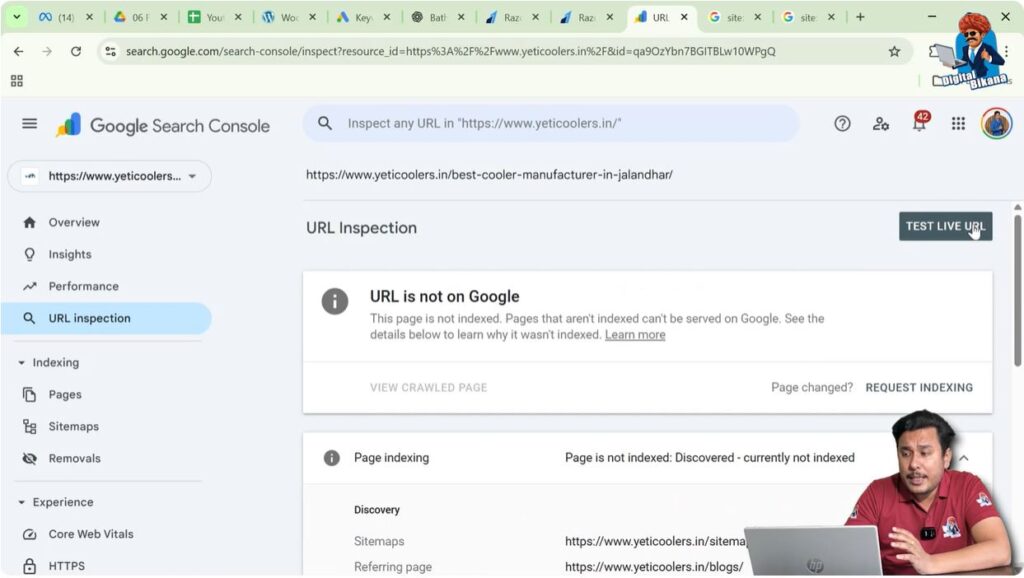
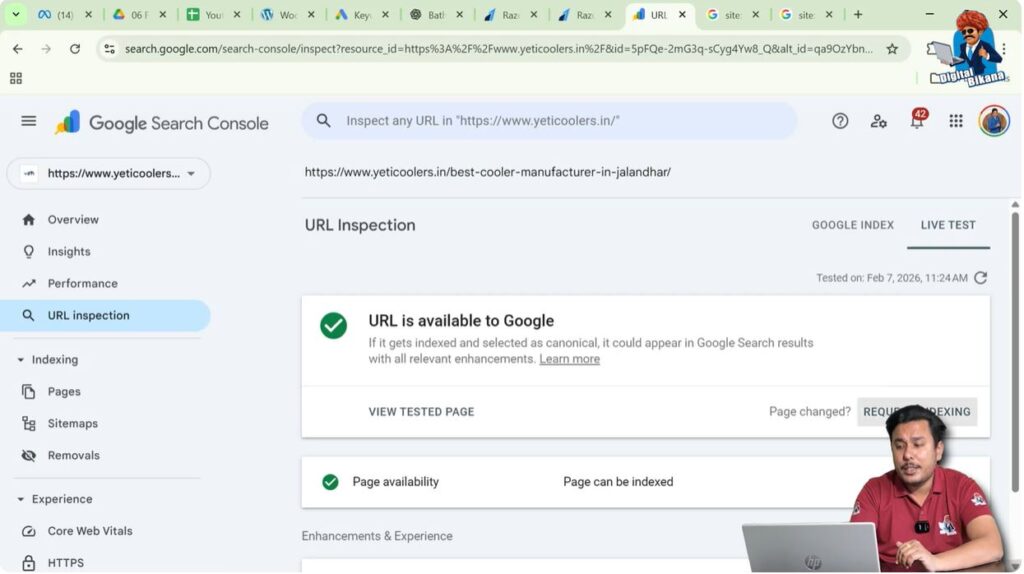
Step 4: Click on “Test Live URL”
You can click on Test Live URL to check whether the page is accessible to Google.
It may show that the URL is available on Google. However, this does not mean it is indexed in search results yet.
Step 5: Click on “Request Indexing”
After testing, click on the Request Indexing button.
You will see a message that the URL has been added to a priority crawl queue.
Google also mentions that submitting a page multiple times will not change its queue position or priority.
Important Things to Remember About Indexing Requests
Do Not Submit Repeatedly
You do not need to request indexing again and again for the same page. Submit it once and wait.
Wait for 24 to 48 Hours
After submitting the request, wait for 24 to 48 hours. Your page may get indexed automatically during this time.
There Is a Crawling Limit
There is a crawling limit. It is recommended that you request indexing for only a few pages per day.
For example:
- Request indexing for 5 pages per day.
- If you have 50 affected pages, submit requests gradually over 10 days.
This method increases the chances of proper indexing without hitting limits.
Why Some Indexed Pages Still Show as Affected
Sometimes, you may notice something confusing.
You may:
- Submit an indexing request.
- Later check using the “site:” operator.
- See that the page is already indexed.
However, in Google Search Console, the page may still appear under “Discovered – Currently Not Indexed.”
This happens because Google Search Console data updates periodically. It may still be showing older data.
When the new update comes, the number of affected pages will automatically decrease.
So, if your page is already indexed but still appears in the affected list, you just need to wait for the next update.
Rechecking Pages Manually
You can manually verify different URLs:
- Copy another affected URL.
- Use the
site:operator in Google. - Check whether it appears in search results.
If it appears, it means it is already indexed, and you only need to wait for Google Search Console to refresh its data.
If it does not appear, you can:
- Inspect the URL again.
- Test the live URL.
- Click on Request Indexing.
What Happens After You Click “Test Live URL”
When you click on Test Live URL, Google checks whether the page is accessible.
It may show:
- URL is available to Google.
However, this does not mean the page will instantly appear in search results.
Even after requesting indexing, it can take 24 to 48 hours for the page to start appearing in Google Search results.
So, patience is important.
Handling Multiple “Discovered – Currently Not Indexed” Pages
If you have many pages under this issue, follow a structured approach:
- Identify all affected pages.
- Review their content quality.
- Improve content depth and uniqueness if required.
- Ensure proper internal linking.
- Check page speed.
- Verify robots.txt is not blocking them.
- Request indexing in batches (for example, 5 pages per day).
After a few days, check again in Google Search Console. Many pages will likely move from “Not Indexed” to “Indexed.”
If some pages remain unindexed even after multiple attempts, rework those specific pages and improve their quality.
Final Thoughts
The “Discovered – Currently Not Indexed” issue in Google Search Console is common and should not cause panic. It simply means that Google knows about your page but has not yet indexed it.
To fix this issue:
- Check the page using the
site:operator. - Inspect the URL in Google Search Console.
- Test the live URL.
- Request indexing.
- Wait for 24 to 48 hours.
- Submit requests gradually if you have many pages.
- Improve content quality where necessary.
Sometimes, even after indexing, Google Search Console may show outdated data. In such cases, wait for the next update.
By following these steps properly and patiently, most of your affected pages will get indexed in Google Search results.
This is how you can fix the “Discovered – Currently Not Indexed” issue in Google Search Console effectively.

Related Posts