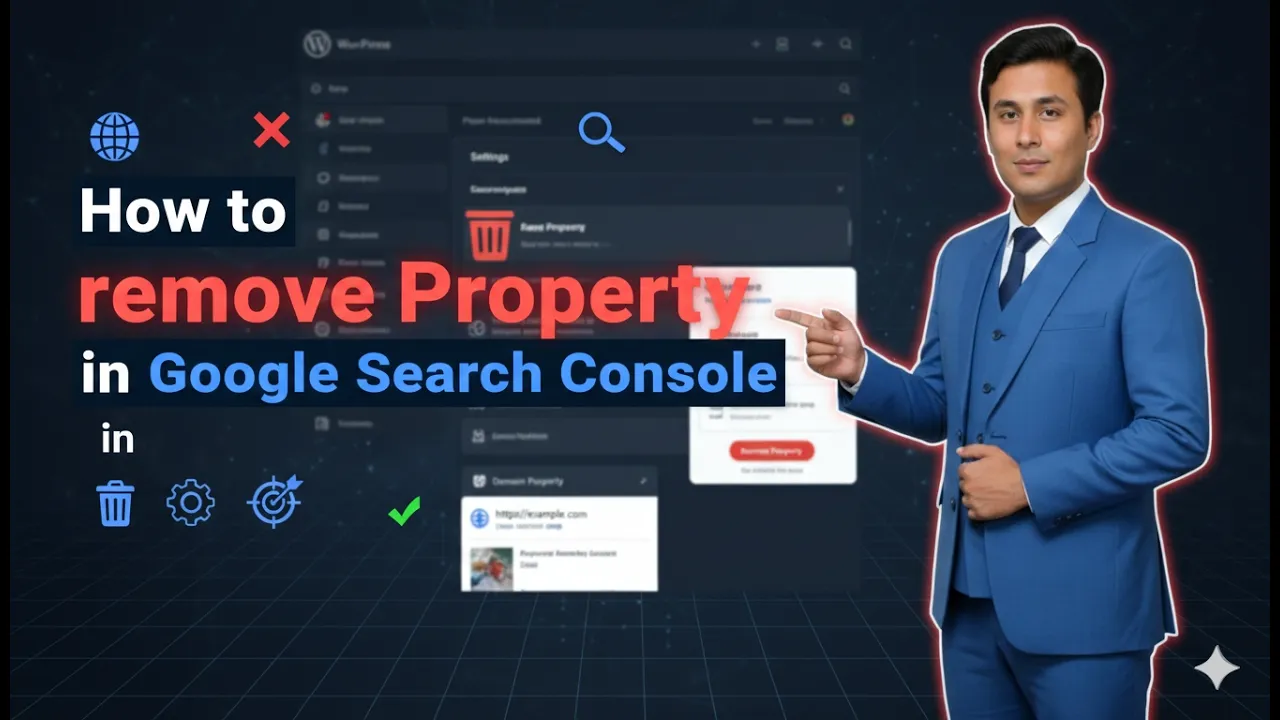
Google Search Console allows you to manage multiple website properties under one account. Sometimes, you may need to remove a property from your account. This can happen for several reasons. You may have canceled the domain name, demolished the website, migrated to a new domain, or simply no longer want to manage that property.
In this article, you will learn how to remove a property from Google Search Console step by step. The process is very simple and can be completed within a few minutes.
Understanding What a Property Means in Google Search Console
Before removing a property, it is important to understand what a property represents in Google Search Console.
A property in Google Search Console refers to a website or domain that you have added and verified. Once verified, Google allows you to:
- Monitor performance
- Track impressions and clicks
- Submit sitemaps
- Analyze indexing
- View search analytics
Each website you add is treated as a separate property.
If you no longer want to manage a specific website, you can remove that property from your account.
Reasons for Removing a Property
There are several situations where removing a property makes sense.
You may want to remove a property if:
- You have canceled the domain name.
- You have demolished or deleted the website.
- You are no longer planning to build a website on that domain.
- You have transferred ownership to someone else.
- You added the property for testing purposes only.
In such cases, keeping the property in your Google Search Console account may not be necessary.
Accessing Google Search Console Dashboard
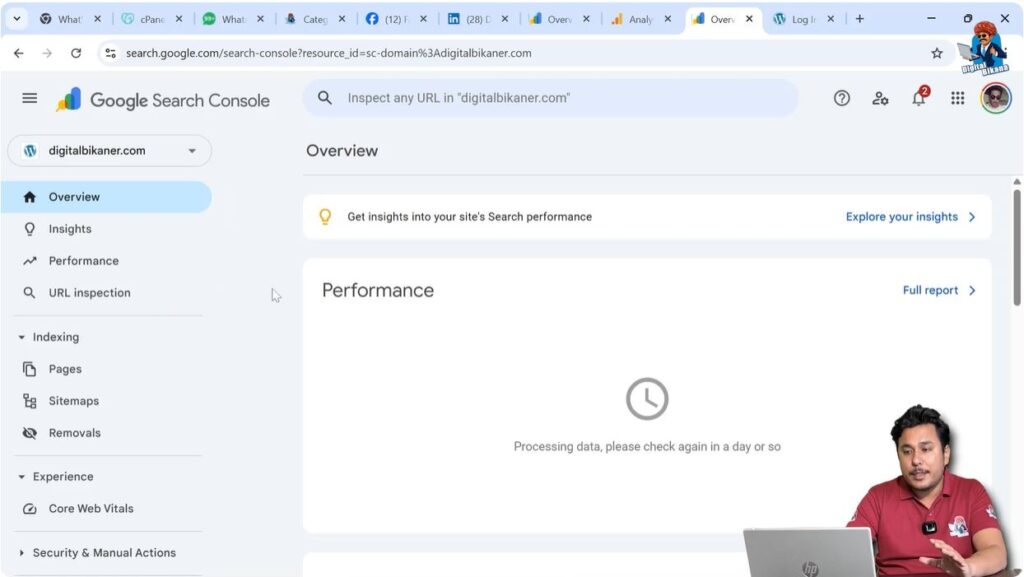
To remove a property, first log in to your Google Search Console account.
Once you log in, you will see the dashboard with your selected property displayed at the top.
For example, you might see a property such as:
digitalbikaner.com
If this is the property you want to remove, make sure it is currently selected.
Navigating to the Settings Section
The option to remove a property is located inside the Settings section.
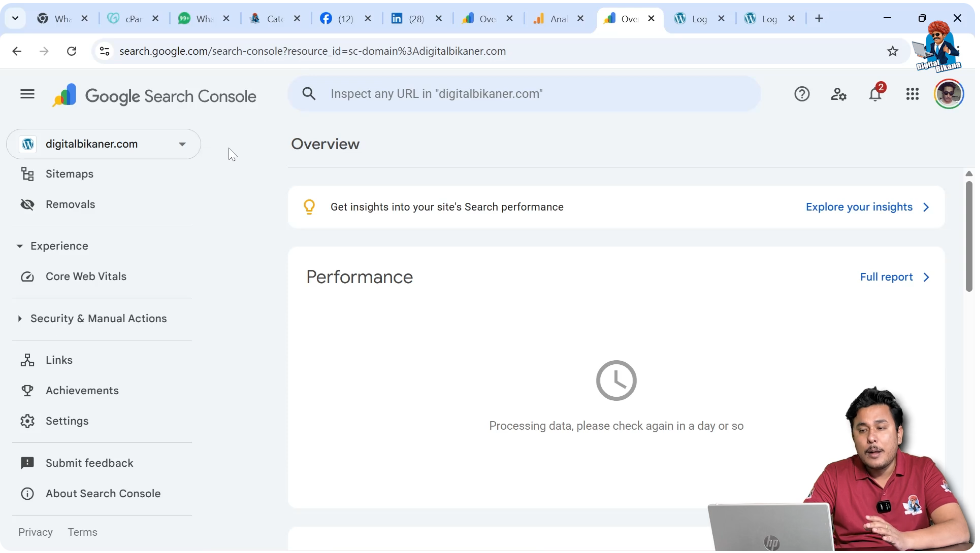
Step 1: Scroll Down in the Left Side Toolbar
On the left side of the Google Search Console dashboard, you will see multiple options such as:
- Overview
- Performance
- Indexing
- Experience
- Enhancements
- Security & Manual Actions
Scroll down until you see Settings.
Step 2: Click on Settings
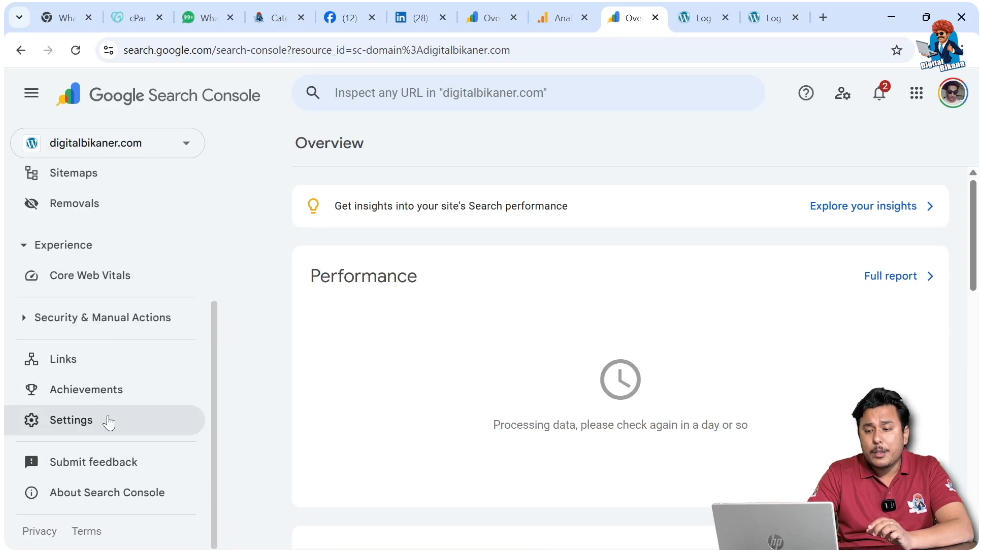
Click on the Settings option.
This will open the property settings page.
Reviewing Property Information
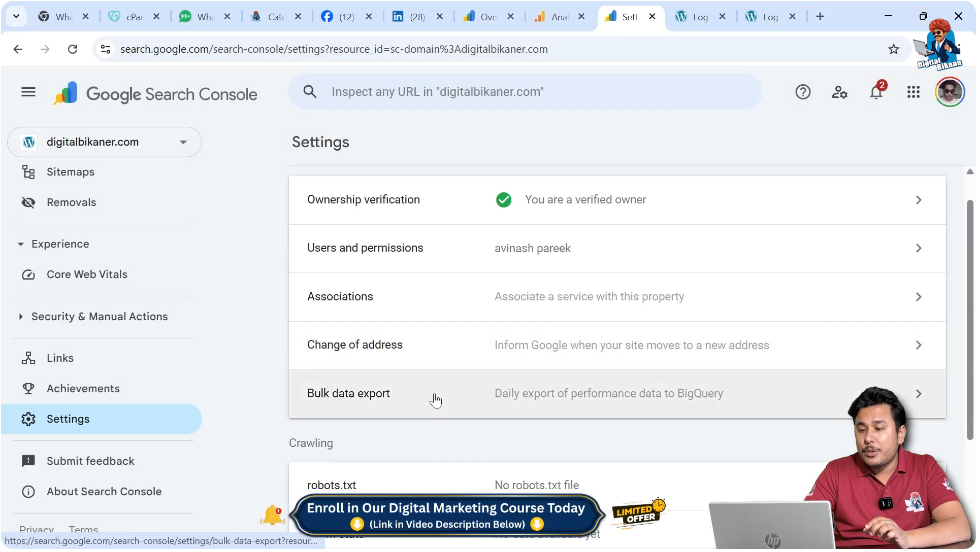
Inside the Settings section, you will see information related to the selected property.
You can view:
- Property type
- Ownership verification details
- Associated users and permissions
- Property added account date
You can also see when this property was added to your account.
This information helps confirm that you are removing the correct property.
Locating the Remove Property Option
Scroll down in the Settings page.
On the right side, you will see an option labeled:
Remove Property
This option is usually highlighted in red color to indicate that it is a permanent action.
Removing the Property
Step 3: Click on Remove Property
Click on the Remove Property option.
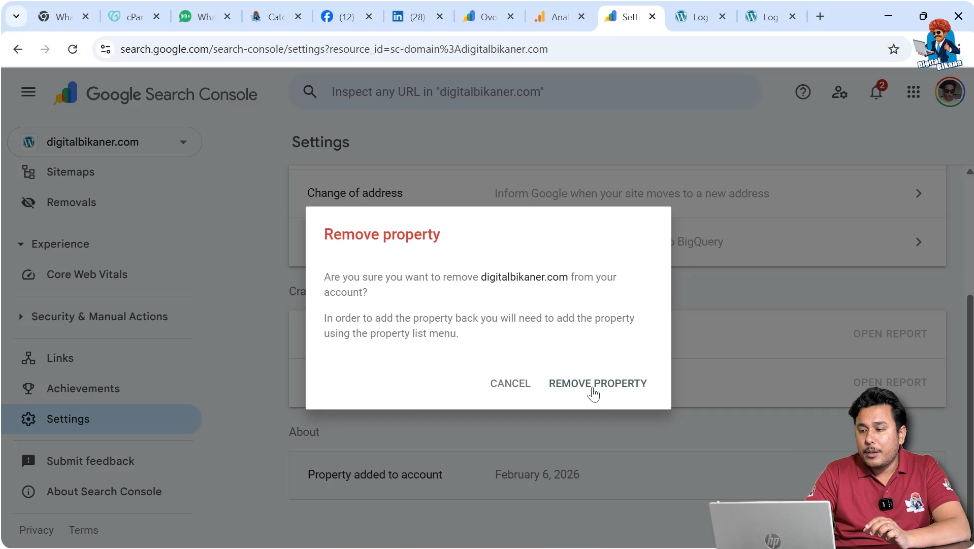
After clicking, a confirmation message will appear.
Step 4: Confirm Removal
Click on Remove Property again to confirm.
Once confirmed, the property will be removed from your Google Search Console account.
What Happens After Removing a Property?
After removing the property:
- The property disappears from your dashboard.
- You no longer have access to its performance data.
- You cannot view impressions, clicks, or indexing data.
- It will no longer appear in your property list.
However, removing the property from your account does not delete the website itself. It only removes access from your Google Search Console account.
If someone else has ownership access, they may still see the property.
Important Things to Remember
Before removing a property, keep these points in mind:
- This action removes access only from your account.
- It does not delete your website from Google.
- It does not delete your domain name.
- You can re-add and verify the property again in the future if needed.
If you accidentally remove a property, you can simply add it again and verify ownership.
When Should You Leave Ownership Instead?
Sometimes, instead of removing the property completely, you may want to:
- Remove yourself as an owner.
- Transfer ownership to another user.
This can be done under the Users and Permissions section inside Settings.
If you are transferring the website to someone else, it is better to add them as an owner and then remove yourself.
Checking That the Property Has Been Removed
After clicking remove, return to your main dashboard.
Open the property dropdown menu at the top.
You will see that the removed property is no longer listed.
This confirms that the removal was successful.
Common Mistakes to Avoid
While removing a property, avoid these mistakes:
- Removing the wrong property accidentally.
- Removing property before transferring data.
- Forgetting to check ownership details.
Always double-check the domain name before clicking remove.
Security and Ownership Considerations
If your domain has been canceled or demolished:
- Removing it from Google Search Console is safe.
- It keeps your dashboard clean and organized.
If your website is no longer active, there is no need to keep the property in your account.
Can You Recover a Removed Property?
Yes.
If you remove a property by mistake, you can:
- Add the domain again.
- Verify ownership.
- Restore access to performance data.
Google Search Console retains historical data as long as the property exists and is verified again.
Summary of Steps
To remove a property in Google Search Console:
- Log in to Google Search Console.
- Select the property you want to remove.
- Scroll down the left side toolbar.
- Click on Settings.
- Scroll down to find Remove Property.
- Click on Remove Property.
- Confirm the action.
The property will be removed from your account immediately.
Conclusion
Removing a property from Google Search Console is a simple and straightforward process. If you have canceled your domain, demolished your website, or no longer wish to manage a property, you can easily remove it from your account.
Simply go to the Settings section, scroll down, click on Remove Property, and confirm the action. The property will be removed from your dashboard instantly.
By keeping your Google Search Console account organized and removing unused properties, you ensure better management of active websites and maintain clarity in your performance reports.

Related Posts