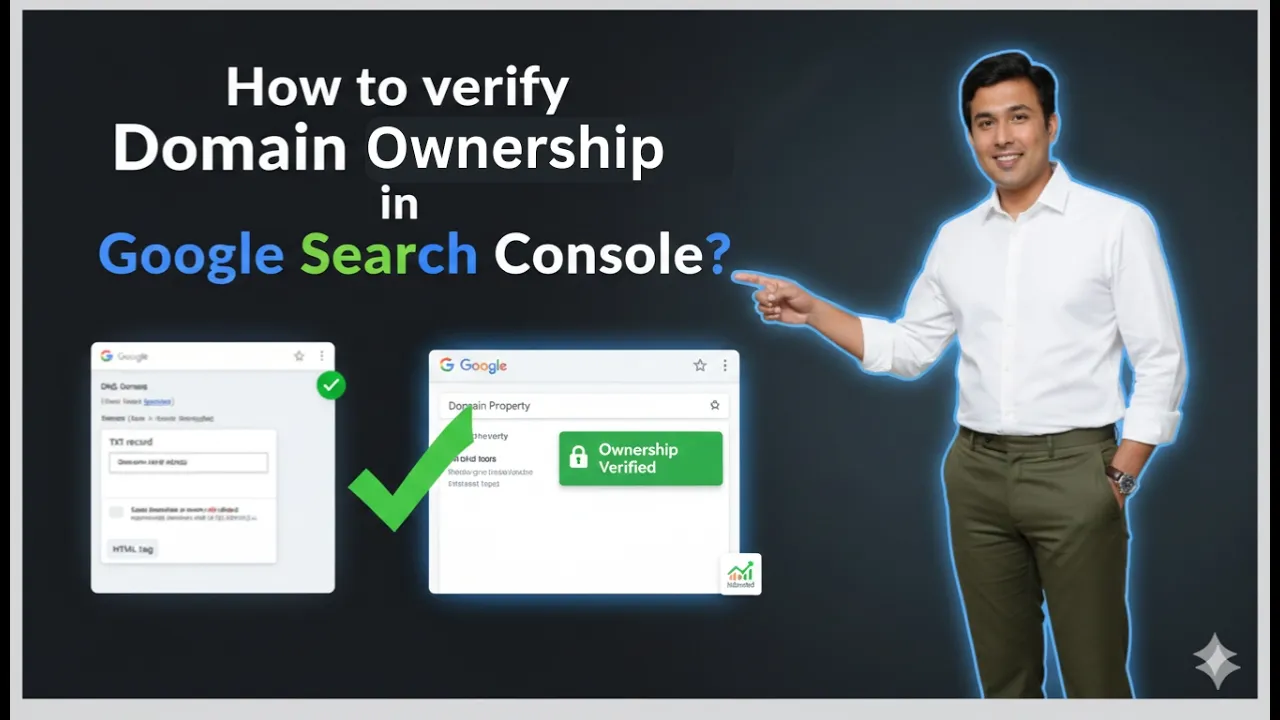
Verifying domain ownership in Google Search Console is an essential step when connecting your website to the platform. Without verification, you cannot access search performance data, indexing details, or other important insights related to your website. Google requires confirmation that you are the rightful owner of the domain before granting access to its data.
In this article, you will learn how to verify domain ownership in Google Search Console step by step. The process includes adding your domain as a property and completing verification through your domain provider.
Opening Google Search Console
Before verifying domain ownership, you need to access the Google Search Console platform.
Step 1: Search for Google Search Console
Open the Google search engine.
Type Google Search Console in the search bar.
Press Enter.
The search results page will appear.
Click on the first search result, which is the official Google Search Console platform.
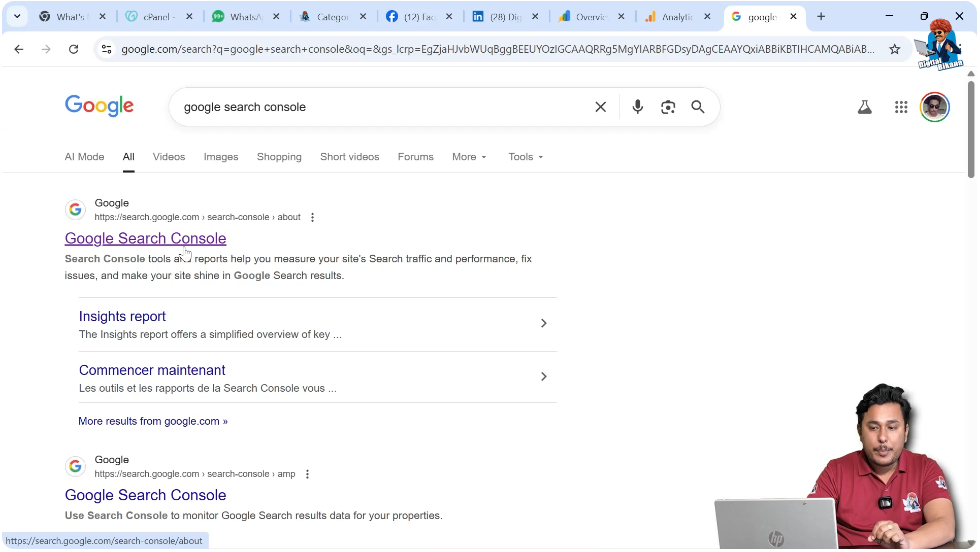
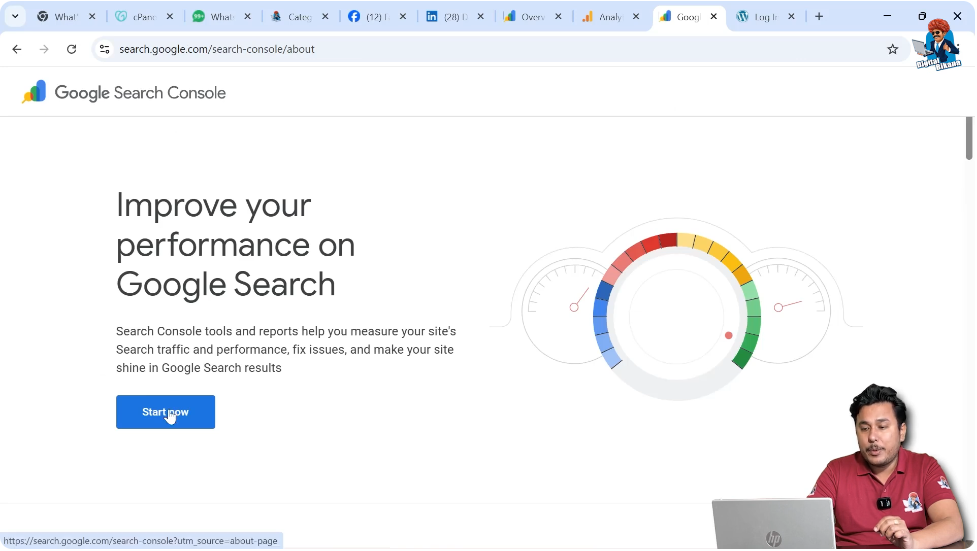
Accessing the Platform
After opening the Google Search Console website, click on Start Now.
If you are already logged in with your Google account and have previously added properties, you may directly see your dashboard.
If you have not added any property before, you will see the screen to add a new property.
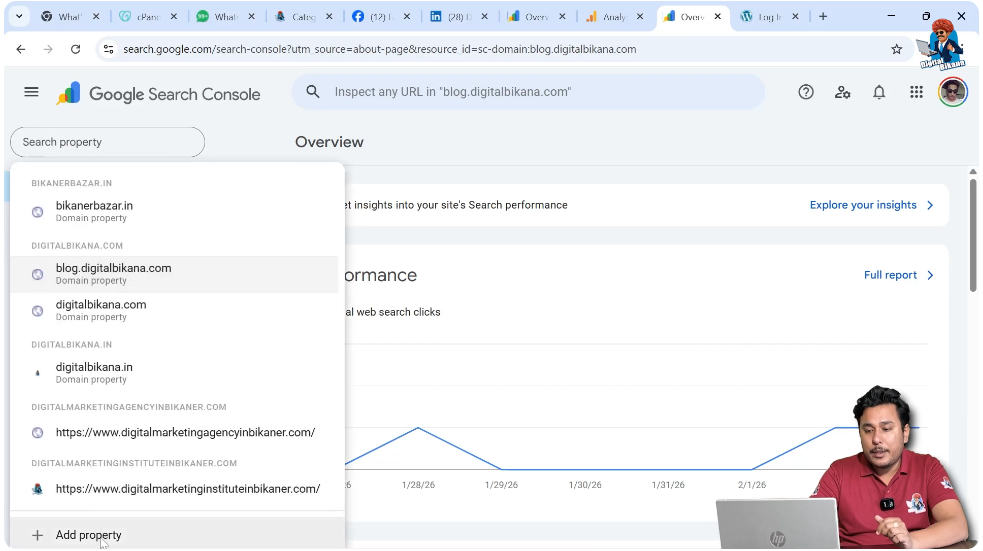
Adding a New Property
If you already have properties added in your Google Search Console account, you can add a new one.
Step 2: Click on Add Property
In the left side toolbar, click on the property selector.
Then click on Add Property.
If you are adding a property for the first time, the property selection screen will appear automatically.
This screen asks you to enter the domain name you want to connect with Google Search Console.
Entering the Domain Name
You will see two options for adding a property:
- Domain
- URL Prefix
For domain verification, select the Domain option.
Step 3: Enter the Domain Name
Enter your domain name in the required format.
You must enter the domain without:
- www
- https
For example:
example.com
Enter your domain in this format.
Click on Continue.

Starting the Verification Process
After clicking Continue, Google Search Console will begin verifying your domain ownership.
If your domain was purchased from a provider like GoDaddy, Google may detect it automatically.
In this case, Google will attempt to verify ownership through your domain provider.
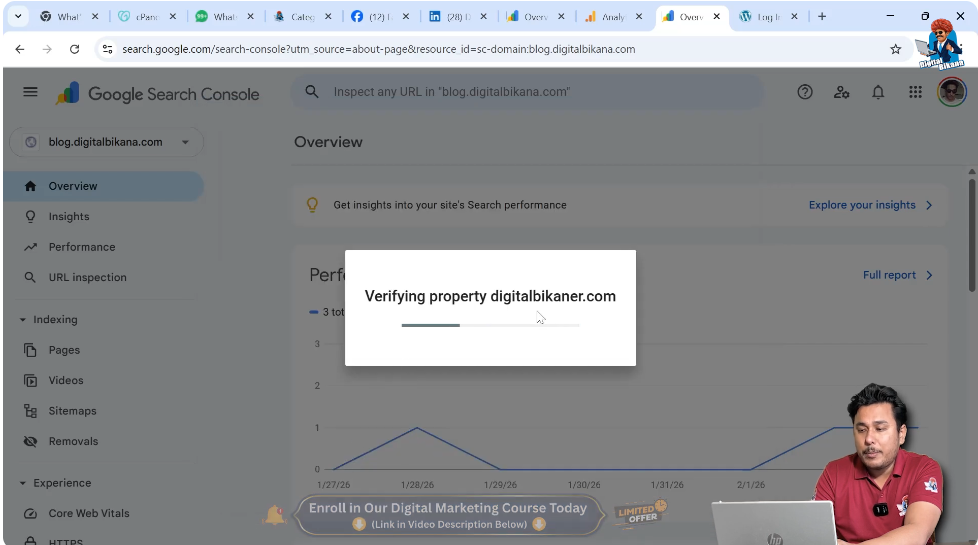
Verifying Through Domain Provider
If your domain is connected with a supported provider, Google Search Console will redirect you for verification.
Step 4: Authorize Verification
Click on Start Verification.
You may be redirected to your domain provider’s platform.
Sign in using your account credentials.
For example, if your domain was purchased from GoDaddy:
- Sign in to your GoDaddy account.
- Confirm that you are the domain owner.
Google Search Console will check whether you have purchased the domain.

Connecting and Verifying
After signing in to your domain provider:
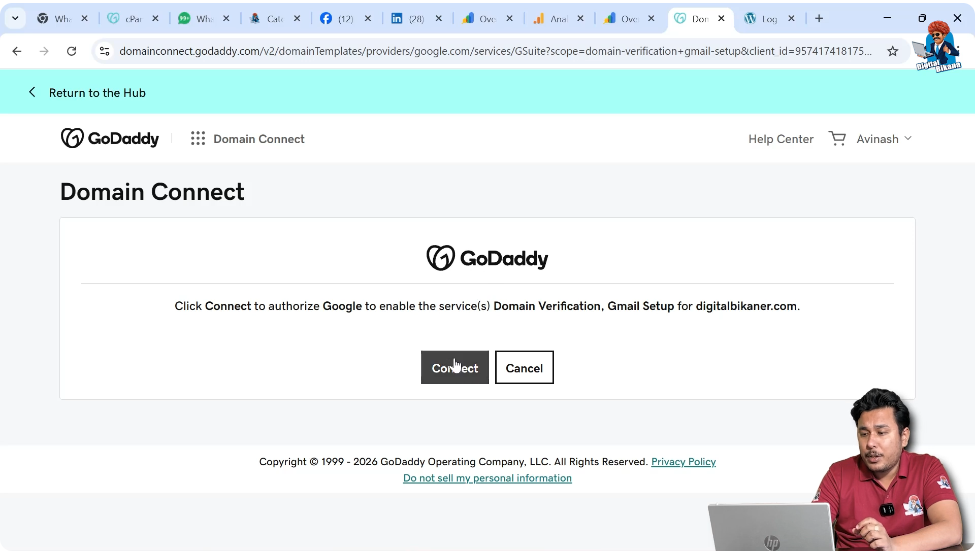
Click on Connect if prompted.
Google will then verify the domain ownership.
You may need to wait for a few seconds or a minute.
During this process, Google checks whether you are the rightful owner of the domain.
This verification ensures that no one can add someone else’s domain to their Google Search Console account.
Confirmation of Domain Ownership
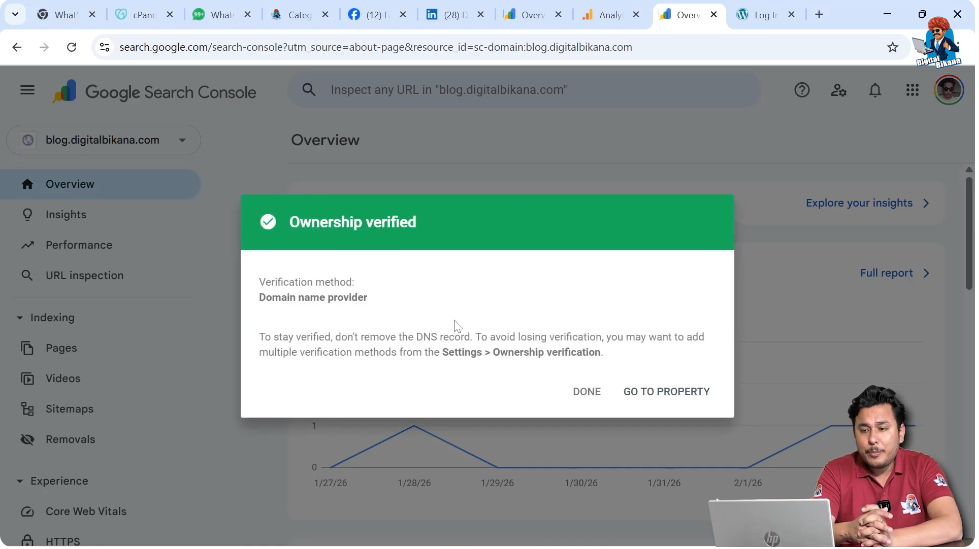
Once verification is complete, you will see a confirmation message.
The message will confirm that domain ownership has been verified.
At this stage, you can click on:
- Go to Property
or - Done
Click on Go to Property.
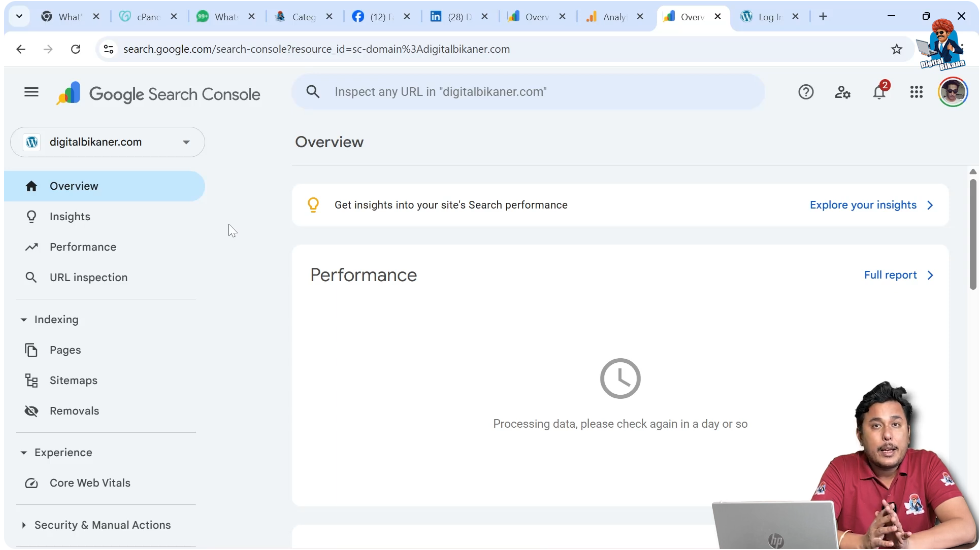
After this, your domain name will start appearing in the left side toolbar as a verified property.
Why Domain Verification Is Important
Domain verification is necessary for security reasons.
Without verification:
- Anyone could add your website to their Google Search Console account.
- They could access sensitive performance data.
- They could analyze keywords and traffic insights.
Verification ensures that only the rightful owner has access to the website’s search performance information.
Accessing the Verified Property
After successful verification:
Your domain will appear in the property list.
You can select it from the property selector.
You will then gain access to:
- Performance reports
- Indexing data
- Search queries
- Click and impression data
This allows you to monitor your website’s performance in Google Search.
What Happens If Verification Fails
If verification does not complete successfully:
- Check that you are logged into the correct domain provider account.
- Ensure that you entered the domain name in the correct format.
- Confirm that the domain is registered under your account.
You can repeat the verification process if necessary.
Security and Ownership Protection
Google Search Console does not allow adding someone else’s domain without ownership verification.
If it were possible to add any domain:
- You could view performance data of other websites.
- You could access keyword rankings.
- You could analyze competitor traffic.
To prevent this, Google strictly verifies domain ownership before granting access.
Final Steps After Verification
Once your domain is verified:
- You can submit your sitemap.
- You can monitor indexing status.
- You can analyze search queries.
- You can track impressions and clicks.
Verification is the first and most important step in setting up Google Search Console.
Conclusion
Verifying domain ownership in Google Search Console is a simple but essential process. You need to search for Google Search Console, open the official platform, and click on Start Now. Then, add your domain as a property by entering it in the correct format without www or https.
After clicking Continue, Google will verify the domain through your domain provider. Once authorized and connected, ownership will be confirmed. You can then access your verified property from the dashboard and start monitoring your website’s performance.
By completing these steps, you can successfully verify your domain ownership in Google Search Console and begin using its powerful features.

Related Posts