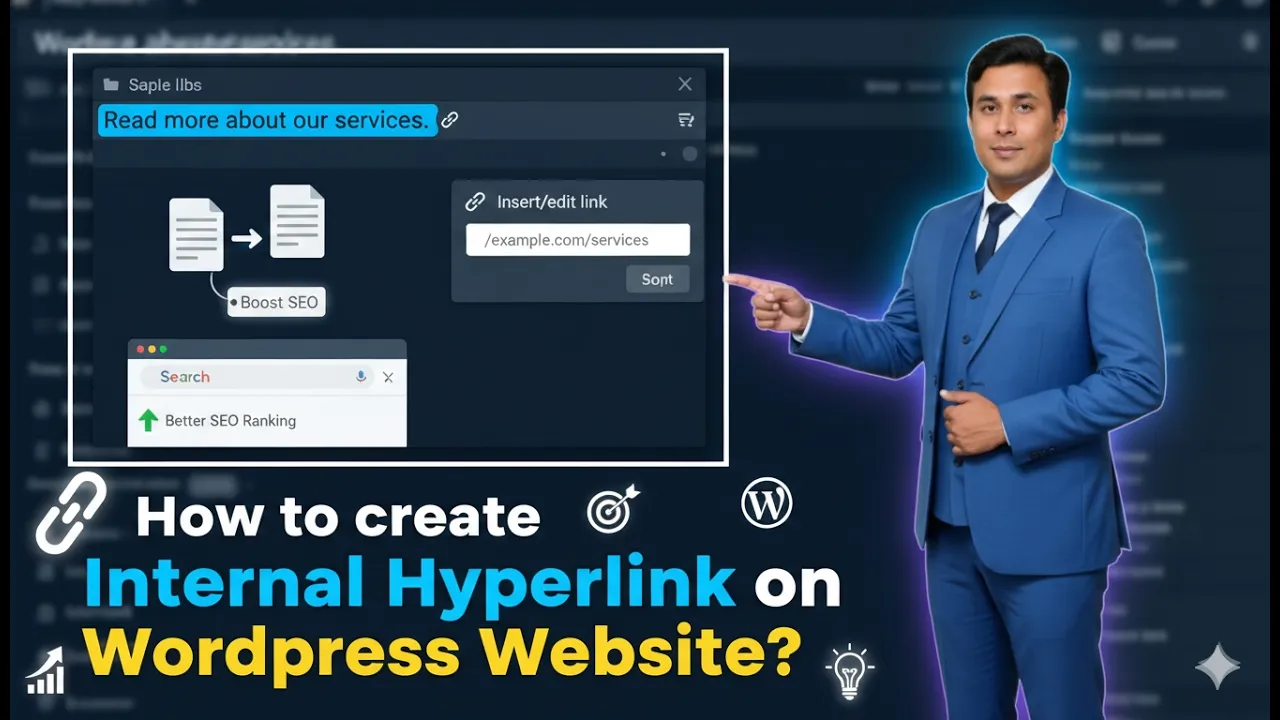
Creating internal hyperlinks in a WordPress website is an important part of website structure and SEO. Internal links connect one page of your website to another page of the same website. They help users navigate between related articles and improve the overall user experience.
In this article, you will learn how to create internal hyperlinks in a WordPress website and understand the best practices for adding internal links properly.
Opening the Posts Section in WordPress Dashboard
First, log in to your WordPress admin dashboard.
After logging in, look at the left-side toolbar where you will see the Posts section. Click on Posts and then click on All Posts.
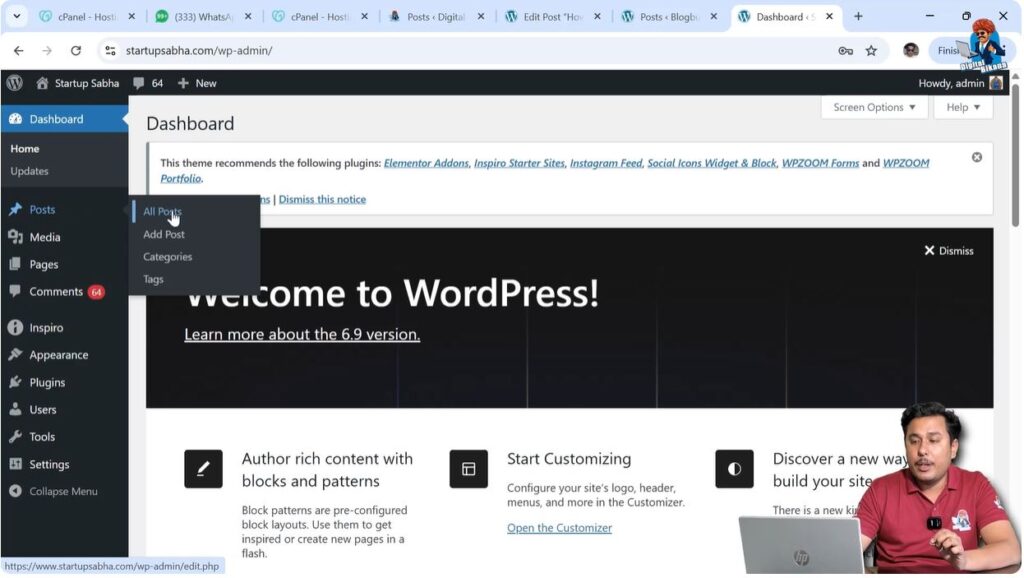
Inside the All Posts section, you will see all the blog posts that have been written on your website.
To create an internal hyperlink, you first need the URL of the blog post that you want to link.
Copying the URL of the Existing Blog Post
To create an internal hyperlink, you need to copy the URL of an existing blog post.
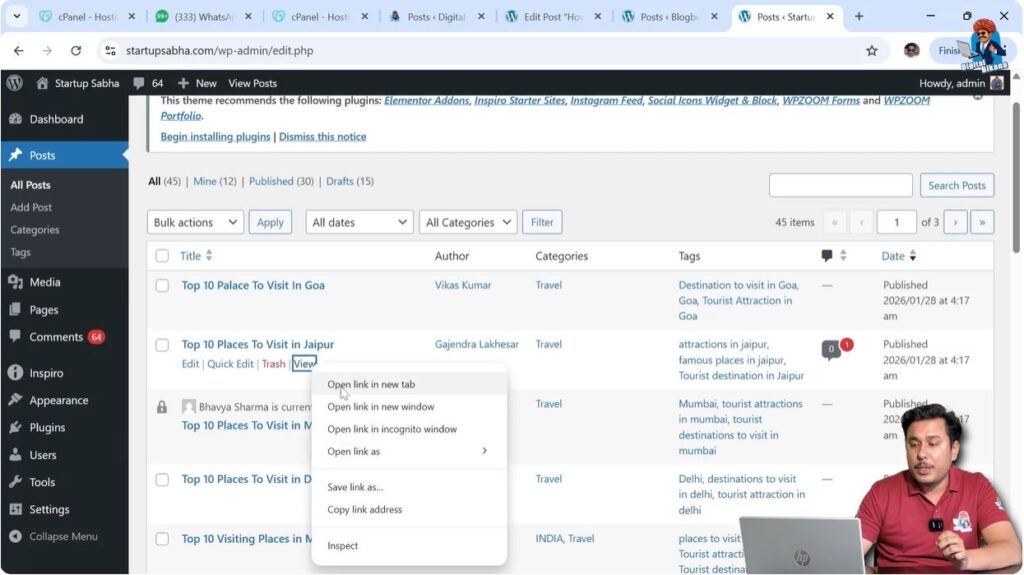
Move your cursor over the title of the blog post that you want to link.
You will see the View option.
Right-click on the View option and select Open link in new tab.
The blog post will open on the front end of the website.
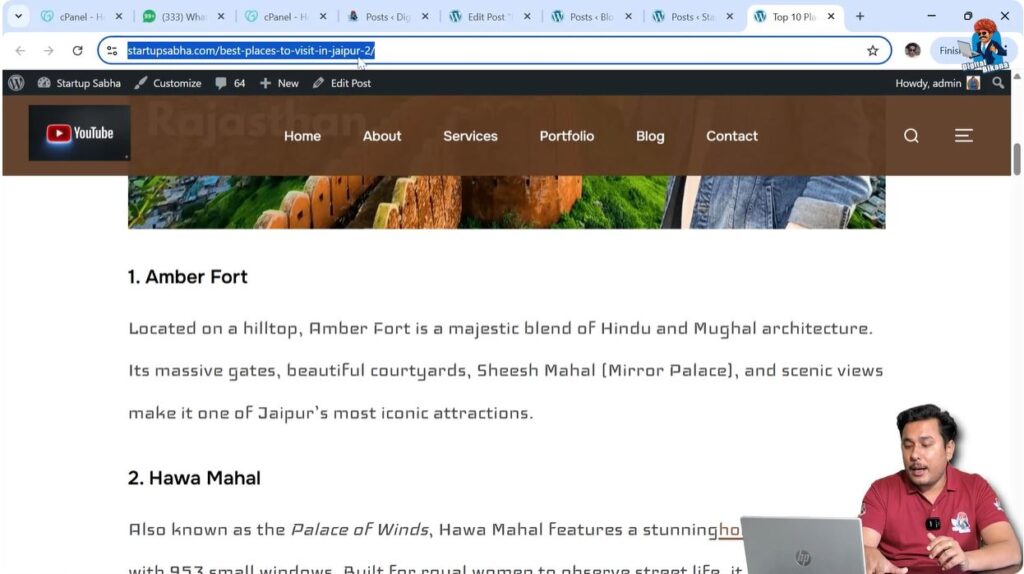
Now copy the URL from the browser address bar.
This URL will be used to create the internal hyperlink.
Step 1 – Open the Blog Post in Front End
Go to Posts → All Posts.
Move your cursor over the blog post title.
Right-click on the View option.
Click on Open link in new tab.
The blog post will open on the front end.
Step 2 – Copy the Blog Post URL
After opening the blog post, go to the address bar.
Copy the URL of the blog post.
This URL will be used to create the internal hyperlink.
Opening the Blog Post Where the Link Will Be Added
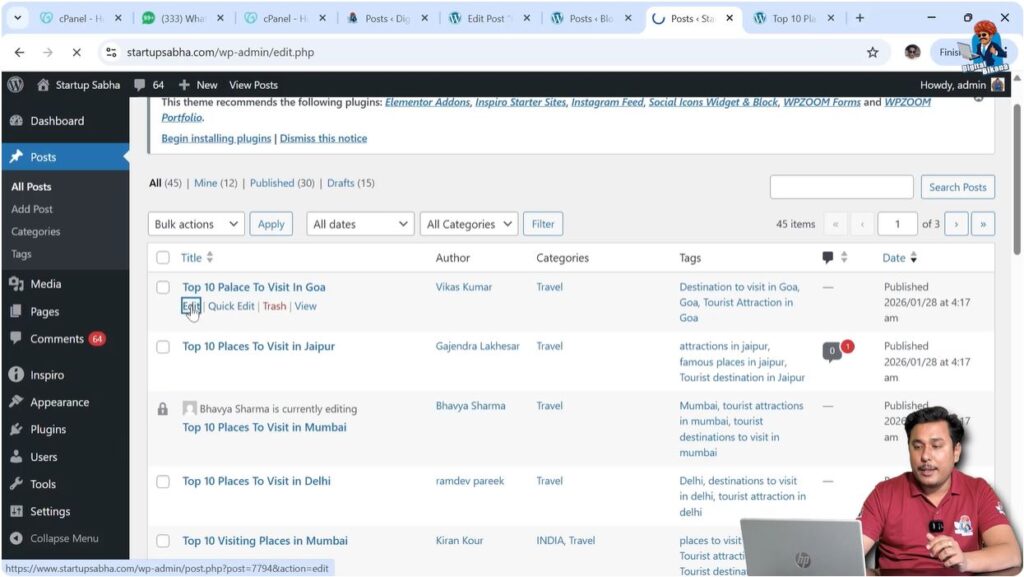
After copying the URL, you need to open the blog post where you want to insert the internal hyperlink.
Go back to the WordPress dashboard.
Open Posts → All Posts.
Select the blog post where you want to add the internal link.
Move your cursor over the blog post title and click on Edit.
The WordPress editor will open.
Step 3 – Open the Blog Post Editor
Go to Posts → All Posts.
Move your cursor over the blog post title.
Click on Edit.
The WordPress editor will open.
Adding Internal Hyperlink Using Anchor Text
After opening the blog post editor, place your cursor where you want to add the internal hyperlink.
Press Enter to create a new line or new block if required.
Now type the sentence where you want to add the hyperlink.
For example, you can write a sentence such as:
Read also: Top 10 Places to Visit in Jaipur
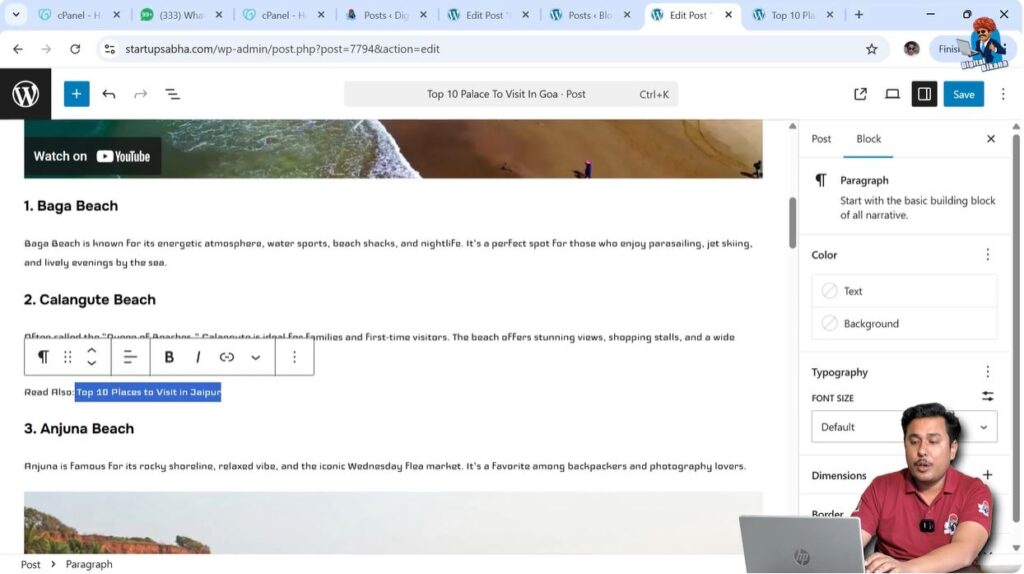
After typing the text, select the phrase on which you want to add the hyperlink. This phrase is called the anchor text.
As soon as you select the phrase, a toolbar will appear above the selected text.
Click on the Link icon.
Paste the copied URL into the link field.
Press Enter.
The internal hyperlink will be created.
Step 4 – Select Anchor Text
Place the cursor where you want to add the link.
Type the required text.
Select the phrase that will act as anchor text.
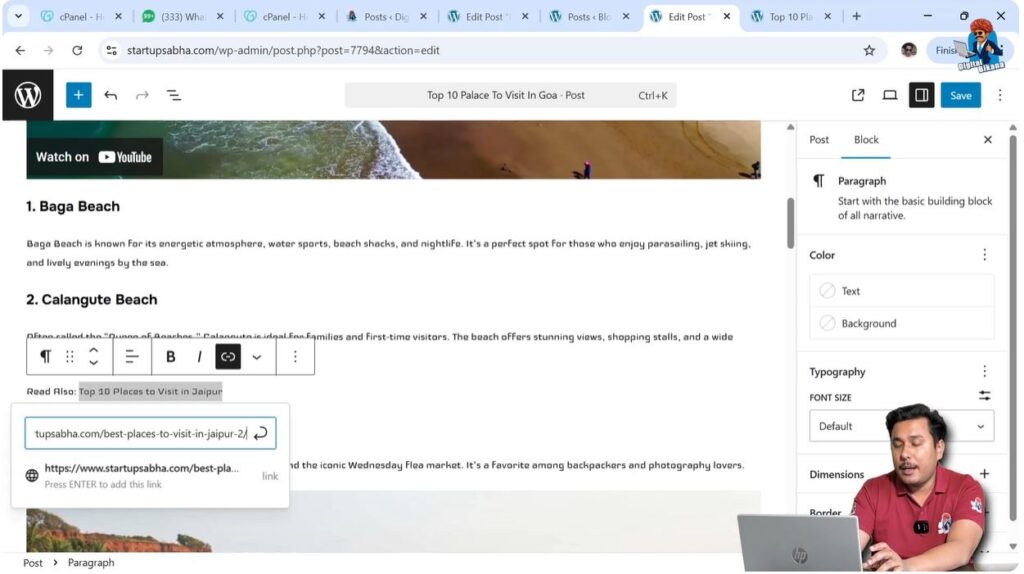
Step 5 – Insert Internal Link
Click on the Link icon.
Paste the copied URL.
Press Enter.
The internal hyperlink will be created.
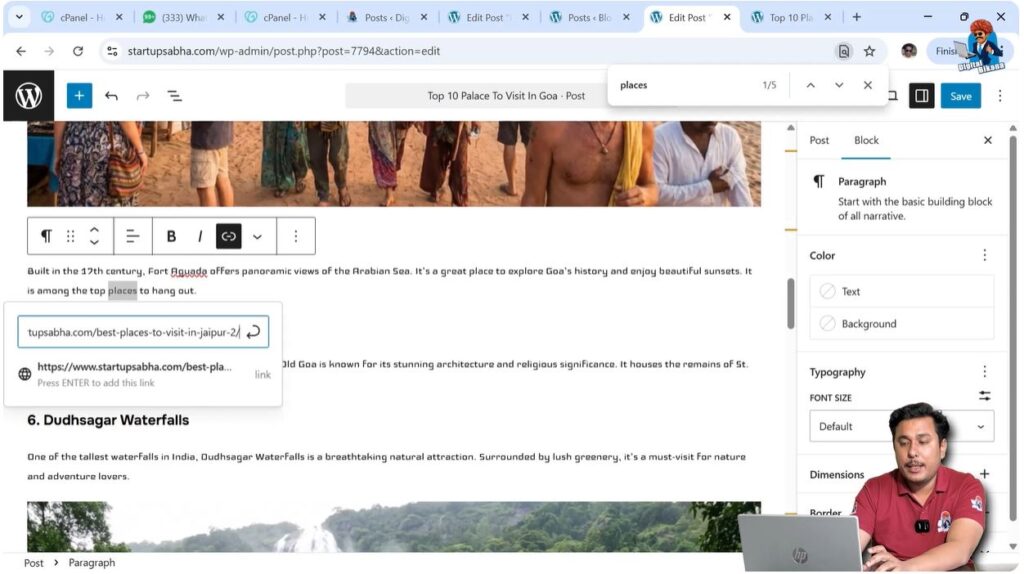
Adding Hyperlink on a Single Word
Internal hyperlinks can also be added on a single word.
You do not need to select a full phrase.
You can select a single word and create a hyperlink in the same way.
For example, you can write a sentence such as:
It is among the top places to hang out.
You can select a single word such as places and add the hyperlink.
After selecting the word, click on the Link icon.
Paste the URL and press Enter.
The hyperlink will be created on that single word.
Step 6 – Create Link on Single Word
Type the sentence.
Select a single word.
Click on the Link icon.
Paste the URL.
Press Enter.
The internal hyperlink will be created.
Adding Relevant Internal Links
Internal links should always be relevant to the content.
For example, if you are writing an article about technology, then the internal links should also be related to technology.
If you have written related articles earlier, you should link those articles in your new posts.
Relevant internal links improve navigation and user experience.
They also help users discover more content on your website.
Avoid Adding Irrelevant Internal Links
Irrelevant internal links should be avoided.
If the links are not related to the topic, users may ignore them.
Users are less likely to click irrelevant links.
This can reduce engagement on your website.
Irrelevant links may reduce the average session duration.
Because users do not click on unrelated links, they leave the website earlier.
Avoid Adding Links on Irrelevant Words
Internal links should not be added on irrelevant words.
The anchor text should match the topic of the linked page.
For example, if a technology-related page is linked on a word related to travel, then it becomes an irrelevant link.
Search engines may recognize such links as irrelevant.
Users who click such links may immediately return to the previous page.
This increases the bounce rate.
It also reduces the average time spent on the page.
These factors may negatively affect SEO.
Importance of Proper Internal Linking
Proper internal linking helps users move from one page to another easily.
It improves the structure of the website.
Internal links help search engines understand the relationship between pages.
They also help distribute SEO value across different pages.
Relevant internal linking can improve website performance.
It also helps generate more page views.
Conclusion
Creating internal hyperlinks in a WordPress website is a simple process. You need to copy the URL of an existing blog post, open another post, select the anchor text, and insert the link.
Internal links can be added on phrases or single words.
Always add relevant internal links and avoid linking unrelated pages or using irrelevant anchor text.
Proper internal linking improves user experience and supports the SEO of your website.

Related Posts