
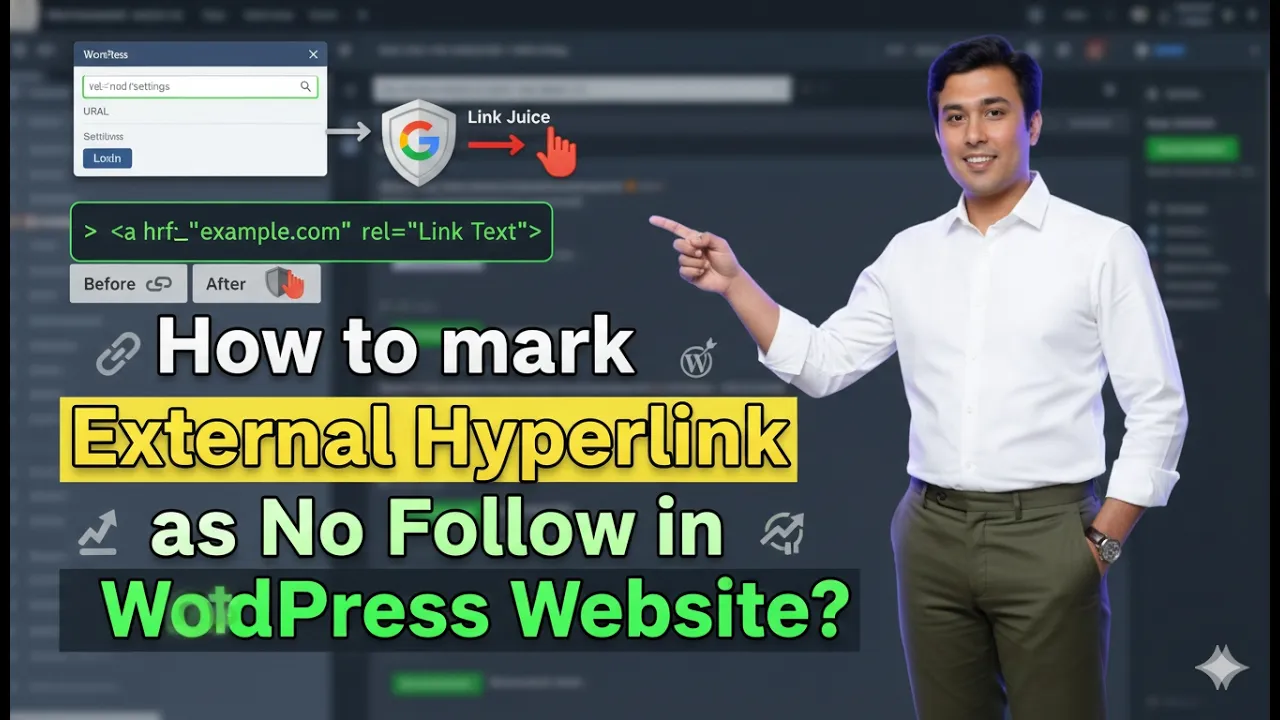
In this article, you will learn how to mark an external link as no follow on a WordPress website. This method helps you control how search engines treat external links on your website. By marking a link as no follow, search engine crawlers will not follow that link and your link value will not be passed to the external website.
This guide explains the complete process of adding an external hyperlink and marking it as no follow in WordPress.
Opening the Post Section in WordPress
First, log in to your WordPress dashboard. Once you are inside the dashboard, go to the Posts section from the left-side toolbar.
After clicking on Posts, open the All Posts section. Here you will see the list of all blog posts available on your website.

You may either create a new post or edit an existing post. The process of marking an external link as no follow works in both cases.
For demonstration, you can open any existing blog post by clicking the Edit button under the post.
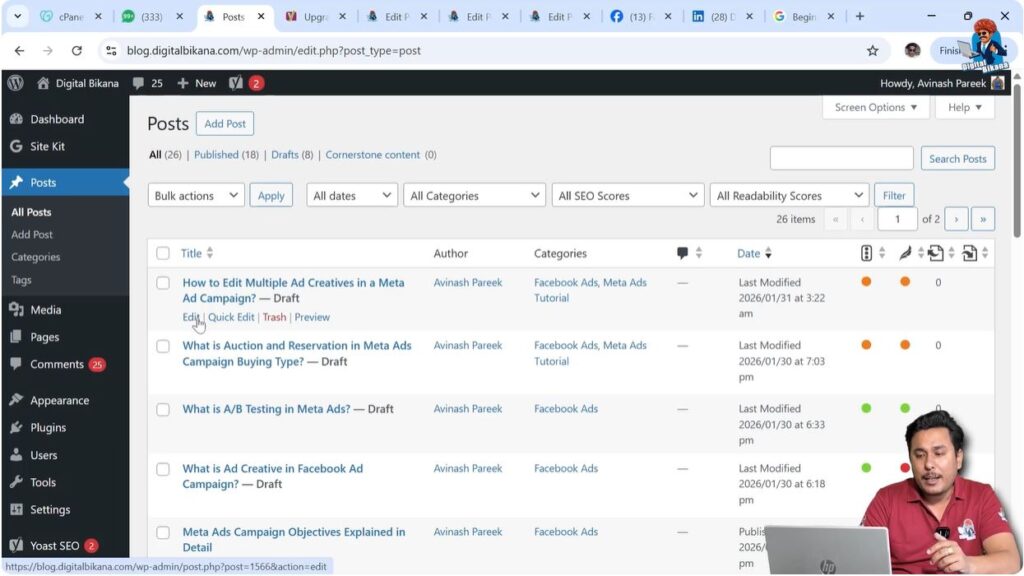
Once the post editor opens, you can proceed with adding the external link.
Adding an External Hyperlink in WordPress
Before marking a link as no follow, you must first create an external hyperlink inside your post. This is done by selecting a word or phrase and inserting a link.
Scroll inside your post and find a relevant word or phrase where you want to add the external hyperlink. The selected word or phrase will act as the anchor text.
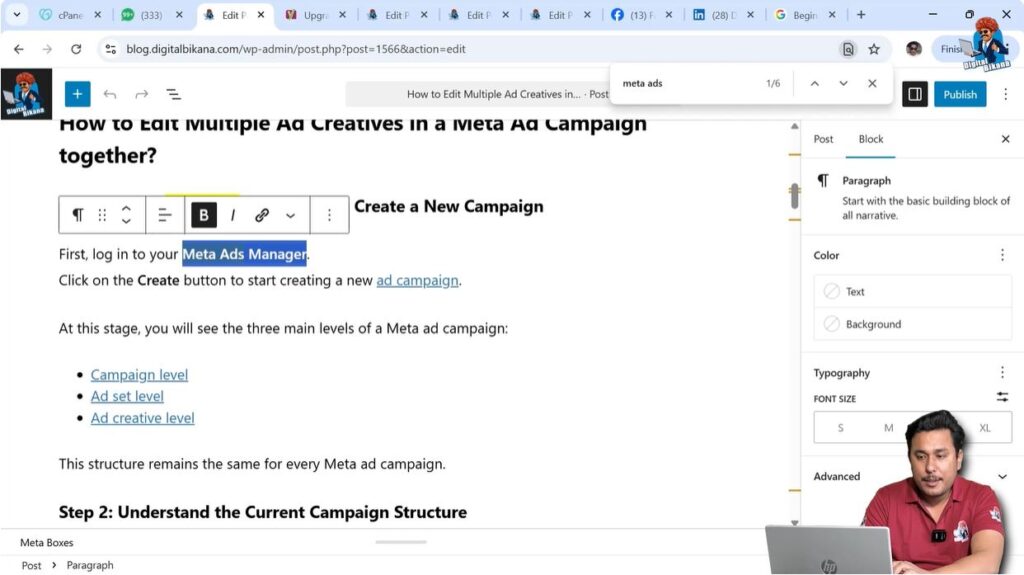
For example, you may want to add an external hyperlink on a keyword such as Meta Ads Manager.
Select the word or phrase where you want to add the hyperlink. As soon as you select the anchor text, the link icon will appear above the selected text.
Click on the link icon.
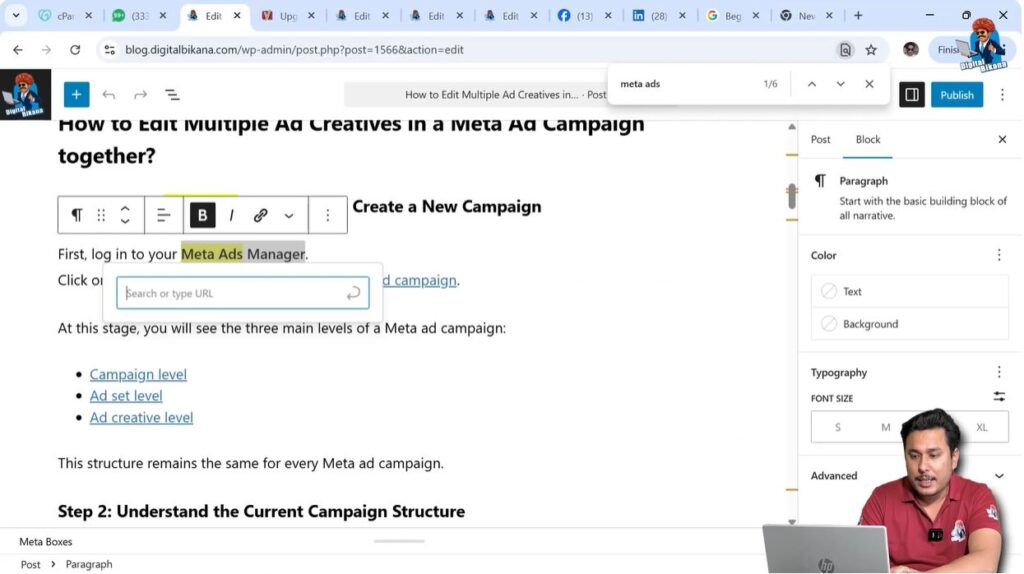
You will see a field that says Search or Type URL. This is where you need to enter the external website link.
Copy the external website URL that you want to add.
Return to the WordPress post editor and paste the link into the URL field. After pasting the link, press Enter.
Once you press Enter, the external hyperlink will be created.
Step 1 – Select the Anchor Text
First, scroll inside your post and find the word or phrase where you want to add the external link.
Select that word or phrase carefully. This selected text will become the anchor text.
As soon as you select the anchor text, the link icon will appear automatically.
Step 2 – Insert the External Link
Click on the link icon that appears above the selected text.
Copy the external website link that you want to use.
Paste the link into the Search or Type URL field.
Press Enter to create the hyperlink.
After pressing Enter, the external link will be successfully added.
Editing the External Link
After creating the hyperlink, you need to edit the link settings in order to mark it as no follow.
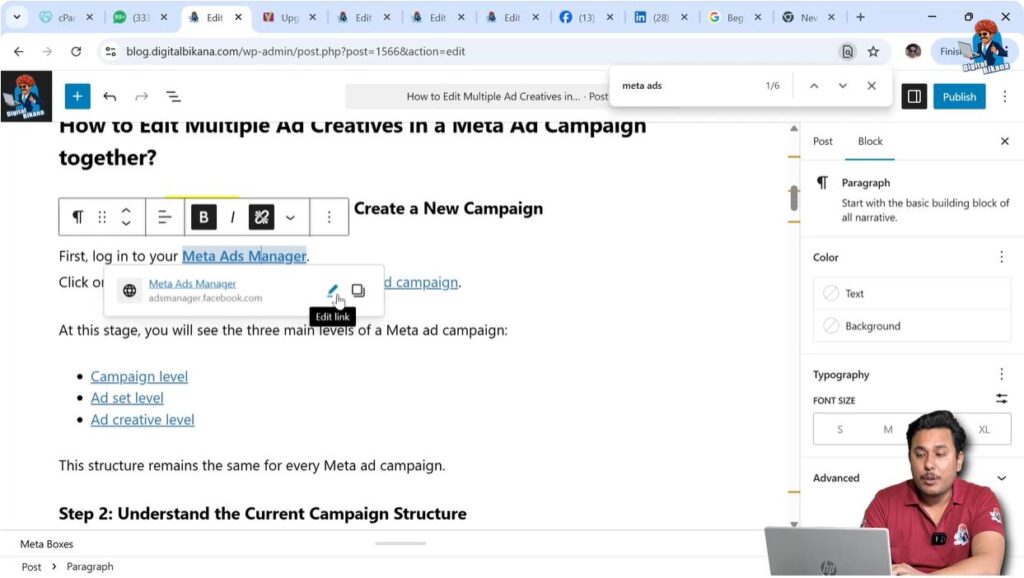
Left-click on the anchor text where the hyperlink has been added.
As soon as you click on the anchor text, an edit icon will appear. This icon allows you to edit the link settings.
Click on the edit link icon.
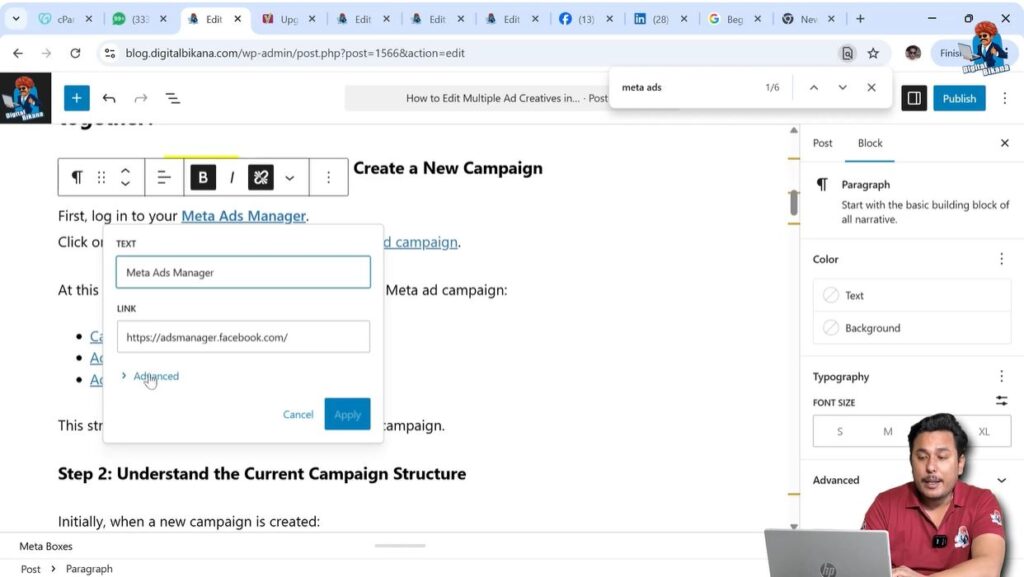
Once you click on the edit icon, the link details will appear. The anchor text and the external link URL will be visible.
You will also see an option called Advanced.
Click on the Advanced option to open additional link settings.
Step 3 – Open Link Settings
Left-click on the anchor text that contains the external hyperlink.
Click on the edit link icon.
Open the Advanced settings.
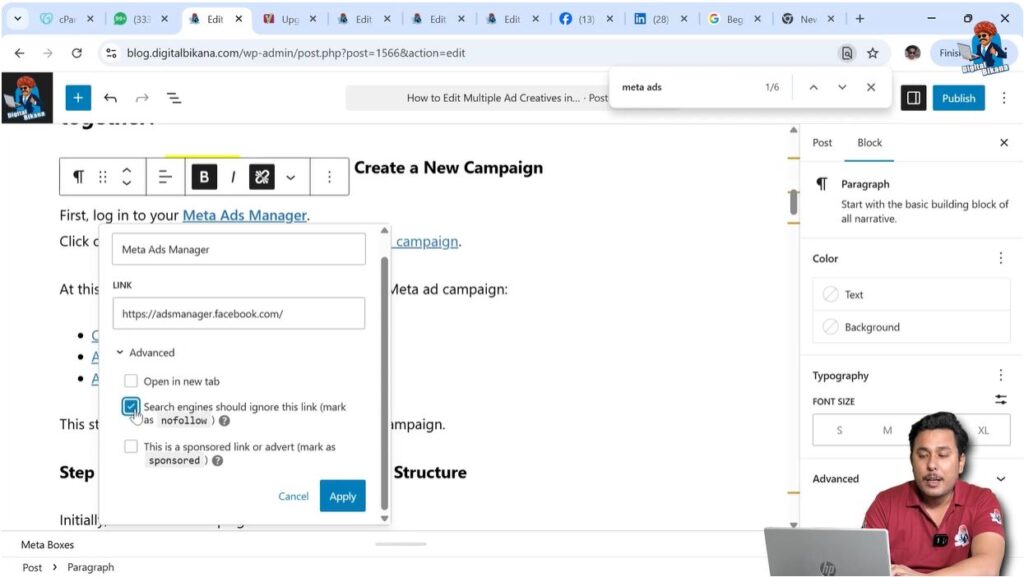
Inside Advanced settings, you will see the option:
Search engines should ignore this link (Mark as no follow)
Step 4 – Mark the Link as No Follow
Select the option Search engines should ignore this link (Mark as no follow).
When this option is selected, the external link automatically gets the no follow attribute.
After selecting this option, click on Apply.
Once applied, the external hyperlink will be marked as no follow.
How No Follow Links Work
When search engine crawlers visit your website and crawl your content, they scan all links present on the page.
If a crawler finds an external hyperlink marked as no follow, it will not follow that link.
Because of this, the SEO value or link juice from your website will not be passed to the external website.
No follow links help you control how search engines treat external links on your website.
No Follow Backlinks on Social Platforms
Many social networking platforms provide no follow backlinks.
Examples include:
- Medium
- Quora
When you add your website link on these platforms, it becomes an external link for those platforms and a backlink for your website.
However, these backlinks are usually no follow links.
When search engine crawlers crawl those websites and find your link, they may ignore the link because it is marked as no follow.
Because of this, no follow links may not directly improve your search engine rankings.
Indirect SEO Benefits of No Follow Links
Even though no follow links do not directly pass SEO value, they can still help your website indirectly.
Search engines consider many factors while ranking websites.
One important factor is traffic.
If your website receives visitors from external platforms, it is called referral traffic or social traffic.
Referral traffic and social traffic can have weightage in search engine rankings.
Because of this, no follow links can indirectly help improve rankings.
Sponsored Link Attribute
There is another option available in the link settings called Sponsored Link.
This option allows you to mark a link as sponsored or advertisement-based.
Sponsored links indicate that the link is promotional or paid.
Search engines treat sponsored links differently and do not pass SEO value to those links.
Step 5 – Mark Link as Sponsored (Optional)
Open the link settings.
Go to Advanced options.
Select Mark as Sponsored Link if the link is an advertisement or paid promotion.
This tells search engines that the link is sponsored.
Search engines will not pass SEO value or link juice to the external website.

Applying the No Follow Attribute
After selecting the no follow option, you must apply the changes.
Click on Apply to save the link settings.
Once applied, the external hyperlink will contain the no follow attribute.
This ensures that search engines will ignore the link while crawling your website.

Conclusion
Marking an external link as no follow in WordPress is a simple process. You need to open a post, select the anchor text, insert the external link, edit the link settings, and enable the no follow option.
After selecting Search engines should ignore this link (Mark as no follow) and clicking Apply, the external hyperlink will be created with the no follow attribute.
This method allows you to control how search engines treat external links and prevents your SEO value from being passed to external websites.

Related Posts


