

In this article, we will learn how to add a YouTube video in a blog post on a WordPress website. This process is very easy and can be done directly from the WordPress admin dashboard. Adding a YouTube video inside a blog post helps improve the presentation of your article and allows visitors to understand the topic more easily.
As you can see, we are inside the WordPress admin dashboard. Here we have the Post section, and we will go to the All Posts option. For example, we are writing an article and want to add a YouTube video inside that article.
We will open the blog post in editing mode and insert the video at the required position inside the content.
Opening Blog Post in WordPress Dashboard
First, you need to log in to your WordPress admin dashboard. After logging in, you will see the WordPress dashboard where different options are available in the left-side toolbar.
From the left-side menu, go to the Post section and click on All Posts. Here you will see all the blog posts that you have created on your WordPress website.
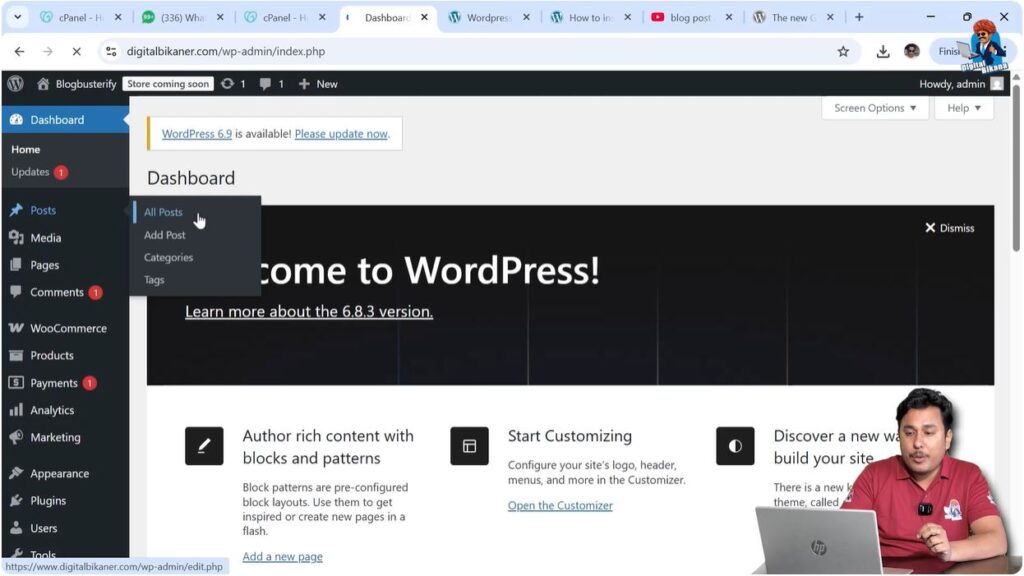
For example, we are working on an article. We will click on the Edit option of that article. After clicking on edit, the WordPress editor will open, and we can make changes to the blog post.
In this example, we want to add a YouTube video after a paragraph and before a heading inside the article.
Creating Space for YouTube Video
Step 1: Place Cursor at the End of Paragraph
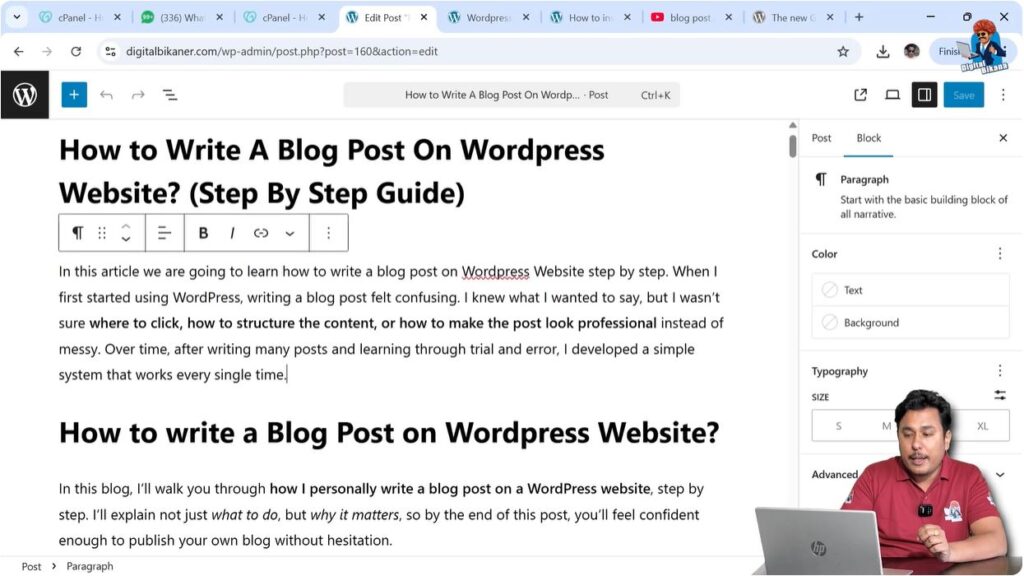
First, you need to bring your cursor to the end of the paragraph where you want to insert the YouTube video.
Click at the end of the paragraph so that the cursor appears there.
Step 2: Press Enter Key
After placing the cursor, press the Enter key on your keyboard.
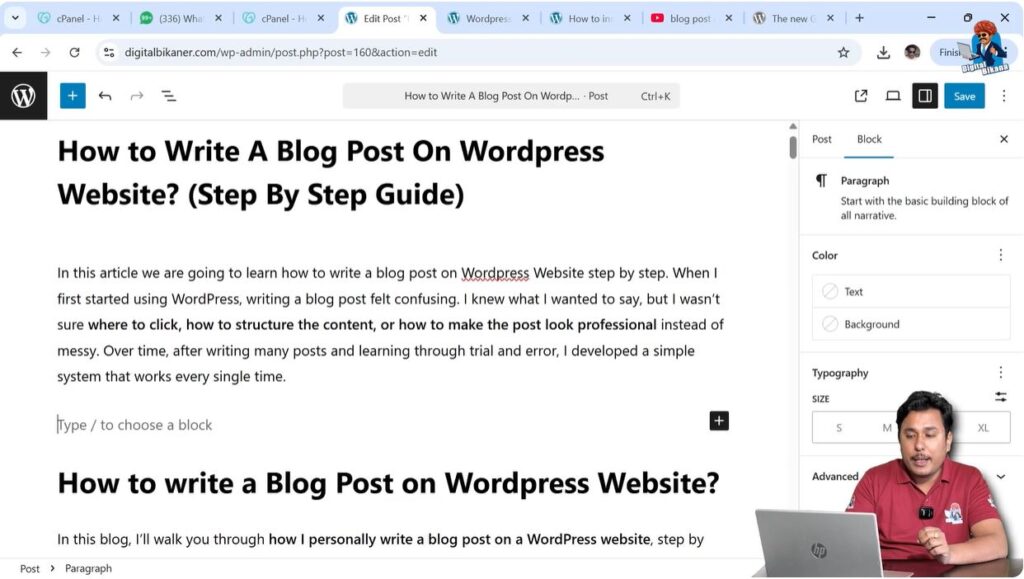
Once you press Enter, a new line or new block will be created inside the WordPress editor. This new block will be used for inserting the YouTube video.
You will see a blank line where the video will be inserted.
Finding YouTube Video to Embed
After creating a new block in the WordPress editor, the next step is to find the YouTube video that you want to embed inside your blog post.
You need to open YouTube in a new tab and search for the video that you want to add to your blog post.
You can either use:
- Your own YouTube video
- Someone else’s YouTube video
There will be no copyright strike or copyright claim because you are only sharing the video. You are not downloading or re-uploading the video.
If someone watches that video on your website, the view will be counted for the original YouTube creator.
Sometimes while uploading a video on YouTube, there is an option where the video owner can allow or disallow embedding. If embedding is allowed, then the video can be added to your website.
You can search for any video related to your article topic or upload your own video and use that video link.
Copying YouTube Video URL
Step 1: Open the Video
After finding the video on YouTube, open that video.
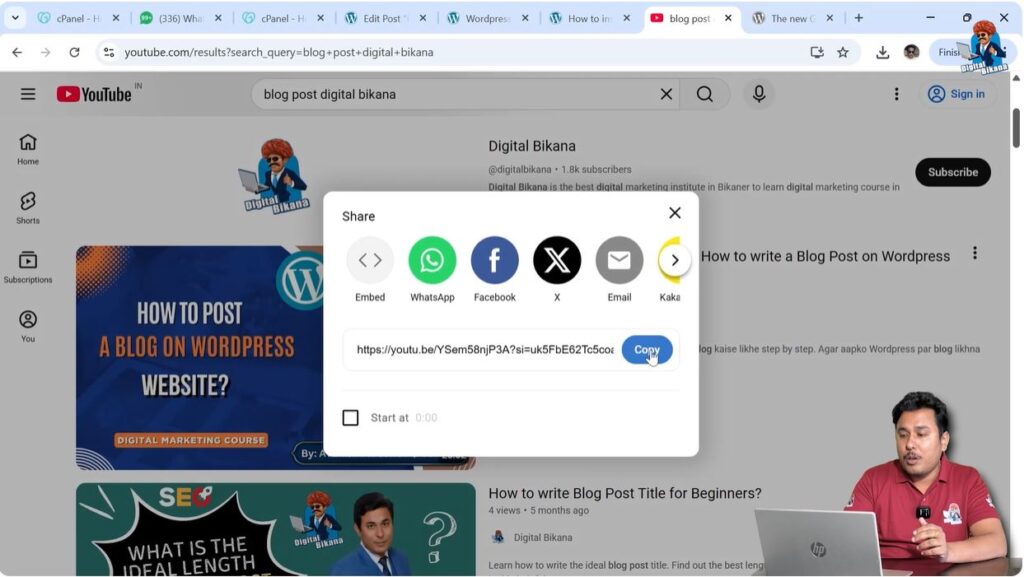
You can copy the video link using two methods.
Method 1: Copy URL from Options Menu
You can click on the three dots (menu option) near the video and click on Copy Link or Copy URL.
This will copy the video link directly.

Method 2: Copy URL from Browser Address Bar
You can also copy the video link directly from the browser URL bar.
Simply select the URL in the address bar and copy it.
Both methods work the same way, and there is no difference between them.
Adding YouTube Video in WordPress Blog Post
Step 1: Return to WordPress Editor
After copying the YouTube video URL, return to the WordPress editor where the blog post is open.
Make sure the cursor is on the new line that you created earlier.
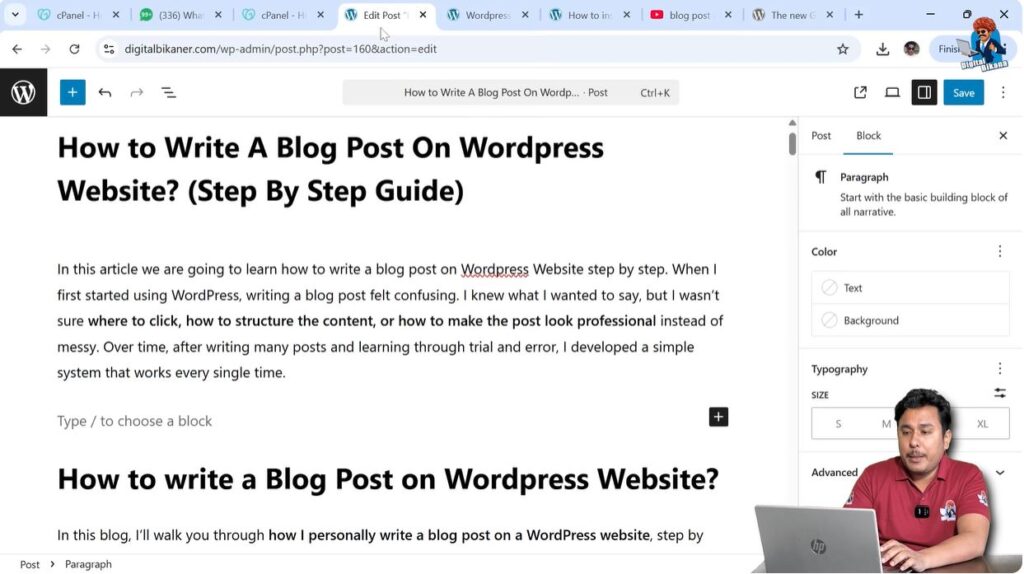
Step 2: Paste Video URL
Now you need to paste the YouTube video URL.
You can paste the URL by pressing:
Ctrl + V
After pasting the URL, WordPress will automatically recognize the YouTube link.
Step 3: Automatic Video Embedding
Once you paste the YouTube video URL, the video will automatically appear inside the WordPress editor.
You do not need to perform any additional steps.
The YouTube video will be embedded inside the blog post automatically.
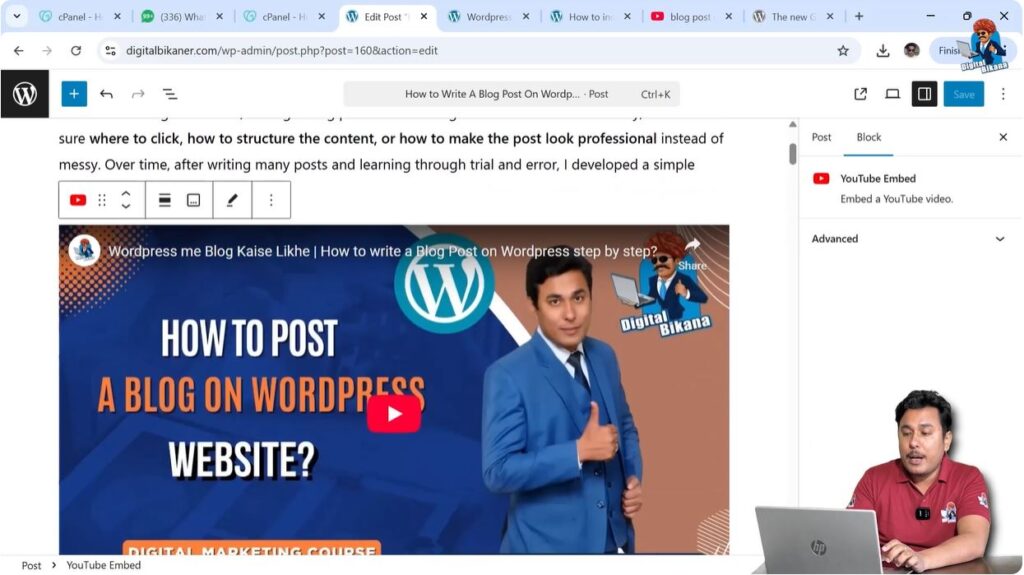
YouTube Video Appearing in Blog Post
After pasting the video URL, the YouTube video will be added inside the WordPress blog post.
You will see the video player directly inside the editor.
The video will appear exactly in the location where you pasted the URL.
This video will also appear in the same position on the front end of your website.
Visitors will be able to watch the video directly from your website without leaving your page.
Benefits of Adding YouTube Video in Blog Post
Adding a YouTube video inside a blog post is very useful. It allows visitors to understand the content in a better way.
You can add videos related to your article topic so that users can get both written and visual information.
You can also use your own YouTube videos inside your blog posts.
This helps visitors stay longer on your website and interact more with your content.
Editing the Blog Post After Adding Video
After adding the YouTube video, you can continue editing the rest of the blog post normally.
You can add more content above or below the video.
You can also move the video to another location by cutting and pasting the video block.
WordPress makes it very easy to manage video content inside blog posts.
Final Result
After completing all the steps, the YouTube video will be successfully added to your WordPress blog post.
When visitors open your article, they will see the YouTube video inside the blog post and can play it directly.
This makes your article more useful and interactive for readers.
Conclusion
In this article, we learned how to add a YouTube video in a blog post on a WordPress website step by step.
We learned how to open a blog post, create a new block, search for a YouTube video, copy the video URL, and paste it inside the WordPress editor.
Once the video URL is pasted, WordPress automatically embeds the video inside the blog post.
This is how you can easily add a YouTube video in a blog post on a WordPress website.

Related Posts


