
In this article, you will learn how to install a theme in a WordPress website step by step. A theme controls the design and layout of your WordPress website. By installing a theme, you can change the appearance of your website and make it suitable for your business or blog.
After logging in to your WordPress dashboard, you can install and activate themes according to your requirement. There are thousands of themes available in the WordPress theme directory, and you can select any theme related to your business.
This guide explains how to install, activate, and customize a WordPress theme.
Opening WordPress Dashboard
1. Login to WordPress Dashboard
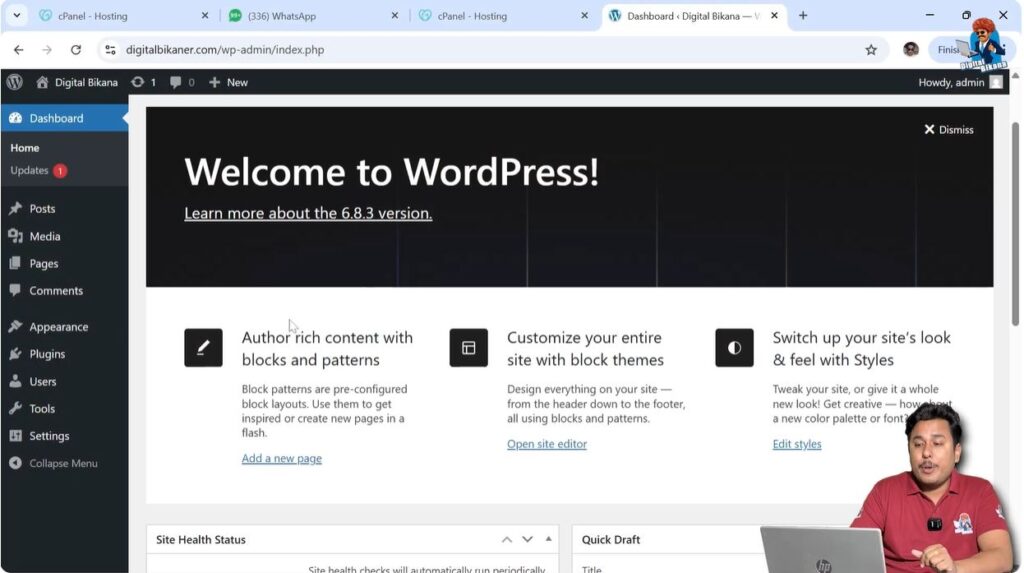
First, log in to your WordPress website admin dashboard. After logging in, you will reach the dashboard where you can manage all website settings.
On the left side of the dashboard, you will see different options including Posts, Media, Pages, Appearance, Plugins, Users, Tools, and Settings.
Opening Themes Section
2. Go to Themes
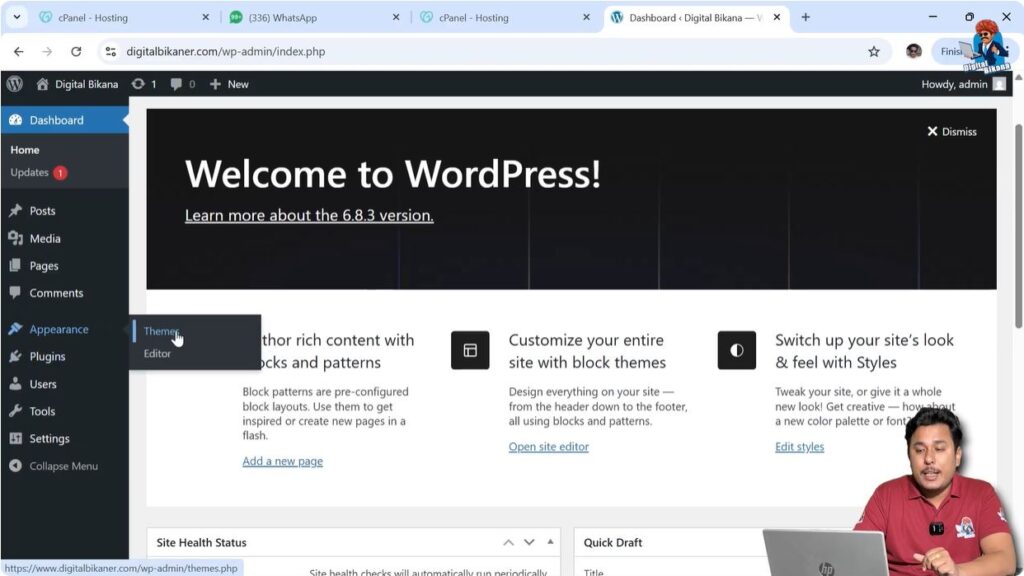
On the left side of the dashboard, click on Themes.
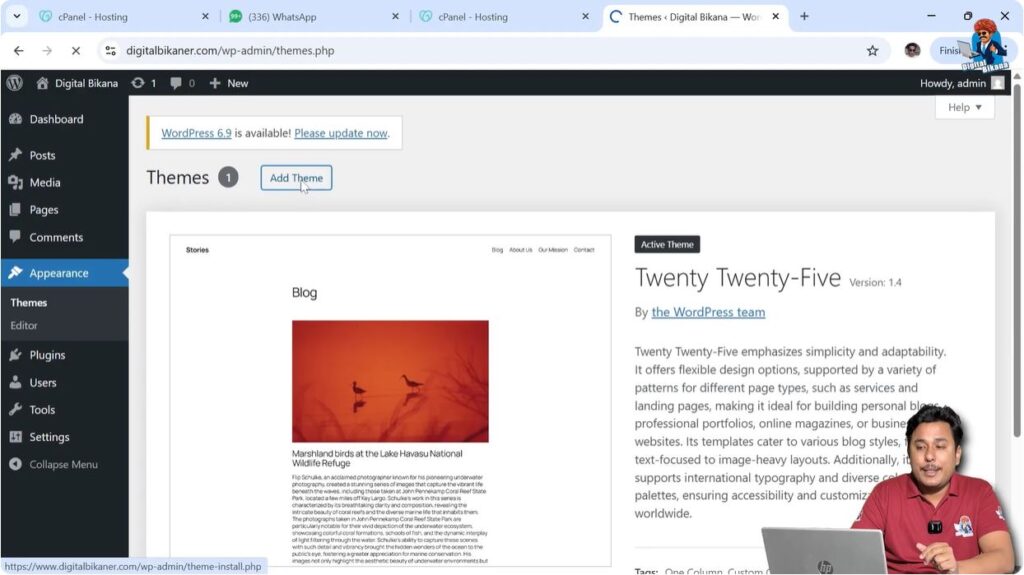
Inside the Themes section, you will see the themes that are already installed on your website. Usually, one default theme is already installed as a sample theme.
If you want to install a new theme, you need to click on Add Theme.
WordPress Theme Directory
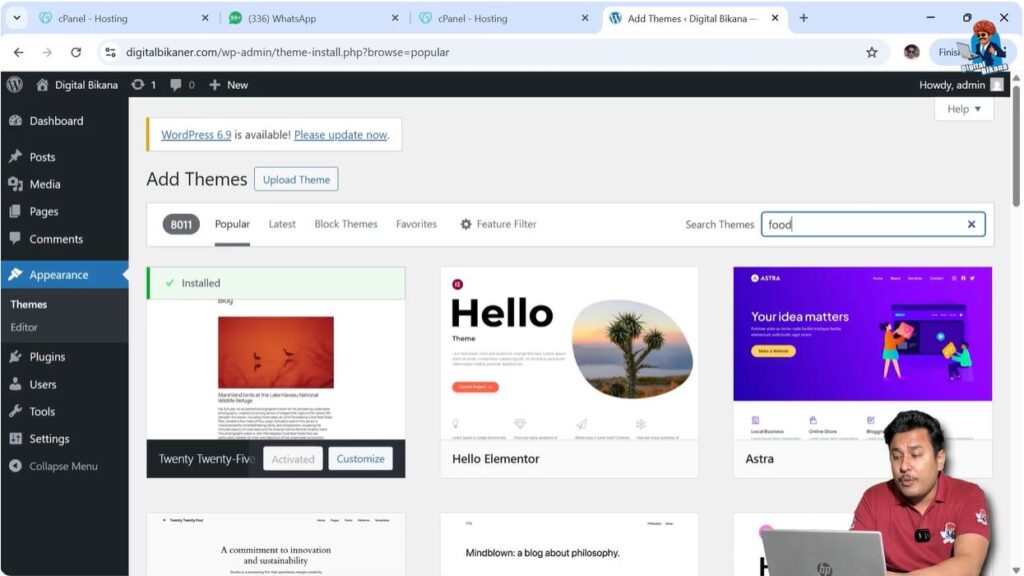
After clicking Add Theme, you will reach the WordPress theme directory. There are hundreds of themes available in the theme directory.
You can install any theme according to your business requirement.
You can search for themes using keywords.
For example:
- If you run a food business, you can search for Food and food-related themes will appear.
- If you run a fashion business, you can search for Fashion and fashion-related themes will appear.
- If you run a health-related business, you can search for Health and health-related themes will appear.
- You can also search for fitness or other niches according to your business.
You can explore different themes and select the theme that looks attractive and suitable for your website.
Popular Themes Section
3. Browse Popular Themes
You can also explore themes in the Popular section.
This section shows popular themes used by many websites.
For example, the default WordPress theme such as Twenty Twenty-Five may be available.
New versions of default WordPress themes are released regularly.
You can check different themes and select the one that suits your website.

Installing a Theme
4. Install Theme
After selecting a theme, click on the Install button.
The theme will be installed on your WordPress website.
After installation, the theme will appear in the Themes section.
Initially, the website design may look simple because the theme is newly installed.

Activating Theme
5. Activate Theme
After installing the theme, click on Activate.
Once the theme is activated, it becomes the active theme of your website.
You can then check the front end of your website to see the new design.

Theme Plugin Requirements
Required Plugins
Sometimes themes require additional plugins to work properly.
After activating a theme, you may see a notification recommending plugin installation.
These plugins help display the theme features correctly.
For example, a theme may recommend installing a demo import plugin.
You can install the required plugins if you want the theme to work properly.

Installing Theme Plugin
6. Install Required Plugin
If the theme requires plugins, install the recommended plugins.
After installing the plugin, additional theme options may appear in the dashboard.
These plugins help the theme display correctly.

Using Starter Sites
Pre-Built Themes
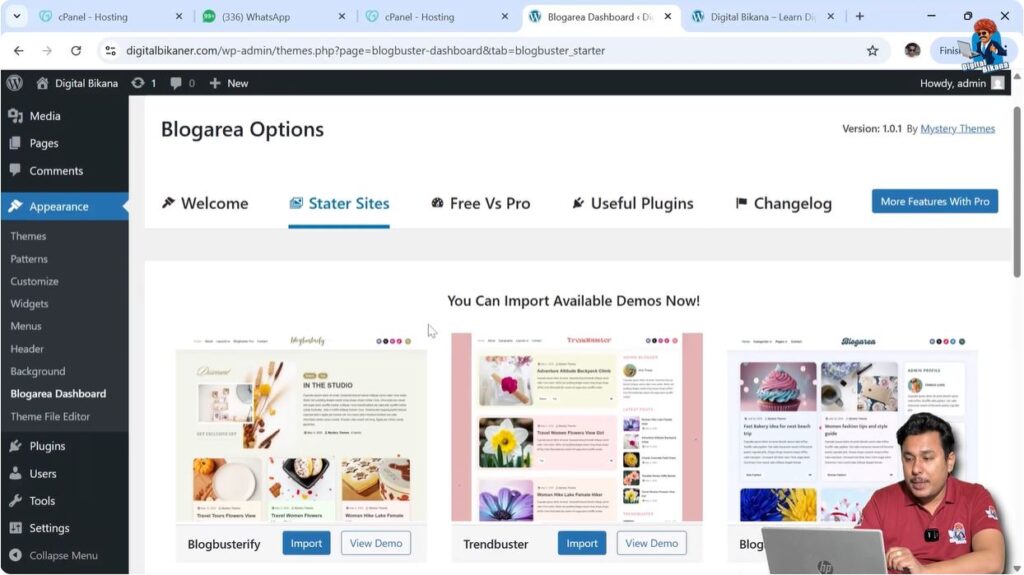
Some themes provide starter sites or pre-built designs.
Starter sites help beginners design websites easily.
Instead of designing from scratch, you can use a pre-built design as a reference.
Starter sites provide ready-made layouts that you can customize.
You can explore starter sites and select a design that looks suitable.
Importing Demo Content
7. Import Demo Content
After selecting a starter site, you can import the demo content.
Importing demo content helps you understand how the website layout works.
This is useful for beginners because designing a website from scratch can be difficult.
After importing the demo content, your website will look similar to the demo design.

Checking Website Frontend
8. Refresh Website
After importing the demo content, refresh the homepage of your website.
You will see that the theme has been applied successfully.
The design of the website will change according to the selected theme.

Customizing Theme
Theme Customization Options
After installing and importing the theme, you can customize it according to your needs.
You can make various changes such as:
- Changing the website logo
- Editing articles
- Updating social media links
- Changing header size
- Removing sticky header
- Changing colors
- Editing footer widgets
All theme elements can be customized according to your requirements.
Conclusion
Installing a theme in WordPress is a simple process. You need to log in to your WordPress dashboard, go to the Themes section, install a theme, activate it, and import demo content if required.
Themes help define the appearance of your website and make it suitable for your business.
After installing a theme, you can customize it and design your website according to your needs.
This is how you can install a theme in a WordPress website.

Related Posts


