

In this article, you will learn how to login into your WordPress website admin dashboard step by step. The WordPress admin dashboard is the place where you can manage your website, create pages, publish posts, and customize the design of your website.
Before reaching this step, you should have already completed the earlier steps such as purchasing a good domain name, purchasing a hosting plan, connecting your domain name with your hosting plan, and installing WordPress on your domain name using cPanel. If you have completed these steps, then you are ready to log in to your WordPress website admin dashboard.
This guide explains how to access and login into your WordPress admin dashboard.
Previous Steps Completed
Before logging in to your WordPress website, you should have completed several important steps. You should have purchased a good domain name for your website and purchased a hosting plan. After purchasing the domain name and hosting plan, you should have connected the domain name with the hosting plan.
After connecting the domain name with hosting, you should have installed the WordPress application on your domain name in cPanel. Once WordPress is installed successfully, your website becomes ready for login and further customization.
Accessing WordPress Login Page
1. Enter Domain Name in Browser
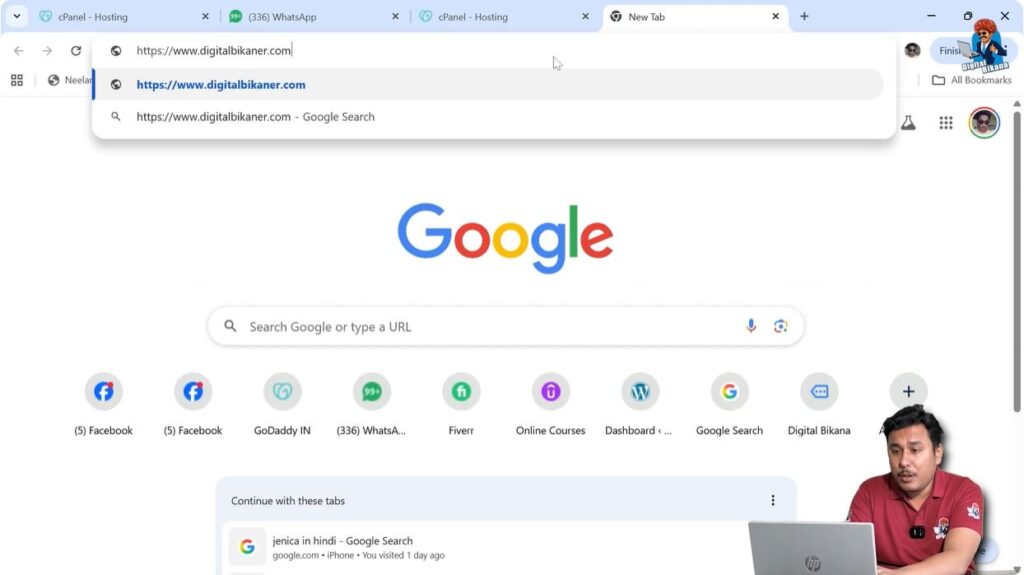
To login into your WordPress website admin dashboard, open your web browser and go to the address bar.
In the address bar, enter your domain name.
For example:
https://www.example.com
or
https://example.com
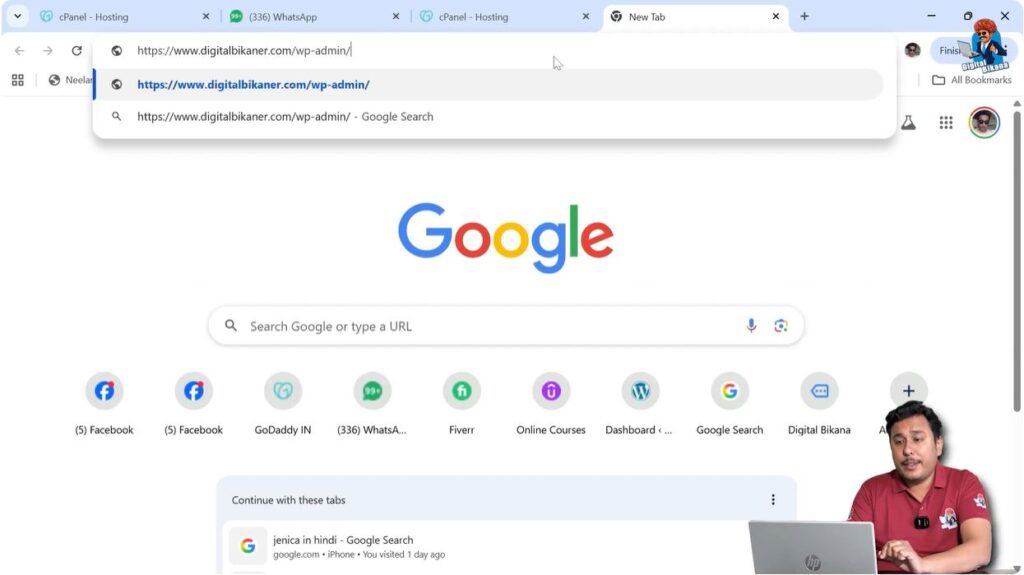
After entering your domain name, you need to type /wp-admin/ after the domain name.
The complete URL will look like:
https://example.com/wp-admin/
This part of the URL is known as the slug part.
After entering the full URL, press Enter on your keyboard.
The WordPress login page will open automatically.
WordPress Login Page
Login Screen
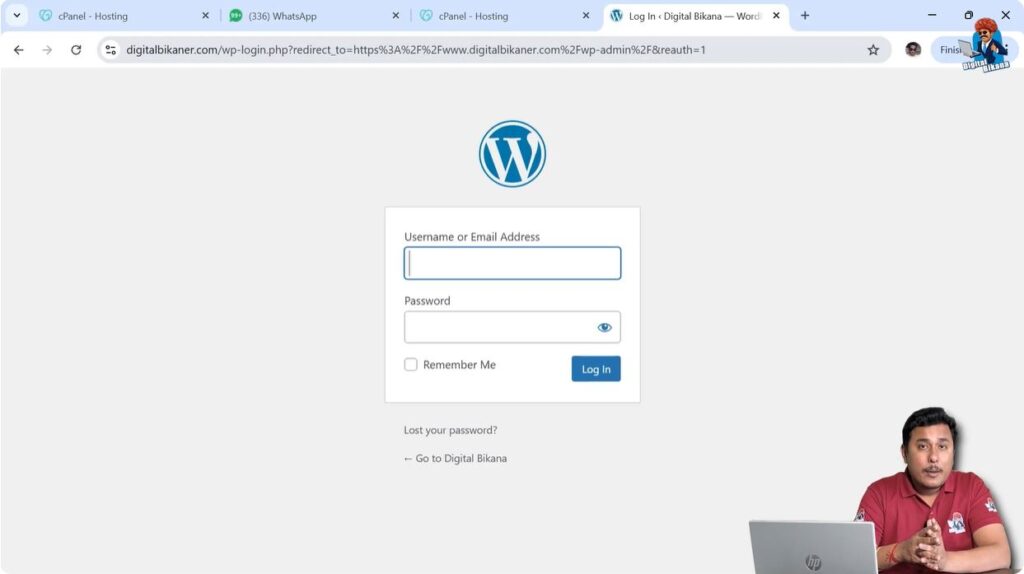
After entering the login URL, the WordPress login page will appear.
This login page contains fields for username and password.
You need to enter the administrator username and password in these fields.
Administrator Login Details
2. Enter Username and Password
On the WordPress login page, you need to enter the username and password.
You must enter the same username and password that you created while installing WordPress on your domain name in cPanel.
These login details are required to access the WordPress admin dashboard.
If you are using GoDaddy hosting or any other hosting provider, the login process remains the same.
After entering the correct username and password, click on the Login button.
WordPress Admin Dashboard
Dashboard Access
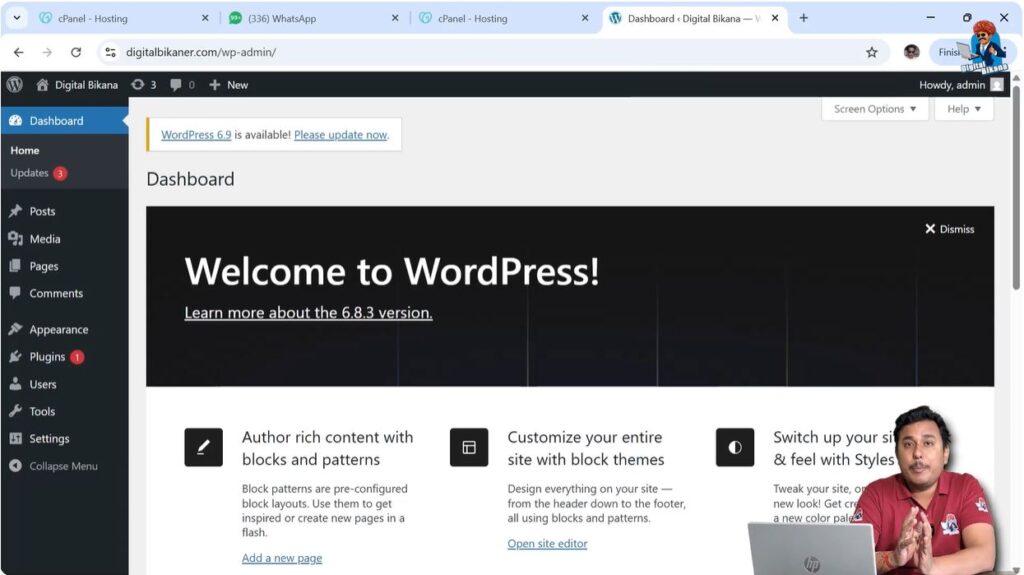
After clicking Login, you will be logged in to your WordPress admin dashboard.
The WordPress admin dashboard is the place where you can manage your website and make changes whenever required.
From the dashboard, you can design your website, add pages, upload images, and publish content.
Conclusion
Logging in to your WordPress website admin dashboard is a simple process. You need to enter your domain name followed by /wp-admin/ in the browser and then enter your administrator username and password.
After entering the correct login details, you will be able to access the WordPress admin dashboard and manage your website.
This is how you can login into your WordPress website admin dashboard.

Related Posts


