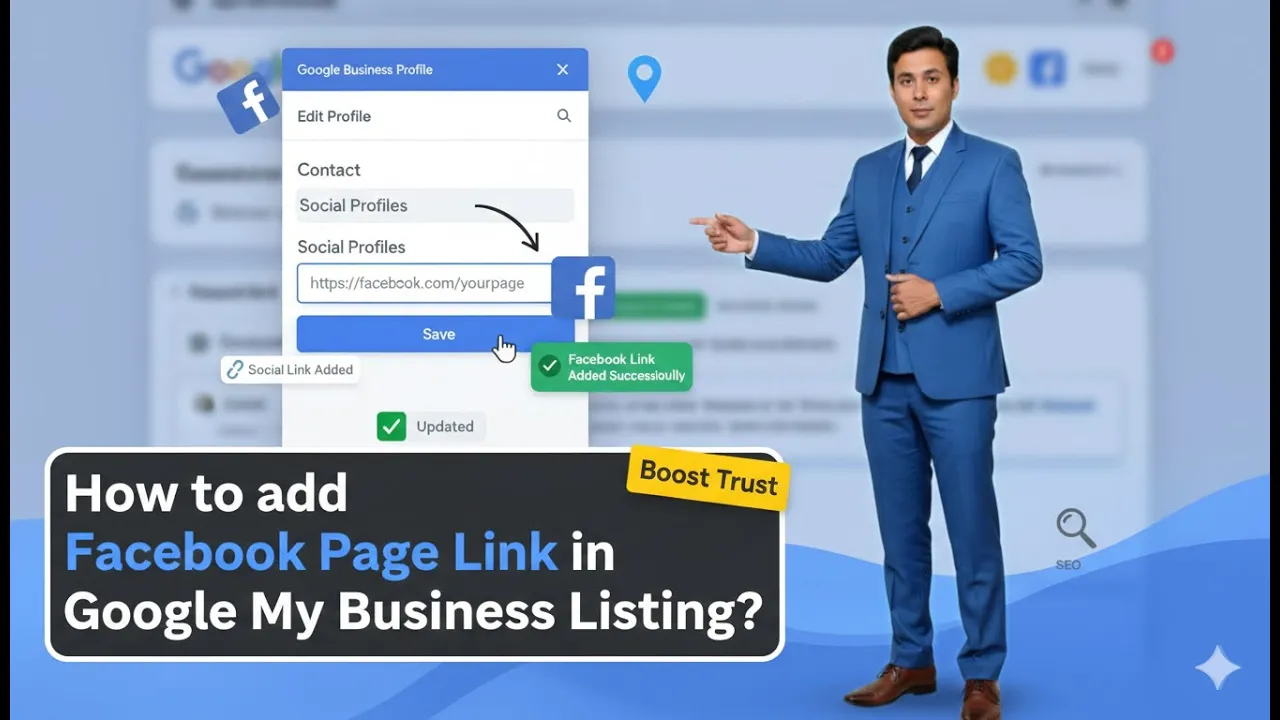
In this article, we learn how to add a Facebook page link to a Google My Business listing profile. This process helps connect a business’s Facebook presence with its Google My Business profile and allows users to find the business on Facebook directly from Google. To add a Facebook page link, you need to access your Google My Business profile using the same Gmail ID that was used while creating the business profile.
Accessing Your Google My Business Profile
To begin the process, you need to open Google and search for your business name. It is important to search using the same Gmail ID from which the Google My Business profile was created.
When you search using the correct Gmail ID, your business profile management section will be displayed directly in the Google search results. From here, you can edit and manage your business profile.
Editing the Google My Business Profile
Once your business profile appears on Google, you will see the option to edit the profile. By clicking on the “Edit profile” option, you can make changes to various sections of your Google My Business listing.
After clicking on edit profile, you need to scroll down to find the section related to social profiles.
Understanding the Social Profiles Feature
The social profiles option in Google My Business is a new feature provided by Google. This feature allows businesses to add links to their social media profiles, such as a Facebook page, directly in their Google My Business listing.
At present, this feature is a beta feature. It is under experiment and testing mode and is not available in all Google business profiles.
Beta Nature of the Social Profiles Feature
Since the social profiles feature is currently in beta mode, it may not be visible in every Google My Business profile. Some business listings may show this option, while others may not.
Even within the same account, one business profile may have the social profiles feature available, while another business profile may not. This is normal behavior while Google is testing the feature.
What to Do If the Feature Is Not Available
If the social profiles option is not visible in your Google My Business profile, there is no need to panic. The feature is still under testing, and Google may release the final version soon.
Once the feature is fully launched, it is expected to be available for all Google My Business profiles.
How to Add Facebook Page Link to Google My Business Listing Profile?
Step 1: Search for Your Business on Google
Using the Same Gmail ID
The first step is to search for your business name on Google. Make sure you are logged in with the same Gmail ID that was used to create your Google My Business profile.
Only when you use the correct Gmail ID will the business profile management options appear.

Step 2: Open the Edit Profile Option
Accessing Profile Editing Settings
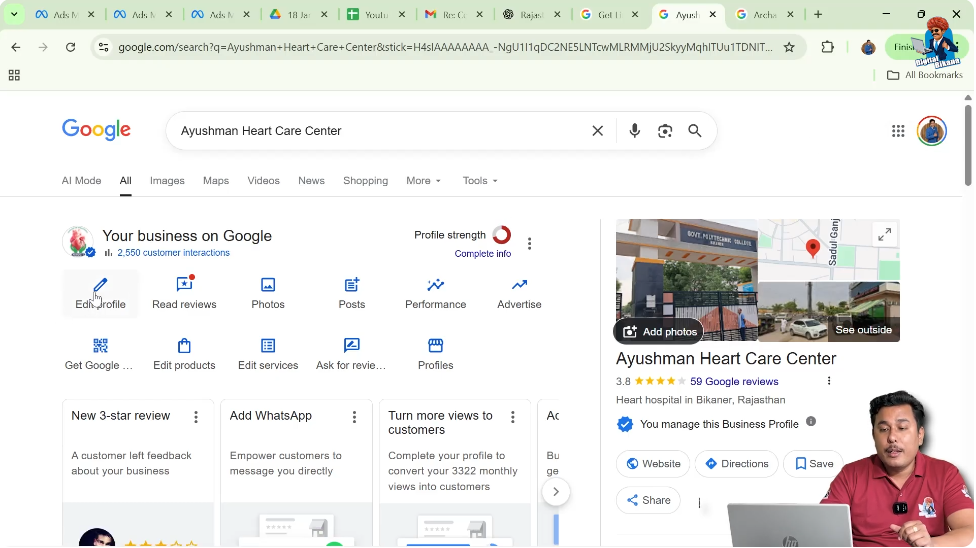
After your business profile appears in the search results, click on the “Edit profile” option. This opens the profile editing interface.
You now need to scroll down to find the social profiles section.
Step 3: Locate the Social Profiles Section
Finding the Social Profiles Feature
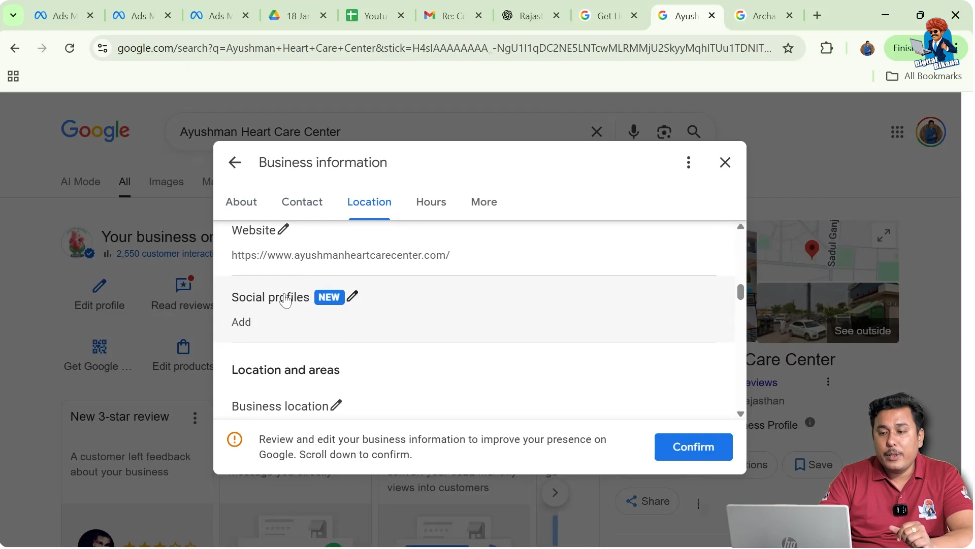
In the edit profile section, look for the social profiles option. This option will appear only if the feature is enabled for your business profile.
Since this is a beta feature, it may not be visible in all profiles.
Step 4: Click on the Edit Icon (Pen Icon)
Opening Social Profile Editing Mode
To add a Facebook page link, click on the pen icon or edit icon near the social profiles section. This allows you to add or manage social media profile links.
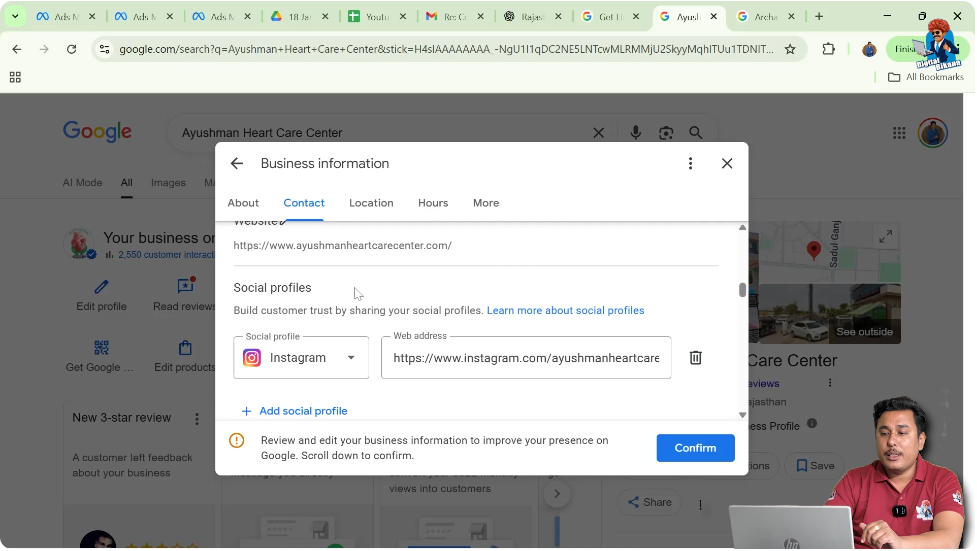
Step 5: Click on Add Social Profile
Adding a New Social Media Link
After clicking the edit icon, select the “Add social profile” option. This opens a list of social media platforms that can be added to the Google My Business profile.
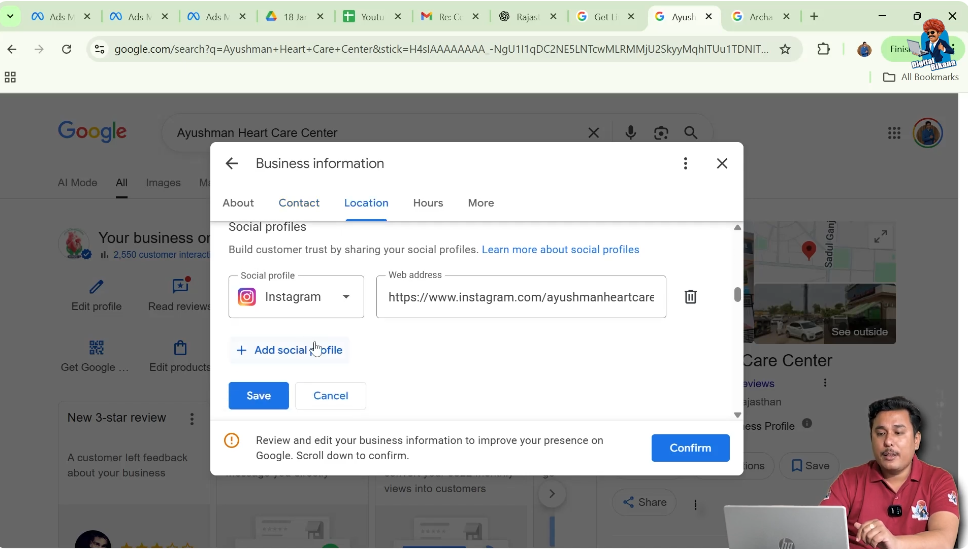
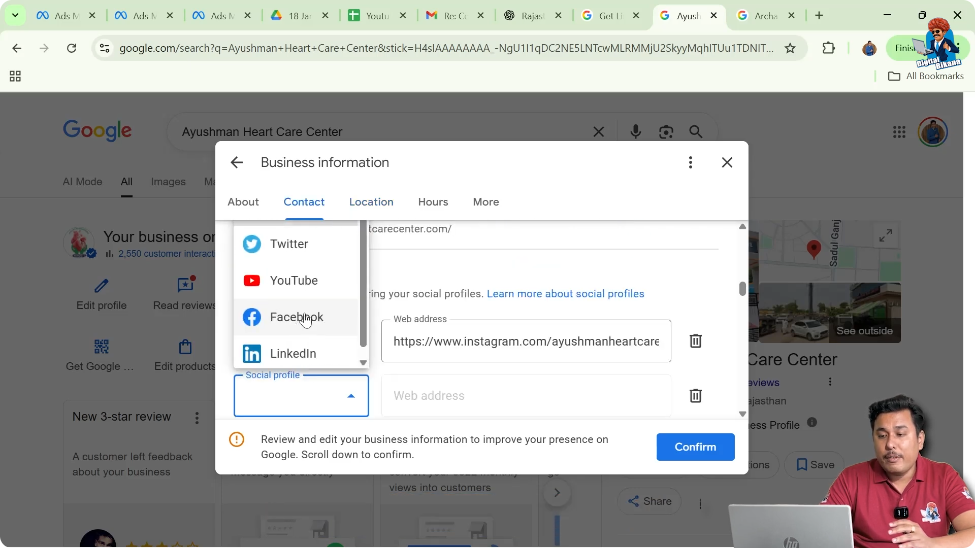
Step 6: Select Facebook as the Social Profile
Choosing Facebook Platform
From the list of available platforms, select Facebook. This indicates that you want to add your Facebook page link to your Google My Business listing.
Step 7: Enter the Facebook Page Link
Adding the Correct Facebook URL
After selecting Facebook, enter the Facebook page link in the provided field. Make sure that the link is the correct and official Facebook page URL of your business.
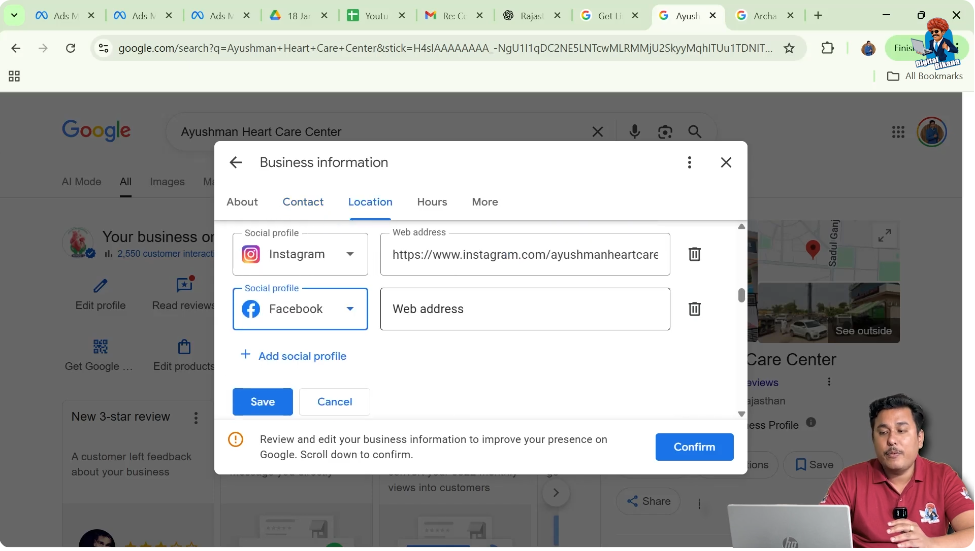
Step 8: Save the Facebook Page Link
Completing the Process
Once the Facebook page link is entered, click on the “Save” button. After saving, the Facebook page link will be added to your Google My Business listing profile.
This completes the process of adding a Facebook page link.
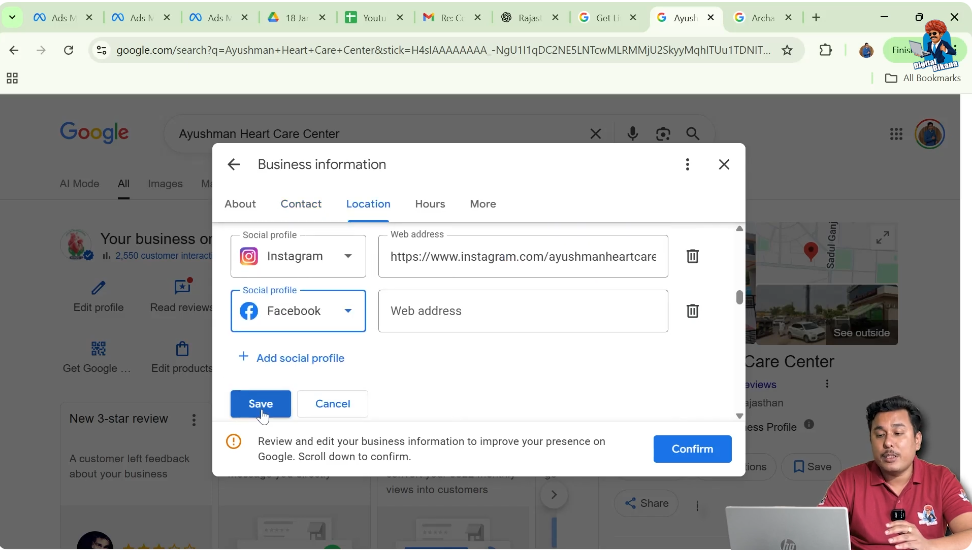
Confirmation of Facebook Page Link Addition
After saving the changes, the Facebook page link becomes part of your Google My Business profile. This confirms that the link has been successfully added.
Users viewing your business profile on Google will now be able to access your Facebook page directly.
Multiple Business Profiles and Feature Availability
In some cases, one Google My Business profile may show the social profiles feature, while another profile under the same account may not.
This happens because Google is testing the feature selectively across different business profiles.
Importance of Not Panicking About Feature Availability
If the social profiles feature is not visible in your profile, it does not indicate any issue with your business listing.
Google is experimenting with this feature, and it may take some time before it is available for all users. Until then, you simply need to wait for the feature to be enabled.
Relationship Between Google My Business and Facebook
Adding a Facebook page link helps connect your Google My Business listing with your Facebook presence. This allows users to explore your business on Facebook directly from Google search results.
Once linked, the Facebook page becomes part of your business’s overall online presence.
Managing Your Google My Business Profile Effectively
Regularly checking your Google My Business profile ensures that you can take advantage of new features as they are released.
When options like social profile linking become available, updating your profile helps improve visibility and completeness.
Final Overview of the Process
To add a Facebook page link to your Google My Business listing:
- Search for your business on Google using the correct Gmail ID
- Click on edit profile
- Scroll down to the social profiles section
- Click on the edit (pen) icon
- Select add social profile
- Choose Facebook
- Enter the Facebook page link
- Click on save
This process is simple and can be completed in a few steps when the feature is available.
Conclusion
Adding a Facebook page link to a Google My Business listing profile is a straightforward process when the social profiles feature is enabled. Since this feature is currently in beta mode, it may not be available for all business profiles.
If the option is visible in your profile, you can easily add your Facebook page by selecting the platform and entering the correct page link. If the feature is not available, there is no need to worry, as Google is still testing it and may release it for all users in the future.
Understanding how this feature works helps businesses stay prepared and manage their Google My Business profiles more effectively.

Related Posts