Managing billing settings correctly is one of the most important parts of running advertisements on Facebook. One common issue many advertisers face is selecting the wrong currency while setting up their ad account. This mistake can happen during initial setup, especially when the account is created quickly or without carefully reviewing the settings. If the wrong currency is selected, it can create confusion in billing, ad spend tracking, and reporting. Fortunately, Facebook provides an option to change the currency of an ad account by updating specific account settings.
Understanding Currency Settings in a Facebook Ad Account
Before learning how to change the currency, it is important to understand where currency settings exist and how they are connected to other account-level configurations.
In a Facebook ad account, currency is directly linked with the time zone. Facebook already knows which currency is used in which geographical time zone. Because of this reason, currency and time zone must be changed together. You cannot change one without updating the other.
If an incorrect currency such as USD, Japanese Yen, or Chinese Yuan is selected by mistake, Facebook still allows you to correct it by editing your business information within the billing section of Ads Manager.
Where Currency Settings Are Located
Currency settings are not available inside the campaign, ad set, or ad creative level. They are part of the billing and payment settings of the ad account.
To access currency settings, you must go through the Ads Manager and navigate to the billing area. This ensures that changes are applied at the account level and affect all campaigns running under that ad account.
Accessing Facebook Ads Manager
The first step is to log in to your Facebook account and open Ads Manager. Once you are inside Ads Manager, you will usually land on the Campaigns section.
This section displays all the campaigns running or previously created in your ad account. From here, you can move forward to access billing-related settings.
How to Change Currency in a Facebook Ad Account?
Step 1: Open Ads Manager
After logging in, ensure that you are inside the correct ad account within Ads Manager. This is important if you manage multiple ad accounts.

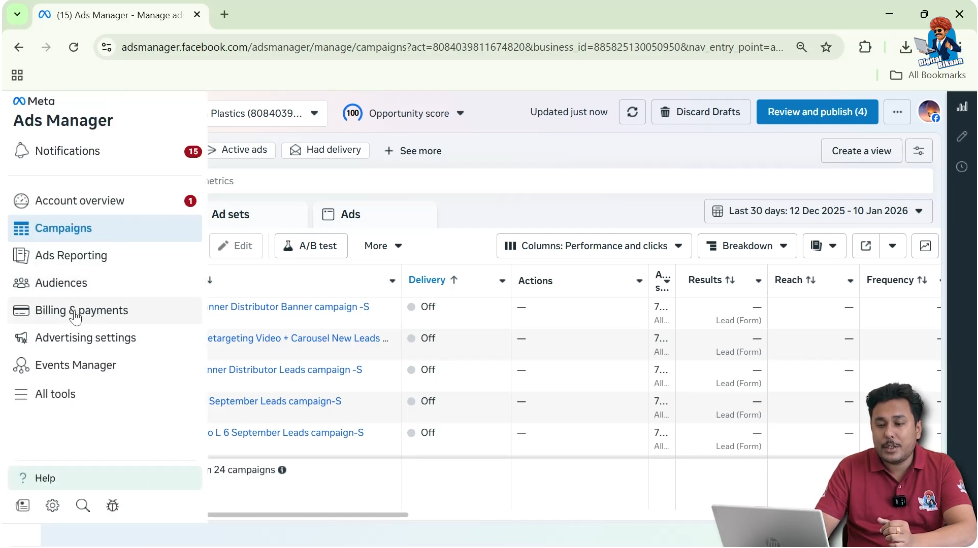
Step 2: Go to Billing and Payments
Inside Ads Manager, locate the Billing and Payments option. Click on it to enter the billing section of your ad account.
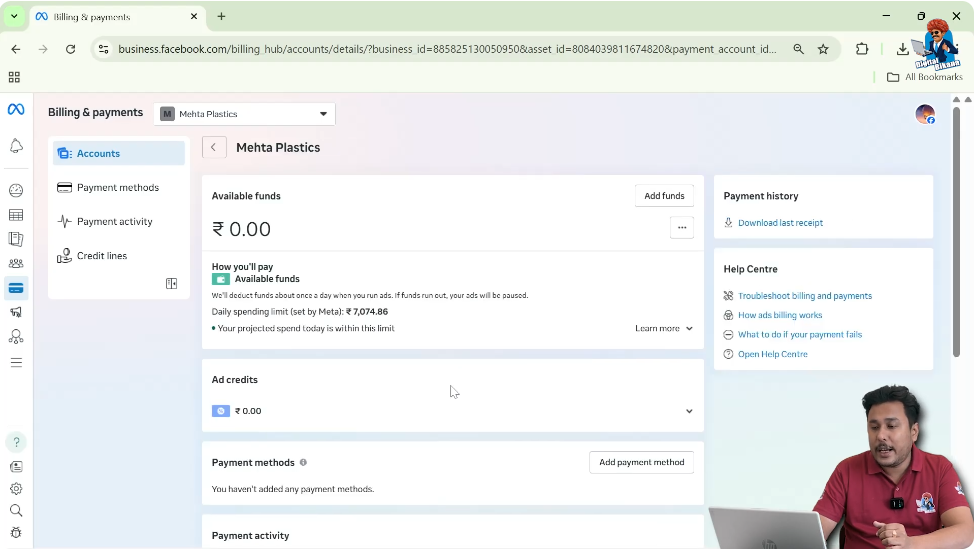
Once clicked, you will be redirected to the billing dashboard where Facebook shows details related to payments, transactions, and account settings.
Understanding the Billing Section
The billing section contains all financial details related to your ad account. This includes:
- Payment history
- Amount spent
- Payment methods
- Business information
The option to change currency is not visible immediately. You need to scroll down to find the correct section.
Locating the Business Info Option
Step 3: Scroll Down the Billing Page
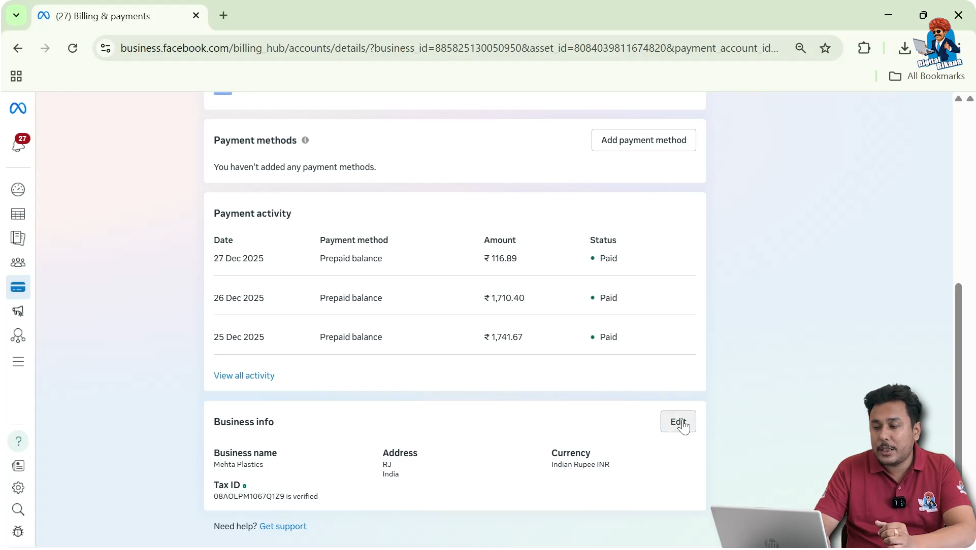
After entering the billing section, scroll down carefully. As you move down the page, you will find a section labeled Business Info.
This section contains important account-level information such as time zone and currency.
Step 4: Click on Edit
Next to the Business Info section, there is an Edit option. Click on this button to make changes.
Once you click Edit, the fields for time zone and currency become editable.
Changing Time Zone and Currency Together
Why Time Zone and Currency Are Linked
Facebook automatically maps currencies to time zones. This is why the platform requires both settings to be updated together.
For example:
- If you select a time zone belonging to a specific country, Facebook automatically allows currencies commonly used in that region.
- This prevents mismatches between reporting time and billing calculations.
Because of this system, you cannot update currency alone.
Step 5: Select the Correct Time Zone
Inside the Business Info editing window, you will see the Time Zone field.
Choose the correct time zone based on your business location. This helps Facebook understand which regional settings should apply to your account.
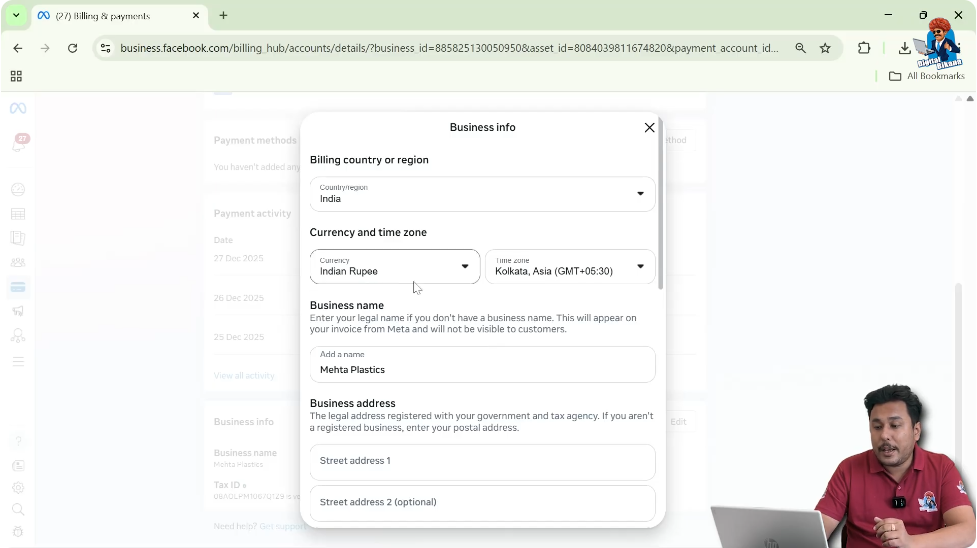
Step 6: Select the Correct Currency
Next, locate the Currency field.
If you have mistakenly selected a currency like:
- Japanese Yen
- Chinese Yuan
- USD
you can now replace it with the correct currency that belongs to your region.
Make sure the selected currency matches your business location and billing requirements.

Saving the Changes
Step 7: Click on Save
After selecting the correct time zone and currency, click the Save button.
Once saved, Facebook updates the currency of your ad account.
This completes the process of changing the currency.

What Happens After Changing the Currency
After saving the changes:
- The ad account will reflect the new currency
- All future billing and reporting will be shown in the updated currency
- The change applies at the account level
This ensures consistency in ad spend tracking and billing clarity.
Important Points to Keep in Mind
Currency Change Is an Account-Level Action
The currency change applies to the entire ad account, not individual campaigns or ad sets.
Correct Selection Is Crucial
Selecting the correct time zone and currency is important because Facebook uses these settings for:
- Billing cycles
- Ad delivery reporting
- Spend calculations
Common Mistakes That Lead to Wrong Currency Selection
Many advertisers end up selecting the wrong currency due to:
- Rushing through account setup
- Not reviewing default settings
- Creating ad accounts from a different geographical location
The Business Info section exists to correct such mistakes.
Why Correct Currency Matters in Facebook Ads
Having the correct currency helps in:
- Accurate budget planning
- Clear understanding of daily and lifetime spend
- Proper financial reporting
- Avoiding confusion during payment reconciliation
A mismatch in currency can make it difficult to analyze ad performance effectively.
Summary of the Complete Process
To change the currency in a Facebook ad account:
- Open Ads Manager
- Go to Billing and Payments
- Scroll down to Business Info
- Click on Edit
- Change the time zone
- Select the correct currency
- Click Save
This is the correct and official way to update the currency of your ad account.
Final Thoughts
Changing the currency in a Facebook ad account is a simple but very important process. Many advertisers overlook this setting during initial setup and later face confusion while analyzing ad spend.
By visiting the billing section and updating business information correctly, you can easily fix this issue. Once the correct time zone and currency are selected, your ad account becomes more aligned with your business location and financial reporting needs.
Understanding and managing these basic account settings ensures a smoother advertising experience and helps you focus more on campaign performance rather than billing confusion.

Related Posts