In this article, we will learn how to run message ads using Meta Ads Manager on Facebook and Instagram. Message ads are used when the main objective of an advertisement is to generate direct conversations with potential customers. These conversations can happen through platforms such as WhatsApp Business. This guide explains the complete process of creating message ads step by step, starting from campaign creation to ad publishing. Each section is explained in detail to help you clearly understand how message ads work inside Meta Ads Manager.
Understanding Message Ads in Meta Ads Manager
Message ads are designed to encourage users to directly message a business instead of visiting a website or filling out a form. When users click on the call-to-action button, they are redirected to a messaging platform where they can start a conversation instantly.
In this setup, WhatsApp Business is used as the primary messaging destination to receive inquiries.
Accessing Meta Ads Manager
To begin, log in to your Meta Ads Manager account. Once inside the dashboard, you will find the option to create a new campaign.
Click on the Create button to start setting up a new ad campaign.
How to Run Message Ads Using Meta Ads Manager on Facebook and Instagram?
Step 1: Selecting the Campaign Objective
Choosing Engagement Objective for Message Ads
After clicking on the Create button, Meta Ads Manager asks you to select a campaign objective. For running message ads, the Engagement objective is selected.
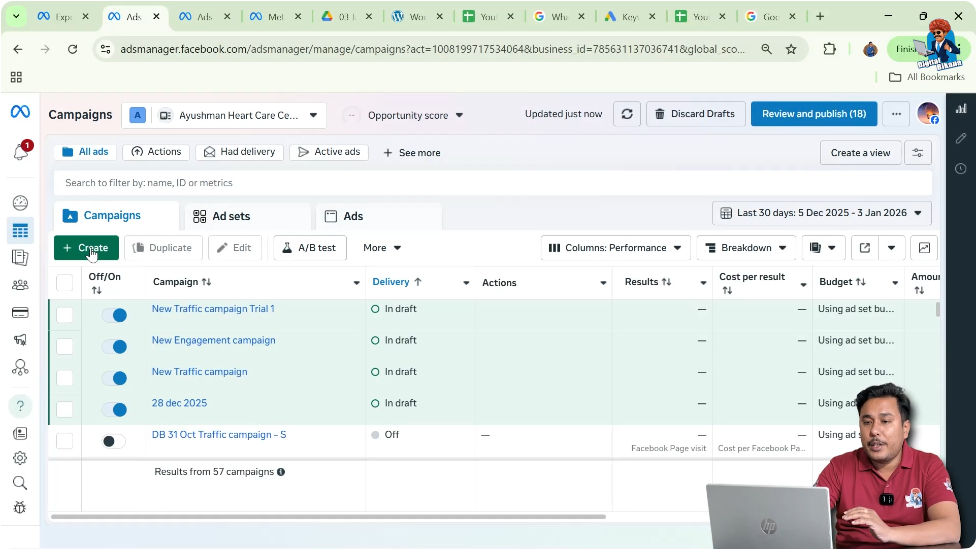
The engagement objective is suitable for message ads because it focuses on interactions such as messages and conversations rather than clicks or conversions.
After selecting the engagement objective, click on Continue.

Step 2: Selecting Manual Engagement Campaign
Why Manual Engagement Is Used
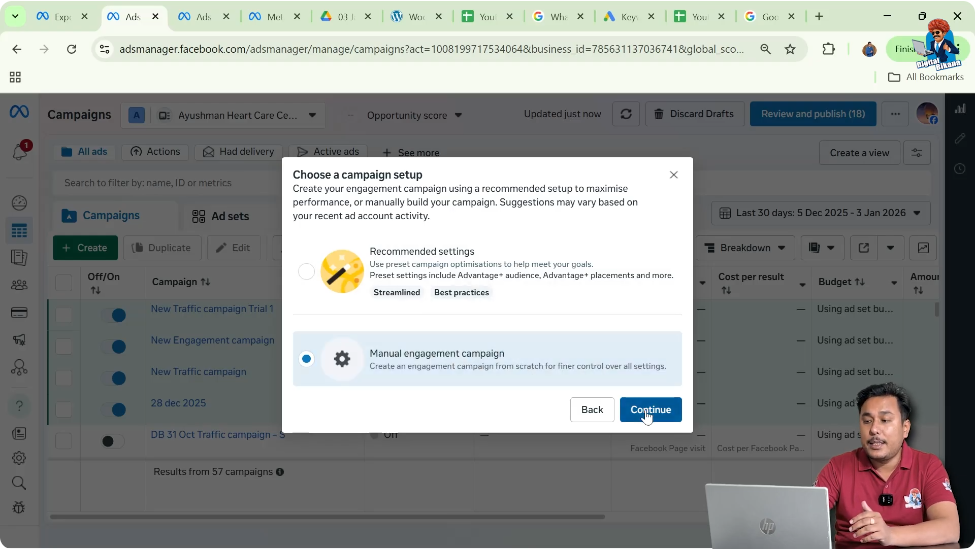
Instead of choosing an Advantage Plus campaign, a manual engagement campaign is selected. Manual campaigns give better control over budget distribution, audience targeting, and ad placements.
After selecting the manual engagement campaign option, click on Continue.
Step 3: Naming the Campaign
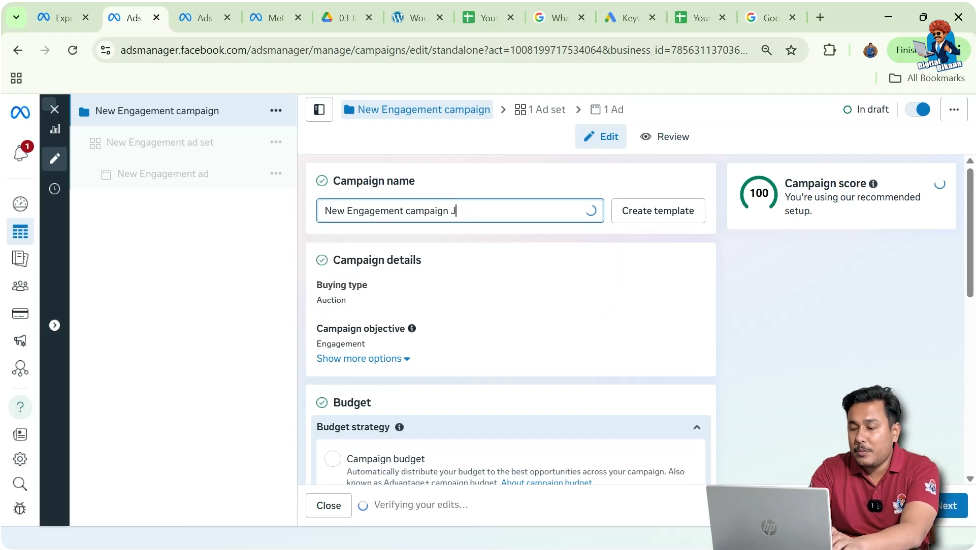
At this stage, you can change the campaign name. The ad campaign name is only for your internal reference and is not visible to users who see your ad.
You can name the campaign based on the purpose or platform, making it easier to identify later.
Budget Settings at Campaign Level
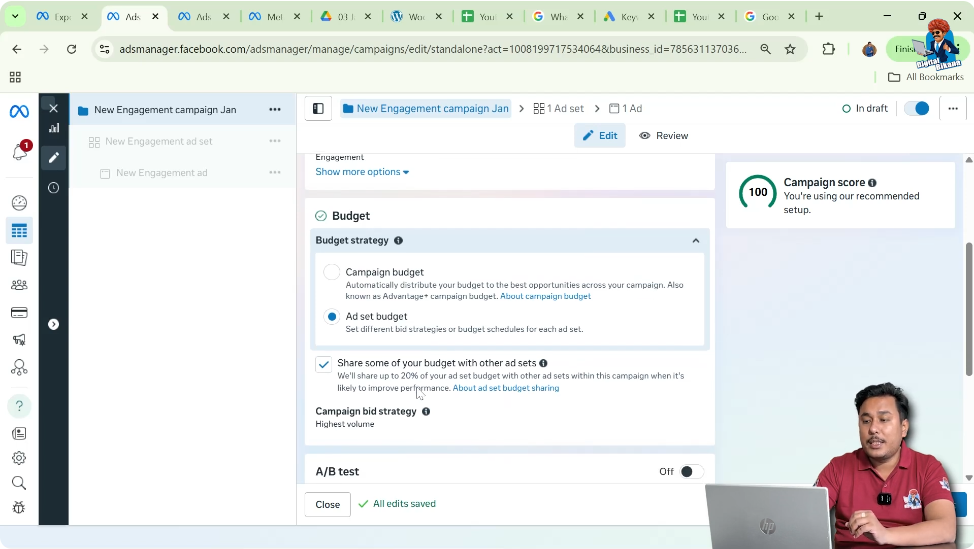
Choosing Ad Set Budget Instead of Campaign Budget
In the budget section, select the option to set the budget at the Ad Set level instead of the campaign level. Campaign budget optimization is not used here.
Turn off the option Share some of your budget with other ad sets.
A/B testing remains turned off.
Special Ad Category Selection
Do not select any special ad category unless your business falls under it. If your ad does not belong to a special ad category, leave it unselected and click Next.
Step 4: Naming the Ad Set
Now you are at the ad set level. Enter a name for the ad set. This name is also only for internal reference and will not be visible to users.

Step 5: Selecting Message Conversion Location
Choosing Messages as Conversion Location
In the conversion location section, select Messages. This ensures that users who click on your ad will be directed to a messaging platform instead of a website or app.
The Facebook Page is automatically selected.
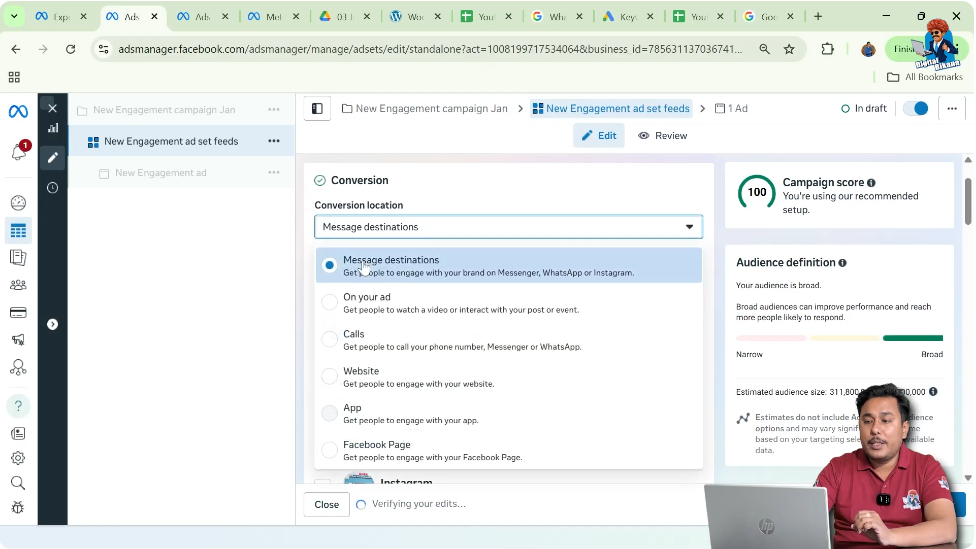
Step 6: Selecting WhatsApp Business as Message Destination
You are now asked where you want people to message you.
Select WhatsApp Business as the messaging destination. Make sure the selected WhatsApp account is a WhatsApp Business account or WhatsApp Business API, not a personal WhatsApp number.
Uncheck Instagram and Messenger so that all messages come only to WhatsApp Business. This helps in easier inquiry management and provides access to the user’s contact number for follow-ups.
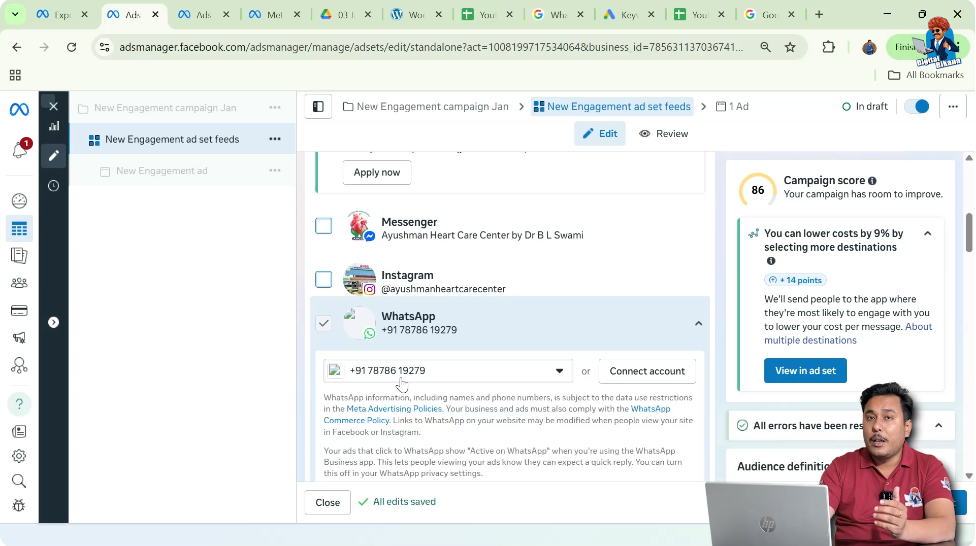
Step 7: Performance Goal Selection
The performance goal is automatically set to Maximize number of conversations. This option helps Meta optimize the campaign to generate the maximum possible conversations within the given budget.

Step 8: Setting the Daily Budget
Set the daily budget according to your requirement. In this setup, the daily budget is set to ₹380 per day.
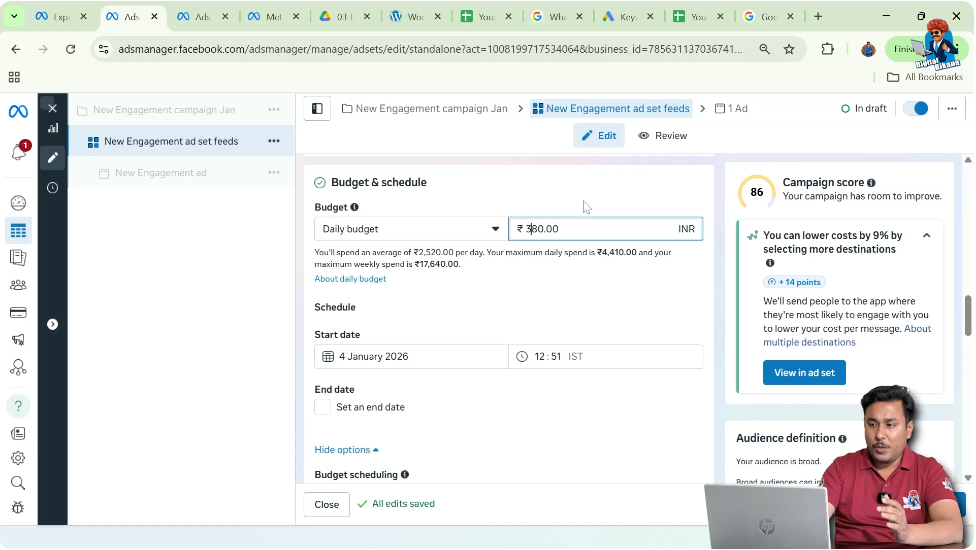
Step 9: Scheduling the Ad Set
Select the start date and end date for the ad campaign. In this case, the ad is scheduled to run for the next 10 days.
You can choose any duration based on your advertising plan.

Step 10: Location Targeting
Selecting Target Location
In the audience section, choose the location where you want your ads to run. The location is selected based on the office area, and a specific radius is applied to target users nearby.

Step 11: Age Targeting
Set the minimum age for showing ads. Age selection depends on the business type and country. Here, the minimum age is set to 23 years.

Step 12: Gender Selection
Ads are shown to all genders. No specific gender is selected, ensuring a broader audience reach.
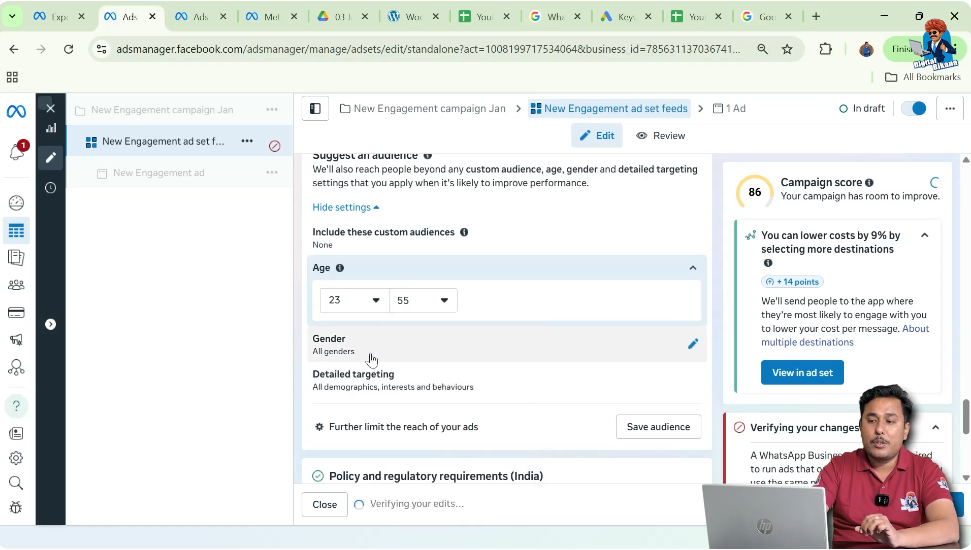
Step 13: Detailed Targeting
Selecting Audience Filters
In detailed targeting, filters are selected based on behavior. The ad is targeted toward small business owners.
There are three types of targeting available:
Any of these can be used based on the business requirement.

Step 14: Placement Selection
Choosing Manual Placements
Manual placement is selected because the ad creative is a 1:1 square banner.
Ads are shown only in Feeds because feeds support square creatives.
The following placements are excluded:
- Stories and Reels (require 9:16 format)
- In-stream ads
- Search results
- Apps and sites
- Instagram Explore Home (small preview size)

Step 15: Moving to Ad Creative Level
Click on Next to reach the ad creative level.

Partnership Ads Settings
Partnership ads are turned off because the ad is not being run in collaboration with any other brand.
The Facebook Page and Instagram account are already selected automatically.
Step 16: Ad Setup Selection
Select Create Ad because the ad creative is being uploaded directly into the campaign and has not been posted on Facebook or Instagram before.
Step 17: Selecting Ad Format
Choosing Single Image Ad
Select Single Image Ad as the format. Carousel ads and multi-advertiser ads are turned off.

Step 18: Uploading the Ad Creative
Click on Image Ad, go to Setup Creative, and select the banner you want to advertise. If required, you can upload a new image or video from your system.
After selecting the creative, click Next.

Step 19: Writing Ad Copy
Primary Text
Enter the primary text or caption. You can write it manually or use AI assistance. Business address details can also be included.
Headline
Enter a catchy and attractive headline that encourages users to message your business.
Description and CTA
Add additional description if needed. Select the CTA button text. Send WhatsApp Message is selected as it aligns with the message ad objective.
Click Next.

Step 20: Advantage Plus Creative Enhancements
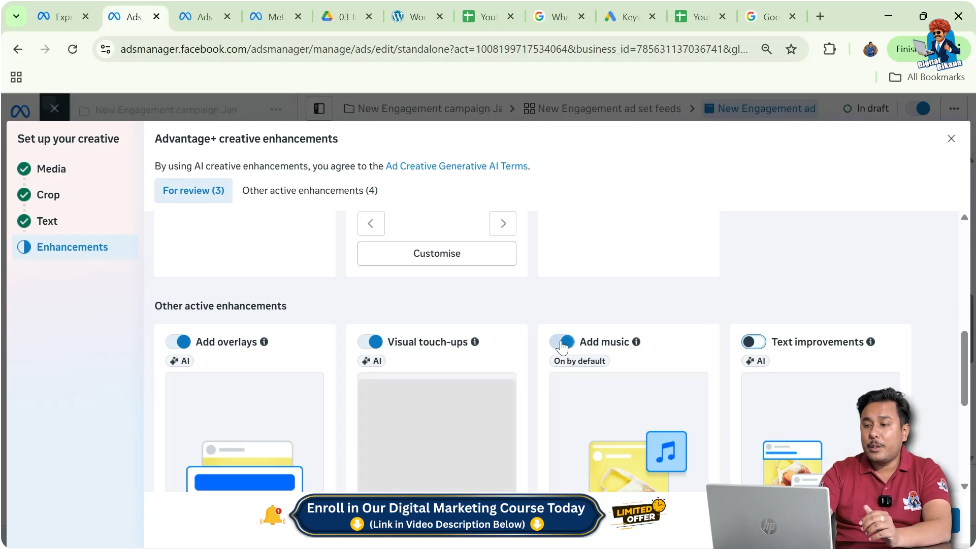
Advantage Plus creative enhancements are turned off. This ensures that the ad creative is shown exactly as designed without AI-based modifications.
Click Done.
Publishing the Ad Campaign
At this stage, the message ad campaign is fully ready. Once you click on Publish, the ad goes live.
Running Message Ads on Feeds and Stories
Method 1: Creating Multiple Ad Sets
Duplicate the ad set and rename it for Stories and Reels.
- Uncheck Feeds
- Select Stories and Reels
- Replace the square creative with a 9:16 portrait banner
- Save the changes
This method uses separate ad sets and budgets for different placements.
Method 2: Using One Ad Set for Multiple Placements
Select both Feeds and Stories/Reels within the same ad set.
In the ad creative section:
- Edit the Stories and Reels creative
- Upload the 9:16 portrait banner
- Save changes
This method allows ads to run on both placements using a single budget.
Final Conclusion
Message ads using Meta Ads Manager are a powerful way to generate direct conversations with potential customers. By following this step-by-step process, you can successfully run message ads on Facebook and Instagram and receive inquiries directly on WhatsApp Business. Using correct placements, targeting, and creative sizes ensures better performance and efficient lead management.

Related Posts