WhatsApp call ads are one of the most effective ad formats when your goal is to get direct phone calls from interested users. Instead of sending users to a website or a lead form, WhatsApp call ads allow people to call your business directly on WhatsApp with a single click. In this article, we will learn how to create WhatsApp call ads using Meta Ads Manager, covering the complete process from campaign creation to ad publishing. Each step is explained in detail so that even beginners can follow it easily.
Understanding WhatsApp Call Ads in Meta Ads Manager
WhatsApp call ads are created using the Traffic objective in Meta Ads Manager. These ads are designed so that when a user clicks on the call-to-action button, they are redirected to call your WhatsApp Business number.
These ads are useful for:
- Local businesses
- Service providers
- Businesses that want instant customer communication
Understanding the Structure of a Meta Ads Campaign
Before creating WhatsApp call ads, it is important to understand the structure of a Meta ad campaign.
A Meta Ads campaign has three levels:
Campaign Level
This is where you select the objective and overall campaign settings.
Ad Set Level
This is where you set:
- Budget
- Schedule
- Target audience
- Placements
Ad Creative Level
This is where you:
- Upload images or videos
- Write ad text
- Select call-to-action
- Connect WhatsApp
WhatsApp call ads are configured mainly at the Ad Set and Ad Creative levels.
How to Create WhatsApp Call Ads Using Meta Ads Manager? (Step-by-Step Guide)
Step 1: Opening Meta Ads Manager and Creating a New Campaign
First, log in to your Meta Ads Manager account.
Once you are inside the dashboard, click on the Create button to start creating a new ad campaign.

Step 2: Selecting the Campaign Objective
After clicking on Create, Meta will ask you to select a campaign objective.
Since we are creating WhatsApp call ads, select Traffic as the objective.
Once selected, click on Continue.
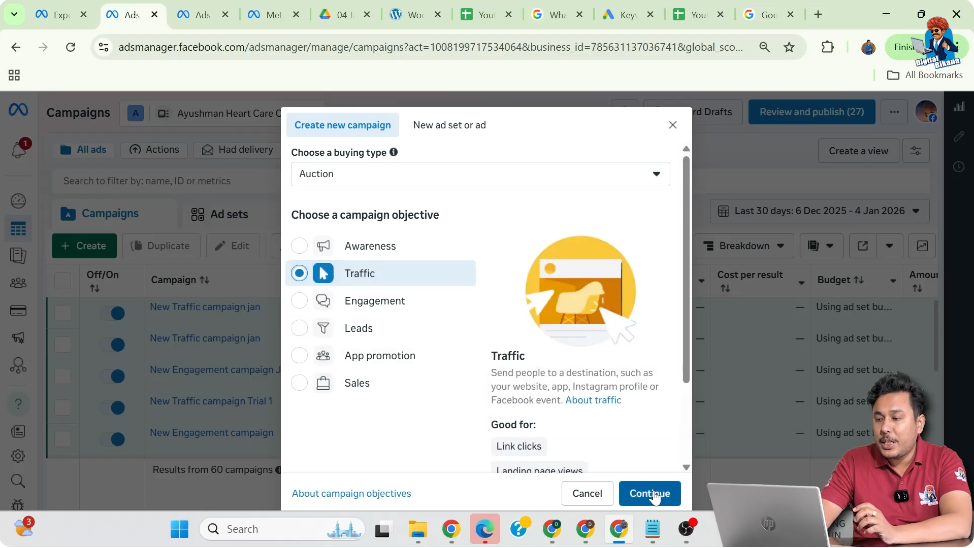
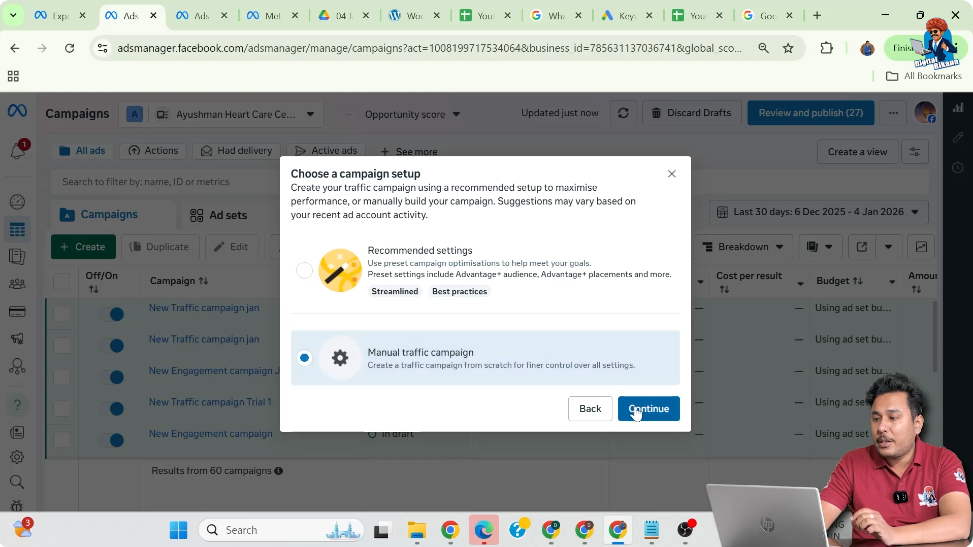
Step 3: Choosing Manual Traffic Campaign Setup
Meta will now ask whether you want to create an Manual Ad Campaign or Advantage+ Ad campaign.
Select Manual Traffic Campaign and then click on Continue.
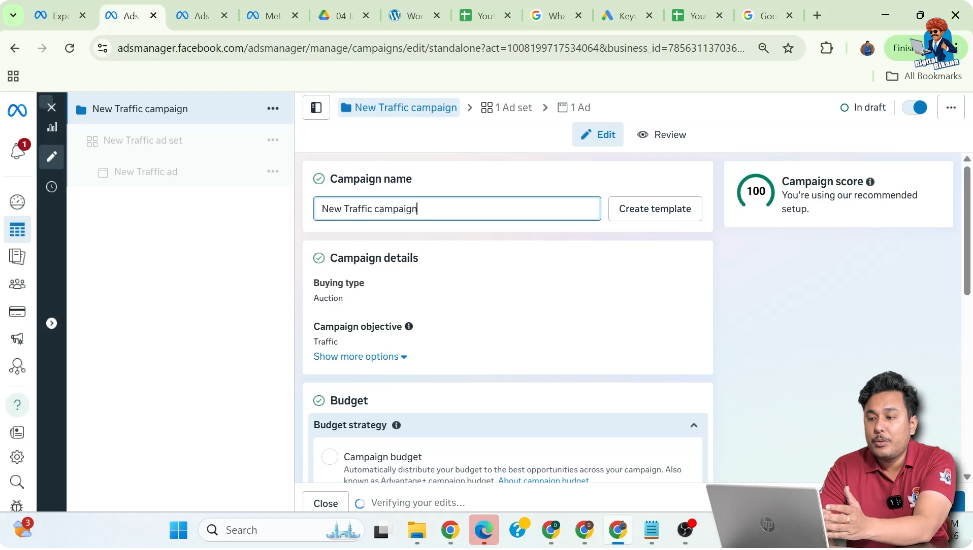
Step 4: Renaming the Campaign
At the campaign level, you can rename your campaign.
- This name is only for your reference
- It is not visible to users
Rename the campaign according to your convenience and proceed.
Step 5: Setting Budget at Ad Set Level
At the campaign level, Meta asks whether you want to set the budget at:
- Campaign level, or
- Ad set level
Select Ad Set Level Budget.
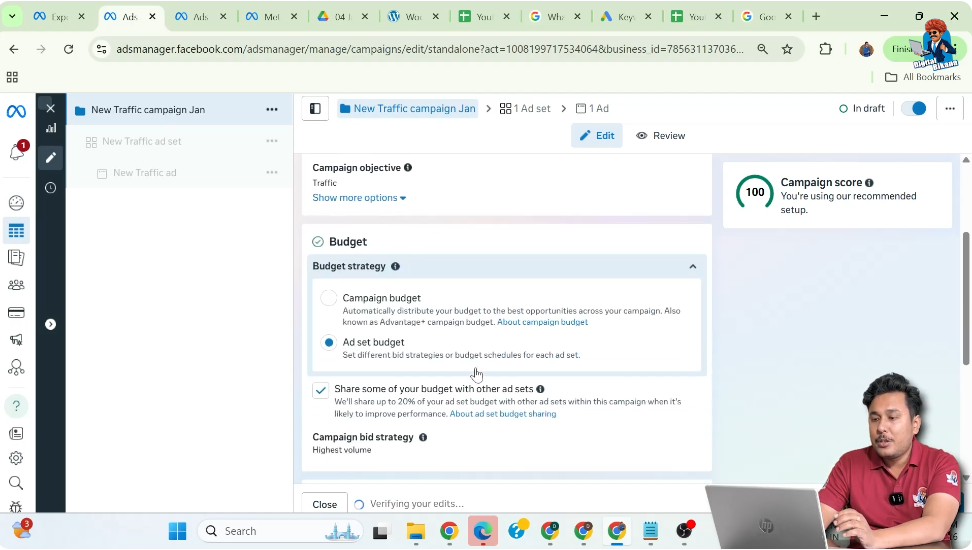
Additional Settings at Campaign Level
- Uncheck Share budget with other ad sets
- Turn A/B testing off
- Do not select Special Ad Category (unless your business belongs to one)
Click Next.

Step 6: Renaming the Ad Set
At the ad set level, rename the ad set.
This name is:
- Only for your internal reference
- Not visible to users
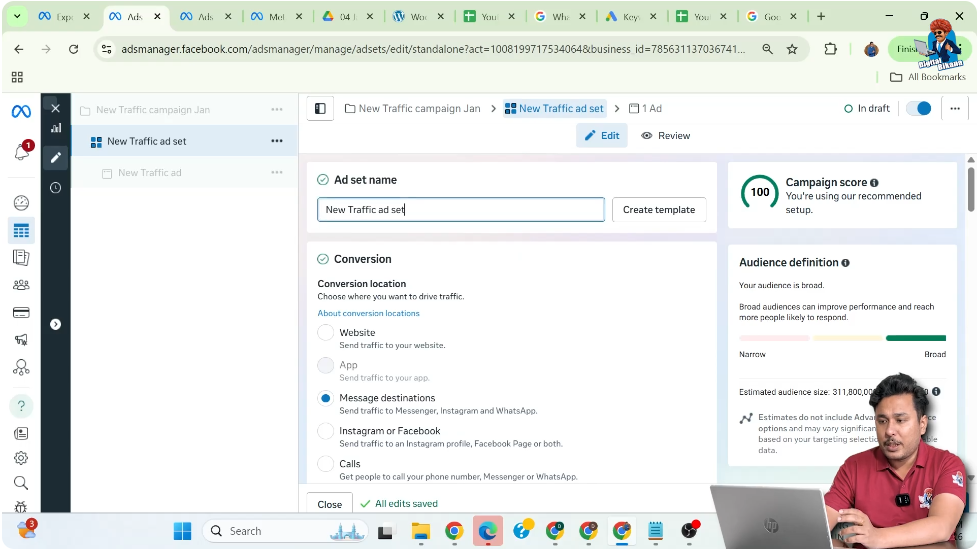
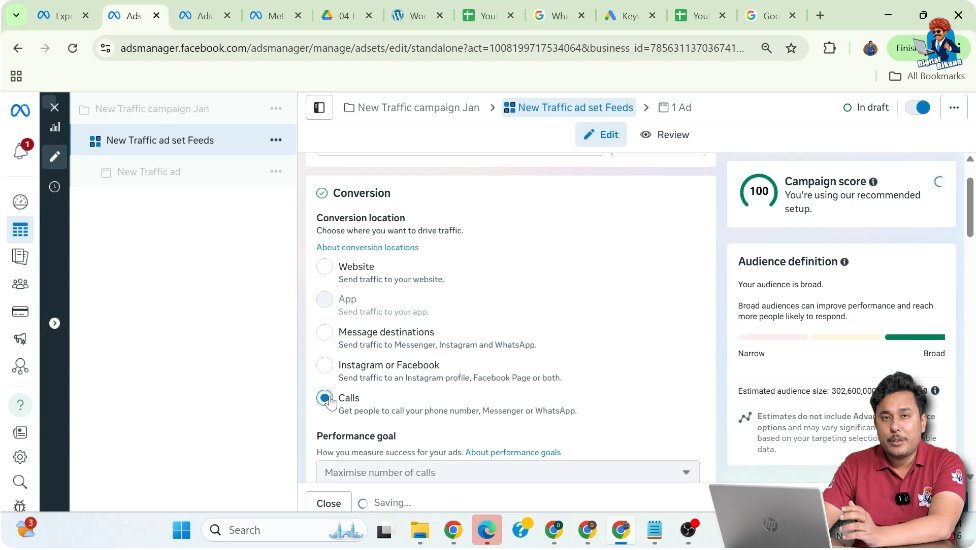
Step 7: Selecting Conversion Location as Calls
Meta will ask where you want users to land after clicking your ad.
Since the goal is to receive WhatsApp calls, select Calls as the conversion location.
Step 8: Setting the Daily Budget
Now, set the daily budget for the ad set.
In this case:
- Daily budget is set to ₹1,000 per day
This means you are willing to spend ₹1,000 daily on this WhatsApp call ad.

Step 9: Setting the Campaign Schedule
Set the start date and end date of your campaign.
Since the campaign is planned to run for 10 days, both dates are selected accordingly.

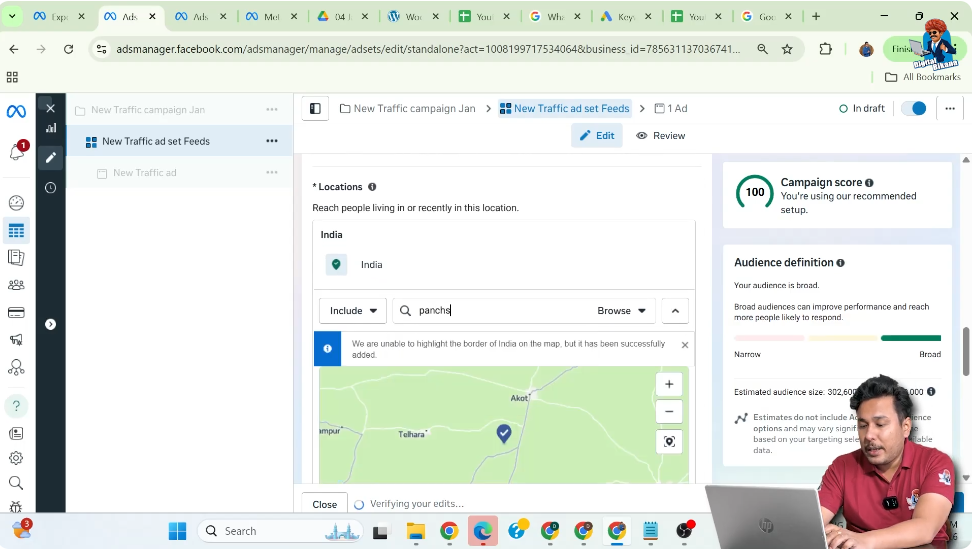
Step 10: Selecting Location Targeting
Under audience control, select the location where you want your ads to run.
- Search for your office or business location
- Set a radius around that area
This ensures your ads are shown to people nearby.
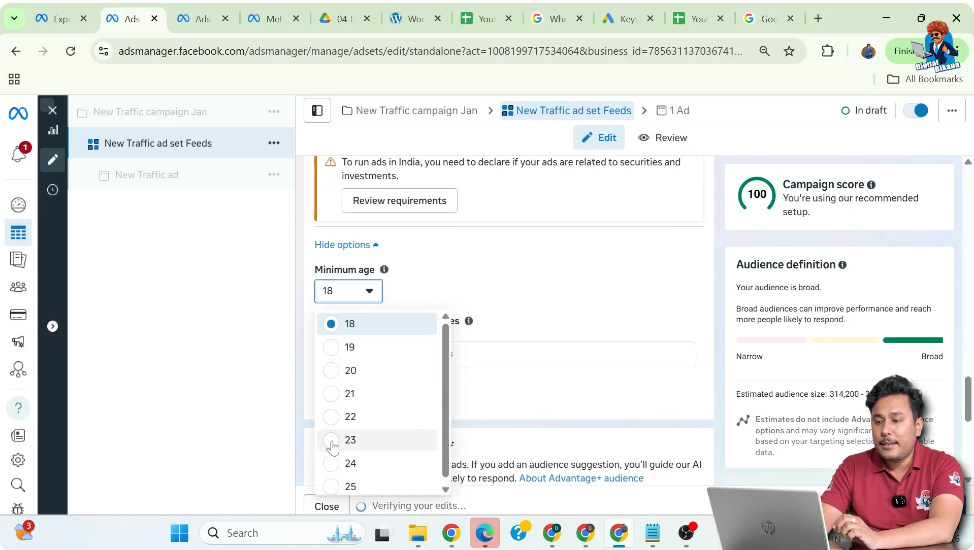
Step 11: Setting Minimum Age Criteria
Click on Show More Options.
Here, set the minimum age of people who should see your ad.
In this case:
- Minimum age is set to 23 years
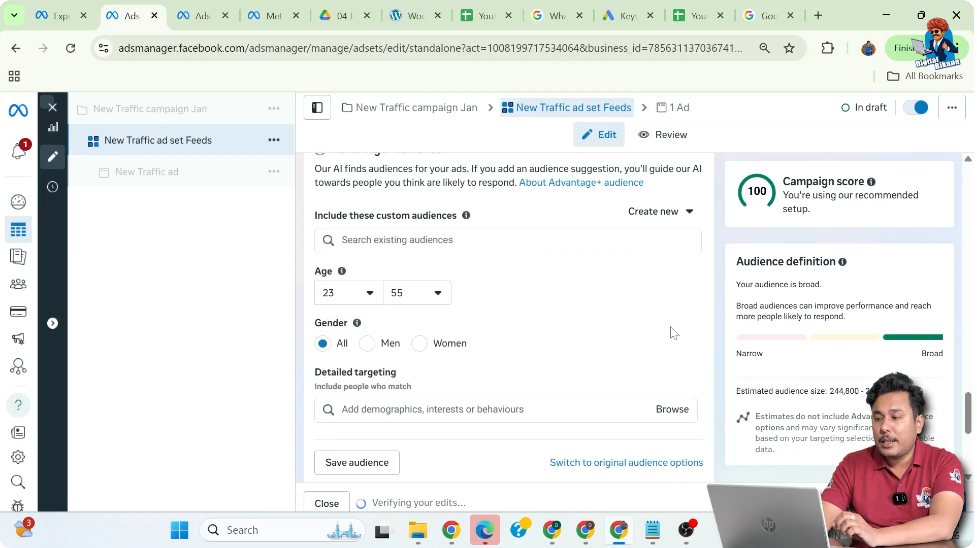
Step 12: Selecting Gender Targeting
Since the ad is meant for everyone, select All Genders.
No individual gender is selected.
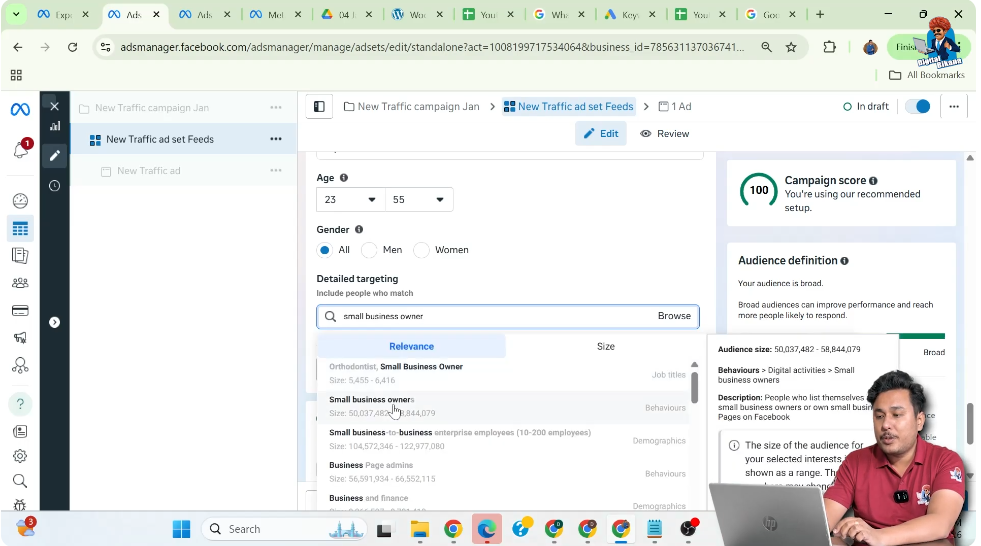
Step 13: Applying Detailed Targeting
Meta provides three types of targeting:
For this WhatsApp call ad:
- Small Business Owners is selected as a behavior-based targeting filter
This helps show the ad to a more relevant audience.
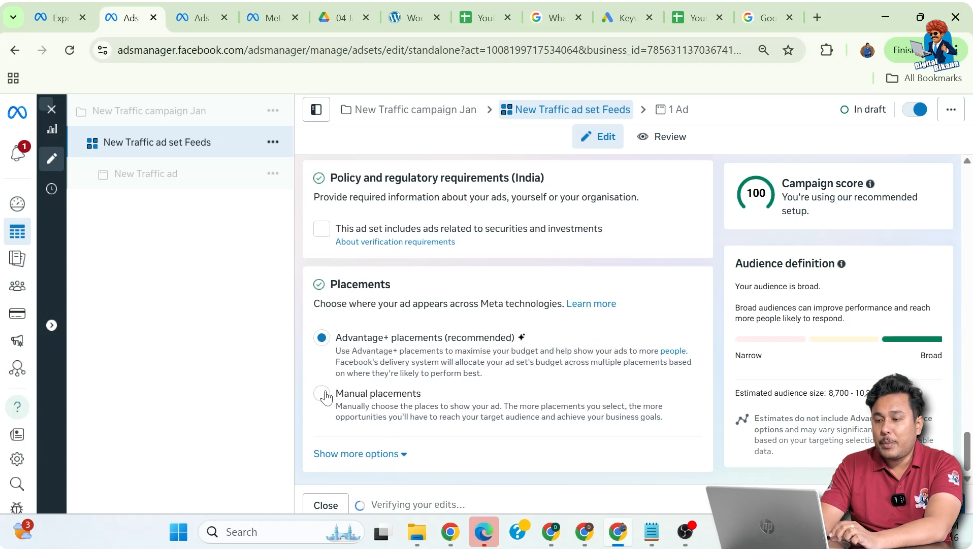
Step 14: Selecting Manual Placements
Scroll down to placements and select Manual Placements.
This gives you full control over where your ad appears.
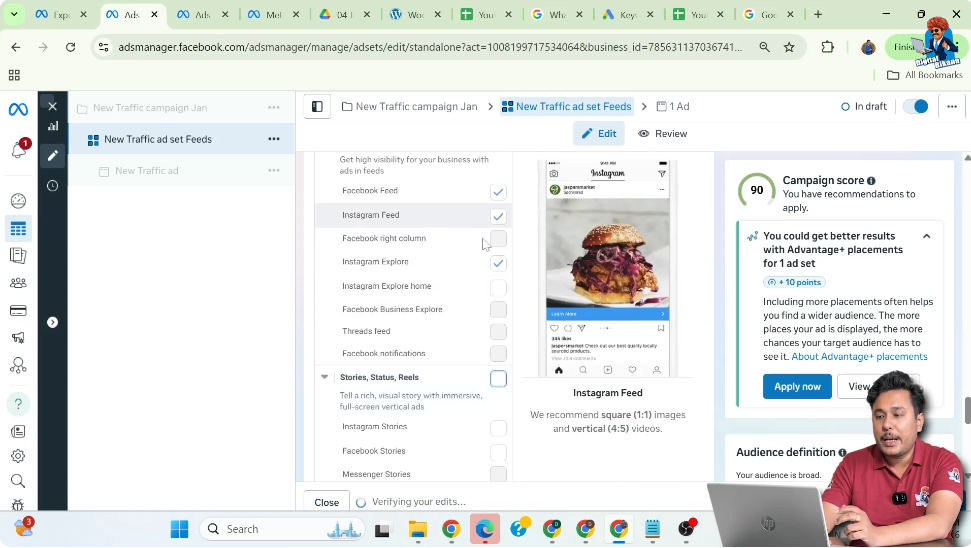
Step 15: Choosing Feed Placement Only
Since the ad creative is 1:1 square size, it does not fit properly in stories and reels (which require 9:16 size).
Therefore:
- Uncheck Stories, Status, and Reels
- Run ads only in Facebook Feed and Instagram Feed
Step 16: Excluding Unsupported Placements
Some placements do not support call buttons or do not perform well.
So:
- In-stream ads are unchecked
- Search results are unchecked
- Other placements that do not support calls are excluded
This helps avoid budget waste.
Step 17: Moving to the Ad Creative Level
After completing ad set settings, click on Next to move to the ad creative level.
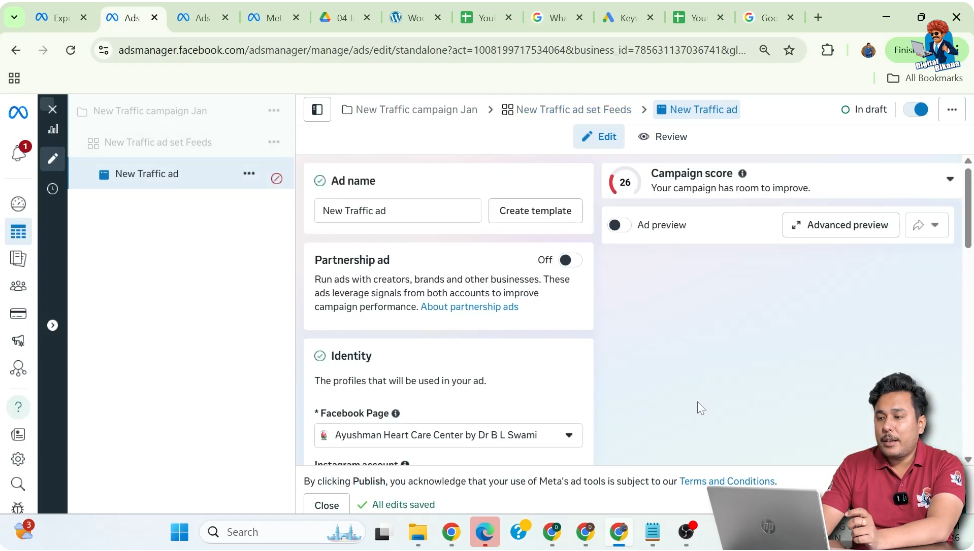
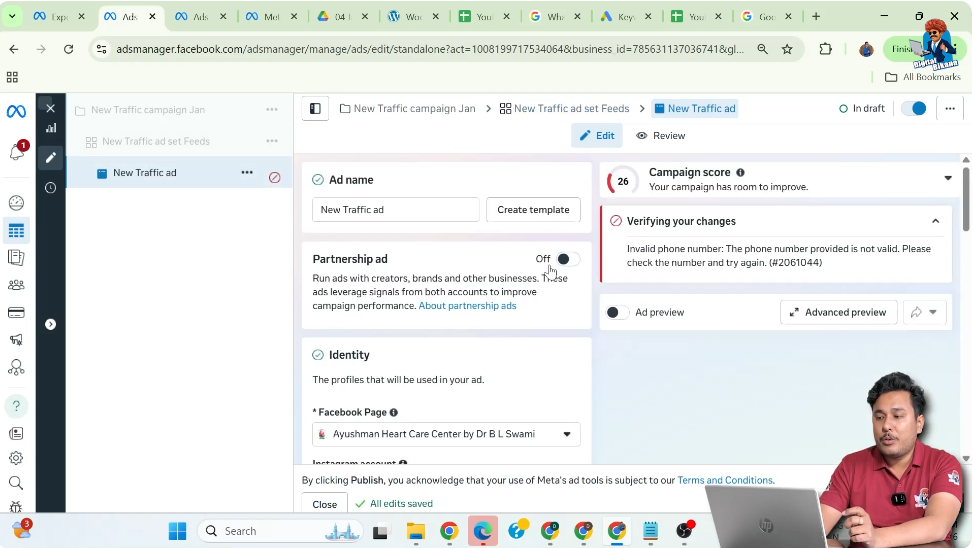
Step 18: Turning Off Partnership Ads
At the ad creative level, turn off Partnership Ads.
This is done because the ad is not being run in collaboration with any other brand.
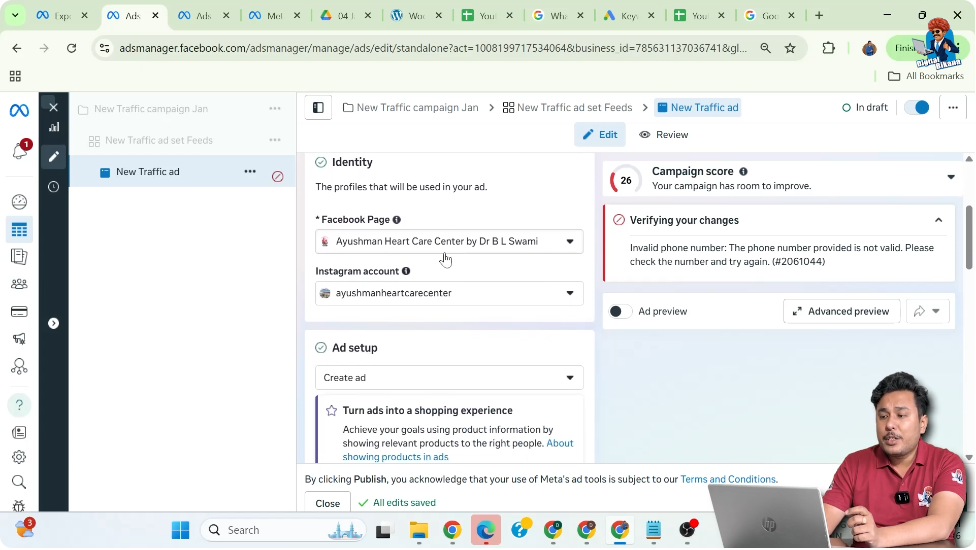
Step 19: Selecting Facebook Page and Instagram Account
Ensure that:
- Correct Facebook Page is selected
- Correct Instagram Account is selected
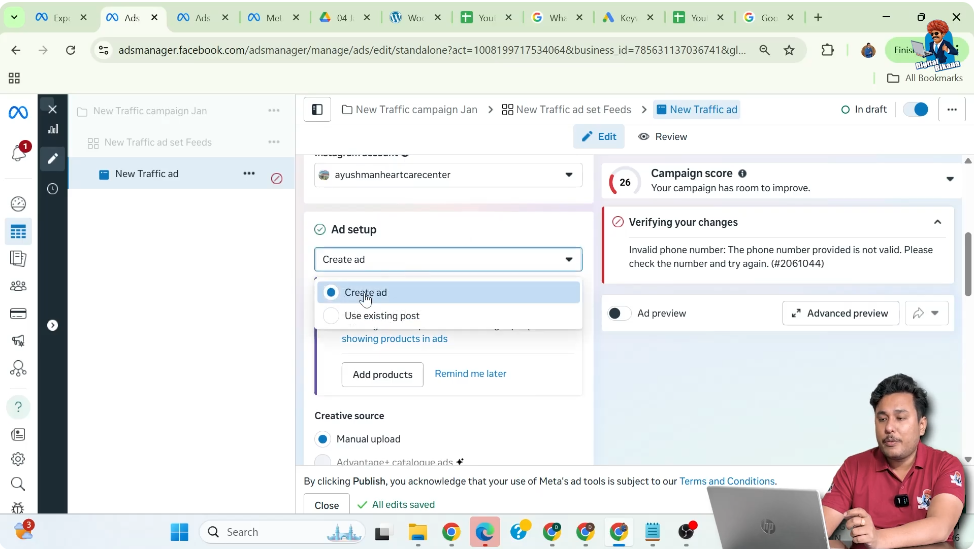
Step 20: Choosing Create Ad Option
Since the ad creative is being uploaded directly and not taken from an existing post, select Create Ad.
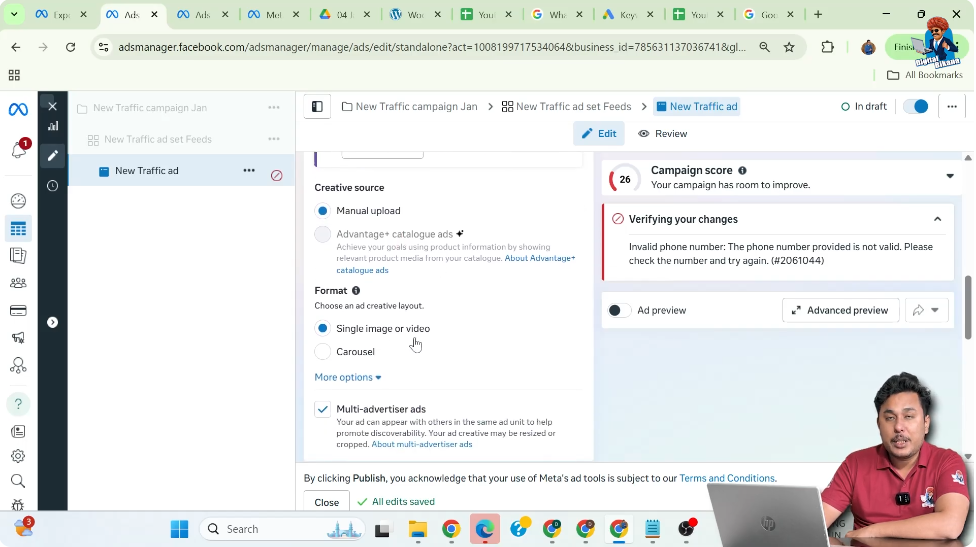
Step 21: Selecting Creative Format
Choose Single Image Ad format.
- Carousel ads are turned off
- Multi-advertiser ads are turned off
Step 22: Selecting Call on WhatsApp Destination
Under destination, select Call on WhatsApp.
Here, connect your WhatsApp Business account by:
- Selecting country code
- Entering phone number
- Verifying with OTP

Step 23: Uploading the Ad Creative
Upload the image or video creative.
If already uploaded:
- Simply select the creative
- Click Next

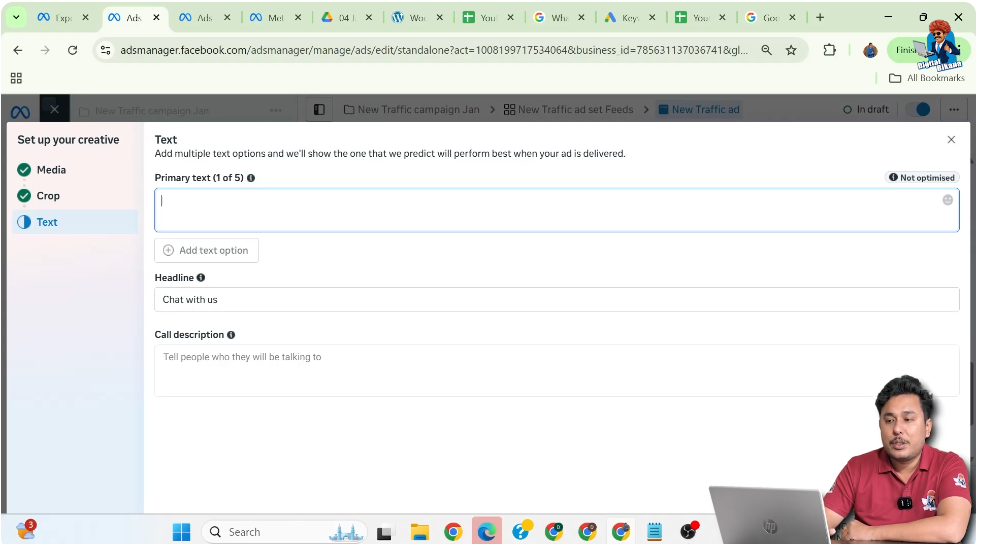
Step 24: Writing Ad Text and Headline
Enter:
- Primary Text (Caption) (manual or AI-generated)
- Business address (optional)
- Headline (catchy and attractive)
Call description is optional and can be left blank.
Click Next.
Step 25: Reviewing and Creating the Ad
At this stage:
- The ad is fully created
- Preview is available
Click Publish to make the campaign live.

Using Multiple Creatives for Different Placements
If you have 9:16 portrait creatives, you have two options.
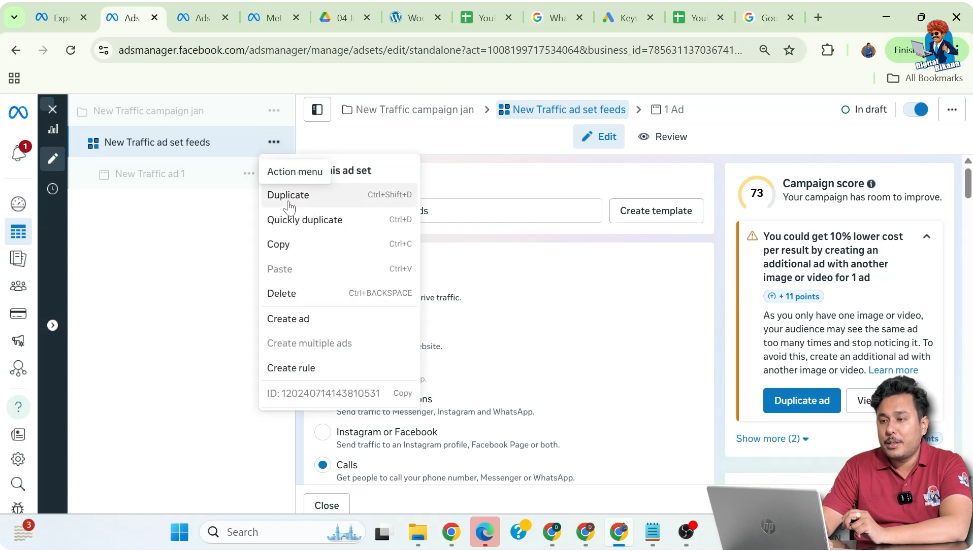
Method 1: Creating Multiple Ad Sets
- Duplicate the original ad set
- Rename it for stories and reels
- Remove feed placements
- Upload 9:16 creative
Drawback:
This method uses more budget because each ad set has its own budget.
Method 2: Using a Single Ad Set (Recommended)
In this method:
- Select Feeds + Stories + Reels in one ad set
- Upload both square and portrait creatives
- Assign creatives according to placement
Benefits:
- No need to divide budget
- Ads display correctly in all placements
- Better budget efficiency
Final Conclusion
This is the complete step-by-step process of creating WhatsApp call ads using Meta Ads Manager. By carefully selecting objectives, targeting, placements, and creatives, you can run effective call-based campaigns that allow customers to contact your business instantly.
This approach ensures:
- Proper budget utilization
- Correct creative display
- Better call conversions

Related Posts