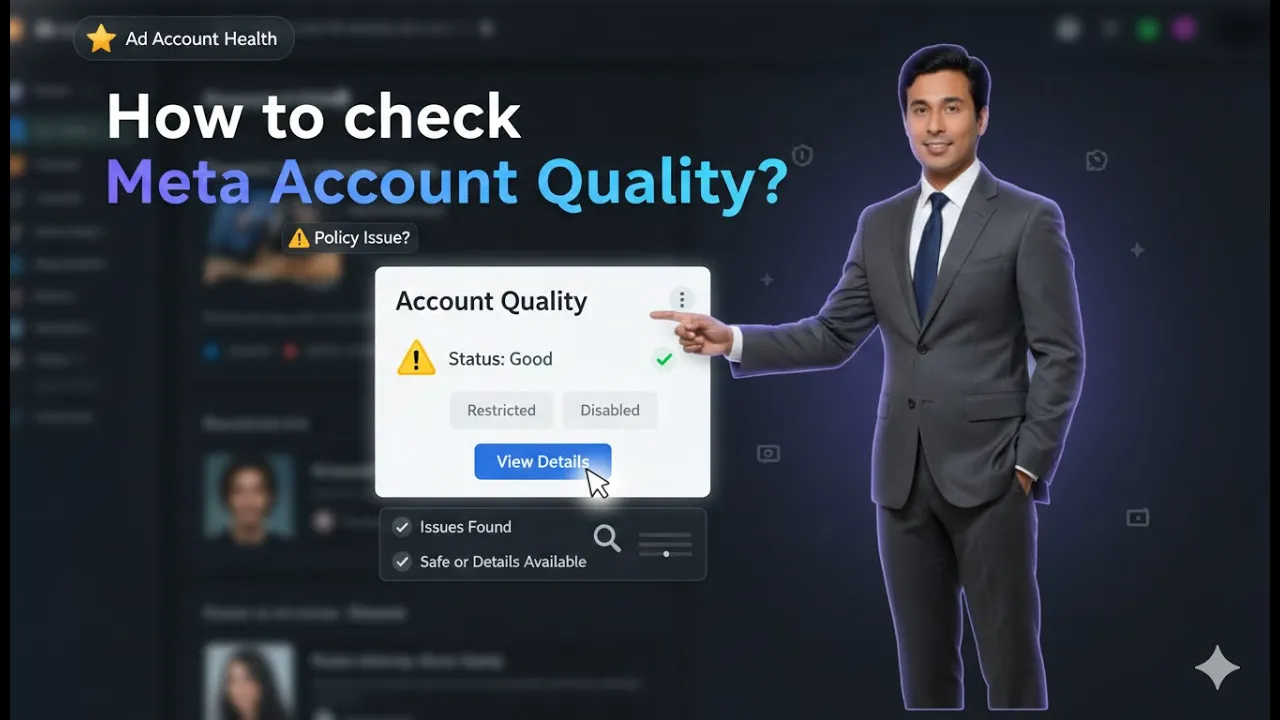
Hello friends, in this article we are going to understand how to check Meta account quality, why Meta assets get restricted, how to identify which asset is affected, and what common mistakes lead to such restrictions.
Understanding What Meta Account Quality Is
Meta Account Quality is a section provided by Meta where you can check the health and status of all your Meta-related assets, such as:
- Ad accounts
- Business portfolios
- Facebook pages
- Instagram accounts
- WhatsApp Business accounts
Sometimes, advertisers suddenly notice that:
- Ads stop running
- Ad account gets disabled
- Pages are removed
- Business portfolios get restricted
To understand whether an asset is restricted or not and why, checking Meta Account Quality is necessary.
Why Meta Assets Get Restricted
Meta restricts assets to protect its platform and users. Restrictions can happen due to multiple reasons, such as:
- Pending ad payments
- Policy violations
- Copyright or trademark infringement
- Unethical advertising
- Bulk messaging misuse
- Repeated violations
Some restrictions are temporary, while others are permanent. Meta Account Quality helps you identify which type of restriction you are facing.
How to check Meta Account Quality?
Step 1: Logging in to Your Facebook Account
The first step to check Meta Account Quality is to log in to your Facebook account.
Make sure:
- You are logged in with the same Facebook account
- The account has access to your ad accounts or business portfolios
Without logging in, you will not be able to view account quality details.
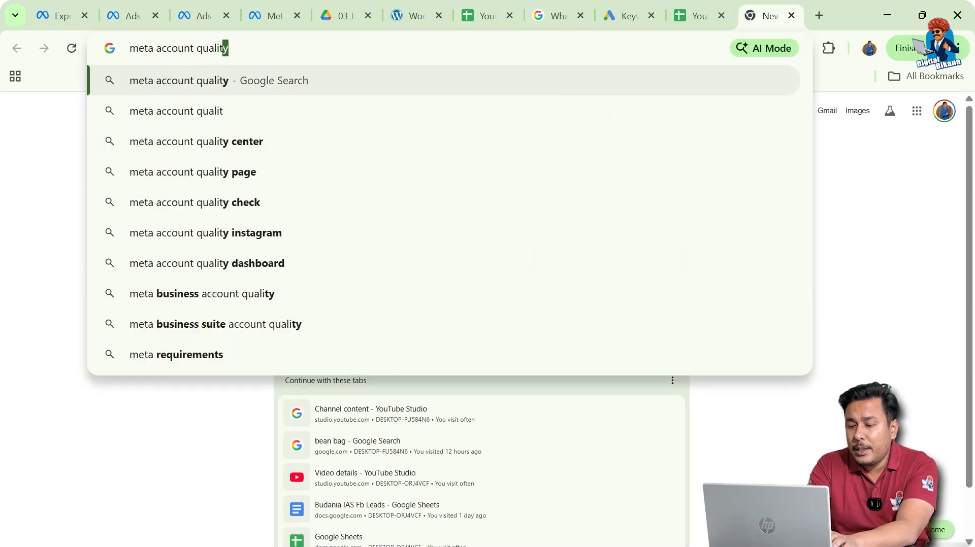
Step 2: Searching “Meta Account Quality” on Google
After logging in, open a new browser tab.
Go to Google and search for:
Meta account quality
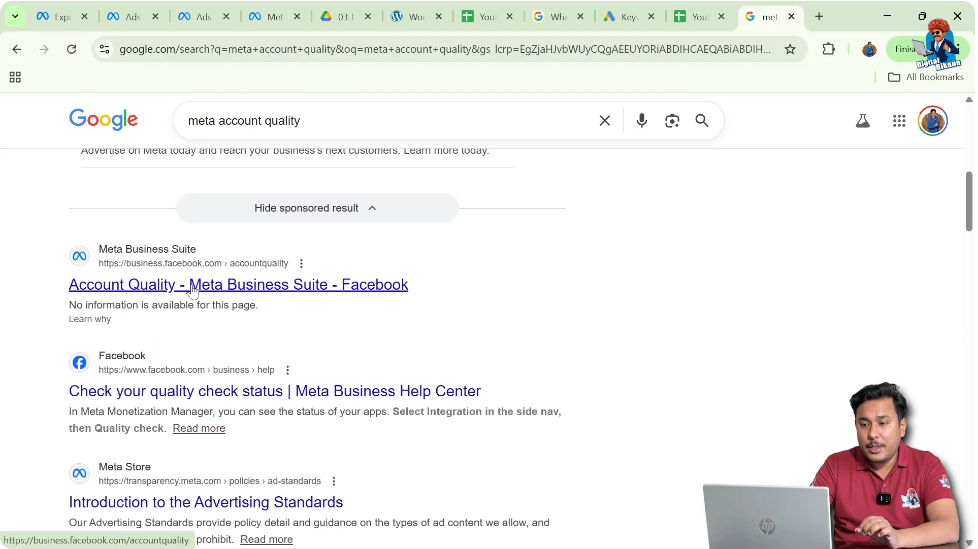
Once the results appear:
- Ignore or skip any sponsored results
- Click on the first organic result shown at the top
This will redirect you to Meta’s Business Support section.
Step 3: Accessing Meta Account Quality Using Direct URL
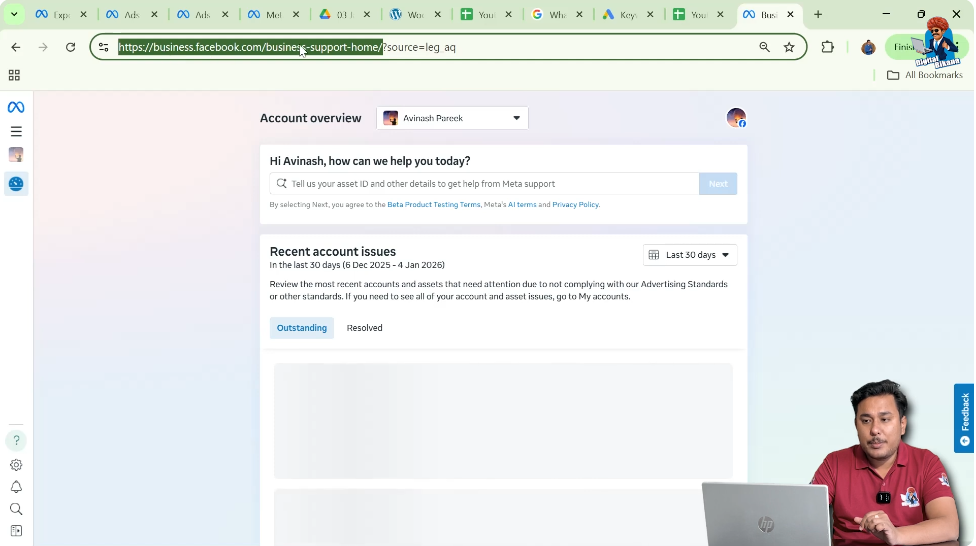
Instead of searching on Google, you can also directly visit the Meta Account Quality page.
You can type this URL directly into your browser:
https://www.facebook.com/business-support-home/
After entering the URL, press Enter and wait for the page to load.
Sometimes, the page may take extra time to load, especially if you have access to many client ad accounts.
Step 4: Opening Meta Business Support Home
Once the page opens, you will land on the Meta Business Support Home screen.
This page displays support-related options and access to your accounts.
Here, you can manage and review all your business assets in one place.
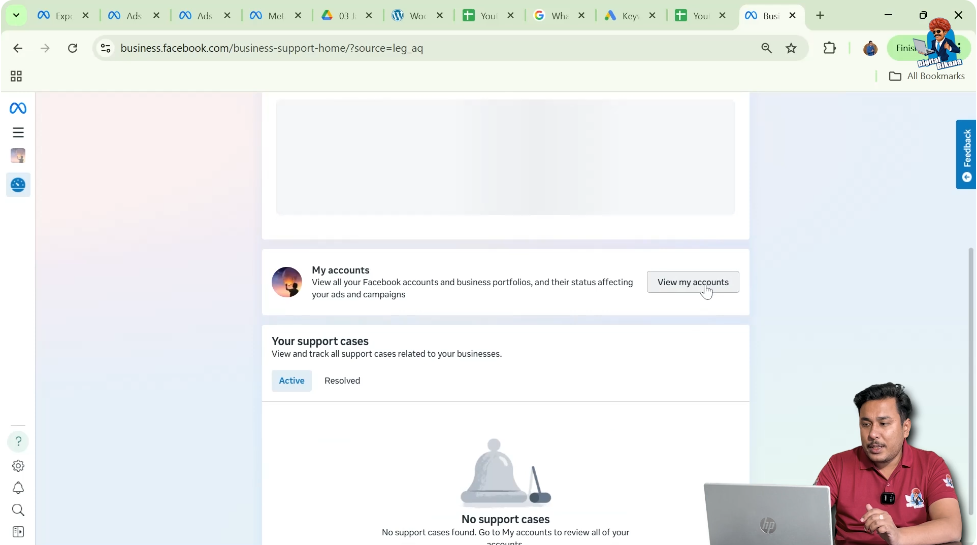
Step 5: Clicking on “View My Accounts”
On the Meta Business Support Home page, look for the option:
View My Accounts
Click on View My Accounts.
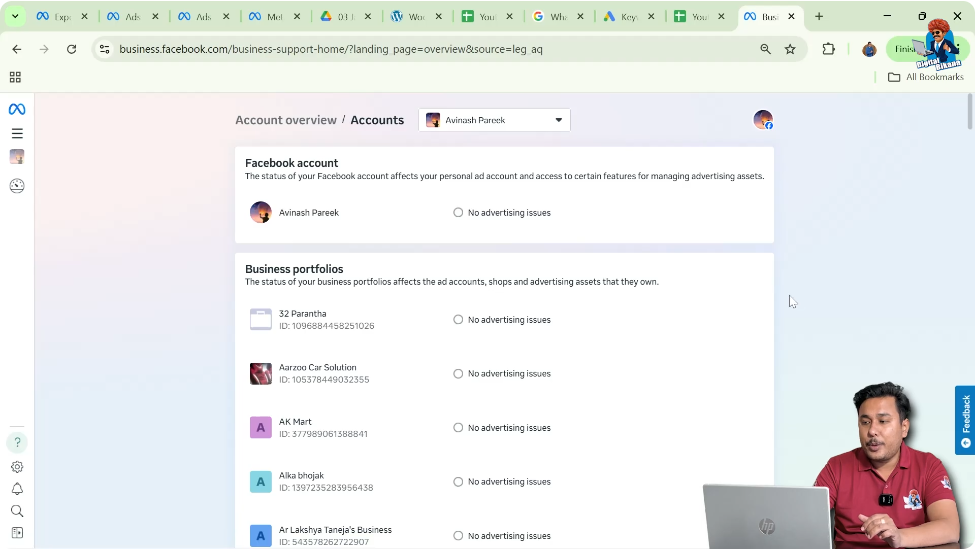
This will open a detailed dashboard showing:
- Your own ad accounts
- Client ad accounts
- Business portfolios
Along with their account quality status.
Understanding the Account Quality Dashboard
The account quality dashboard shows:
- Which accounts are healthy
- Which accounts have restrictions
- What type of issues exist
If an account shows no issues, it means:
- The account is healthy
- Ads can run normally
- No action is required
Checking Your Own Ad Account Status
In many cases, your own ad account may show:
- No advertisement issues
- Healthy account status
This means your ad account is functioning properly and is not restricted in any way.
Checking Client Ad Account Status
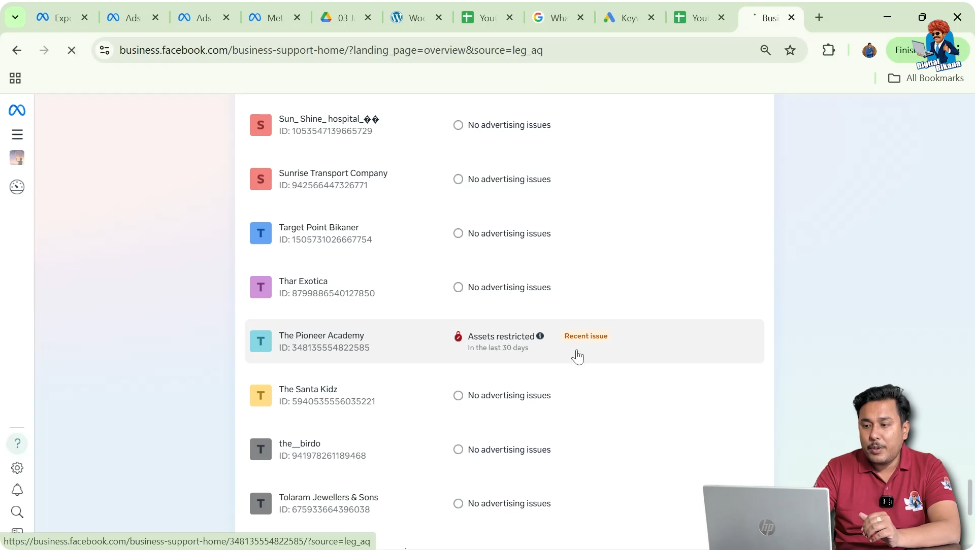
If you manage multiple client ad accounts, you may notice different statuses:
- Some accounts show no issues
- Some accounts show restrictions or warnings
Each client account has its own history, activity, and compliance level, which affects its status.
Step 6: Clicking on a Restricted Account
If you see an account marked with a restriction:
- Click on that specific ad account
Once clicked, Meta will display:
- Which asset is restricted
- The reason for restriction
- Whether the restriction is reviewable
This step is important to understand the exact issue.
Understanding Ad Account Disablement Due to Payment Issues
Sometimes, an ad account may show as disabled.
This can happen due to:
- Unpaid ad bills
- Payment failures
This type of disablement is usually not a serious issue.
Once the pending balance is cleared:
- The ad account often becomes active again
In such cases:
- Requesting a review is not required
Understanding Restriction Status Messages
Inside the restricted account view, you may see messages such as:
- Available for review
- Review approved
- Review rejected
These messages indicate whether Meta allows you to submit a review request or not.
Temporary Restrictions vs Permanent Restrictions
Temporary Restrictions
Temporary restrictions may occur due to:
- Billing issues
- Minor policy violations
- Inactivity
These restrictions can usually be resolved once the issue is fixed.
Permanent Restrictions
Permanent restrictions occur when Meta detects:
- Repeated violations
- Attempts to bypass rules
- Serious misuse of Meta platforms
In these cases:
- Review submission is not allowed
- The decision is final
Example of a Permanently Restricted Business Portfolio
In some cases, you may see a message like:
“We have restricted your account as a safety measure because some of your activity does not follow our rules.”
This indicates a permanent restriction.
Here:
- Meta has already reviewed the account
- No further appeal is possible
WhatsApp Business Bulk Messaging: A Common Cause of Restrictions
One major reason for permanent restrictions is bulk messaging using WhatsApp Business.
WhatsApp Business:
- Does not allow bulk messaging
For bulk messaging:
- WhatsApp Business API must be used
Using WhatsApp Business for bulk messaging violates Meta’s rules.
Consequences of Misusing WhatsApp Business
If someone repeatedly:
- Sends bulk messages using WhatsApp Business
- Ignores warnings and restrictions
Meta may:
- Disable the WhatsApp Business account
- Blacklist the IP address
- Prevent creation of new WhatsApp Business accounts
Impact of IP Blacklisting
Once an IP is blacklisted:
- New WhatsApp Business accounts get restricted instantly
- New Meta business assets face restrictions
- Ad accounts may also get disabled
This affects the ability to run ads or create business assets.
Creating New Assets After Repeated Violations
If someone continues violating rules:
- New Facebook pages may get restricted
- New Instagram accounts may get restricted
- New Meta Business Suite portfolios may get restricted
Meta tracks historical behavior and applies restrictions accordingly.
Another Common Issue: Trademark and Copyright Violations
Another major reason for Meta asset restriction is trademark or copyright infringement.
This often happens when:
- A business uses another company’s brand name
- A Facebook page is created in the name of a parent or tied-up company
Example of Page Removal Due to Trademark Violation
If someone:
- Opens a service center
- Create a Facebook page using the original company’s name
This is not allowed.
If the original company:
- Files a copyright or trademark claim
Meta may:
- Remove the page
- Restrict the business portfolio
Why Using Another Company Name Is Not Allowed
You cannot:
- Create pages using another company’s name
- Promote your business under that name
This is considered:
- Trademark infringement
- Copyright violation
Meta strictly enforces these rules.
Other Common Reasons for Meta Asset Restrictions
Meta assets can also get restricted due to:
- Unpaid past ad bills
- Advertising unethical products
- Violating advertising policies
Pharmacy and Medical Ads Restrictions
Pharmacy-related businesses often face restrictions because:
- Medicines and drugs cannot be advertised freely
- Specific approvals and permissions are required
Without proper authorization:
- Ad accounts may get restricted
Political Ads and Compliance Issues
Political advertisers may also face restrictions if:
- Ads are run without verification
- Political advertising rules are violated
Meta enforces strict policies for political content.
Importance of Reading Meta Advertising Guidelines
Before running Meta ads, it is very important to:
- Read Meta advertising guidelines
- Understand allowed and restricted products
- Follow branding and copyright rules
This reduces the risk of asset restriction.
Final Understanding of Meta Account Quality
Meta Account Quality is the first place you should check when:
- Ads stop running
- Accounts get disabled
- Pages are removed
It helps you understand:
- Which asset is restricted
- Why it is restricted
- Whether the issue is temporary or permanent
Final Conclusion
Checking Meta Account Quality is a critical step for advertisers and agencies. It helps identify restrictions, understand their causes, and prevent future issues. Many restrictions occur due to payment issues, policy violations, misuse of WhatsApp Business, or trademark infringement.
To keep your Meta assets healthy, always follow Meta guidelines, use the correct platforms for messaging, avoid copyright violations, and ensure ethical advertising practices. By doing so, you can avoid restrictions and maintain long-term stability for your Meta advertising accounts.

Related Posts