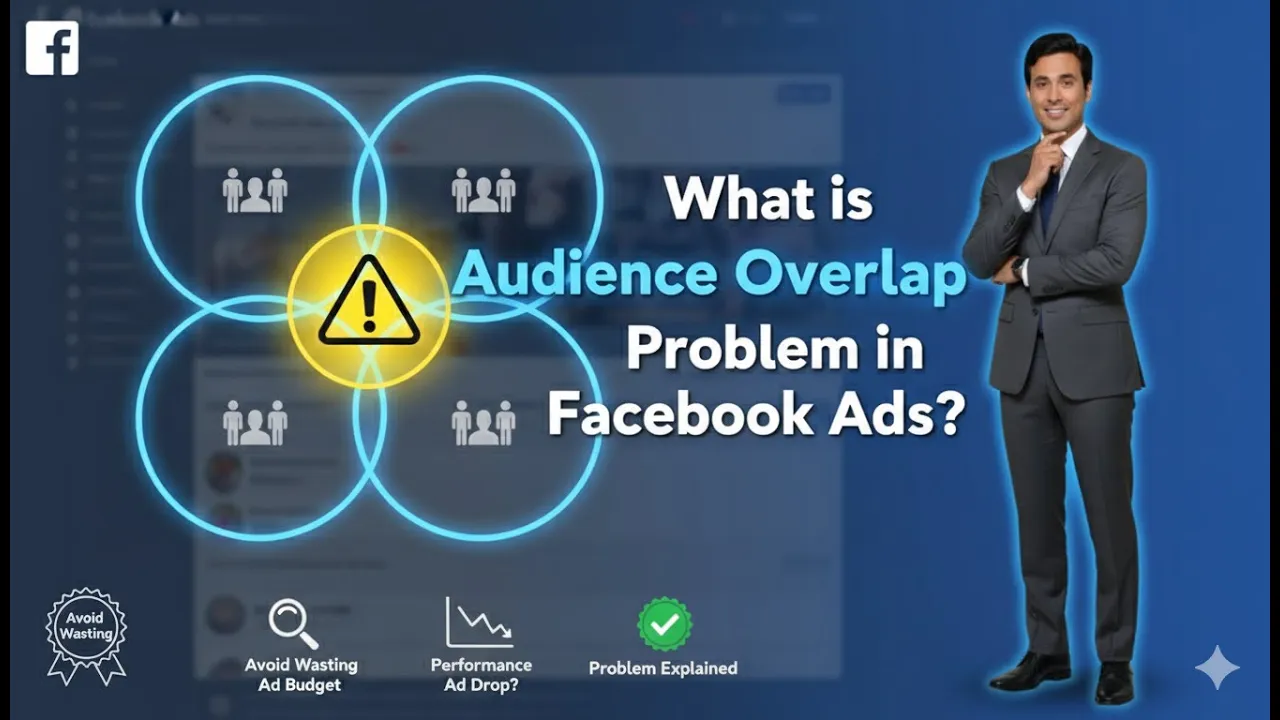
When running ads on Meta platforms such as Facebook and Instagram, creating multiple ad sets inside a single ad campaign is a common and important practice. Duplicating ad sets helps advertisers test different audiences, schedules, budgets, and placements without rebuilding everything from scratch. In this article, we will understand how to duplicate ad sets in a single Meta ad campaign. We will also explain why creating multiple ad sets is useful and how it helps in better performance analysis.
Understanding the Structure of Meta Ads Manager
Before learning how to duplicate ad sets, it is important to understand the structure of Meta Ads Manager.
Meta Ads Manager works on three levels:
- Ad Campaign Level – This is where the overall goal or objective of the campaign is defined.
- Ad Set Level – This is where audience targeting, budget, schedule, and placements are set.
- Ad Creative Level – This is where the actual ads (images, videos, text, and CTA) are created.
In the given scenario, a new ad campaign is being created. Inside this campaign, there is currently one ad set, and inside that ad set, there is one ad creative.
Initial Scenario Before Duplication
As shown in the process, the user is inside Meta Ads Manager and has already started creating a new ad campaign.
At this moment:
- There is one ad campaign
- Inside the campaign, there is one ad set
- Inside the ad set, there is one ad creative
Now the goal is to duplicate this ad set to create multiple ad sets within the same campaign.
Why You Need to Duplicate Ad Sets
Duplicating ad sets allows you to create multiple versions of targeting and delivery settings within one campaign. Each duplicated ad set can be managed separately, which helps in better testing and analysis.
Instead of creating new ad sets from scratch, duplication saves time and keeps settings consistent.
How to Duplicate Ad Sets in a Single Meta Ad Campaign?
Below is the exact step-by-step process to duplicate ad sets, explained in detail.
Step 1: Open Meta Ads Manager
First, log in to your Meta Ads Manager account.
Start creating a new ad campaign or open an existing campaign where you want to duplicate ad sets.
Once you are inside Ads Manager, you will see the campaign creation interface.
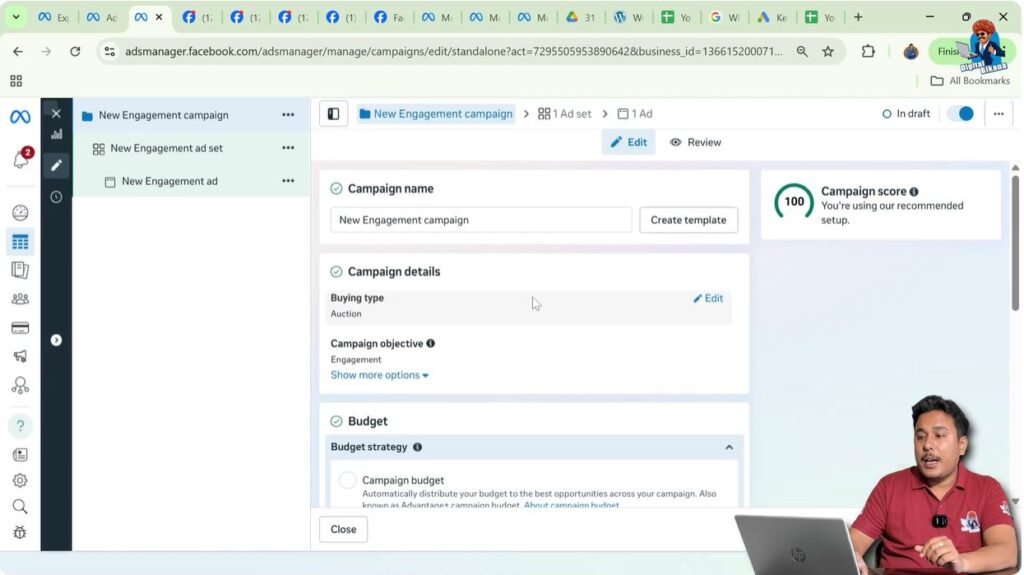
Step 2: Identify the Ad Campaign Level
At the top level, you will see the ad campaign level.
This level shows the campaign that you are currently working on.
Make sure you are inside the correct campaign before moving forward.
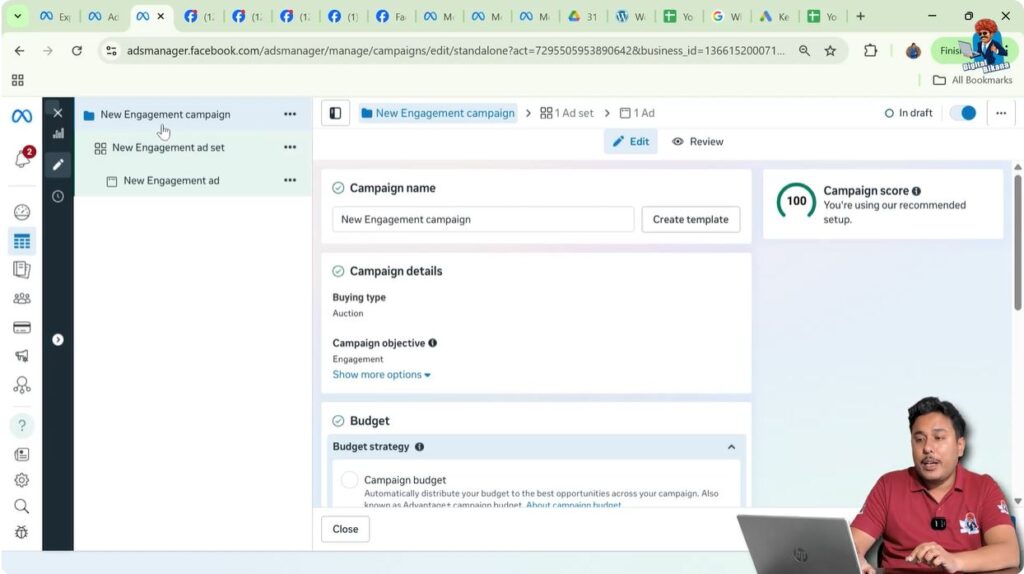
Step 3: Move to the Ad Set Level
Inside the campaign, go to the ad set level.
At this point, you will see that the campaign contains only one ad set.
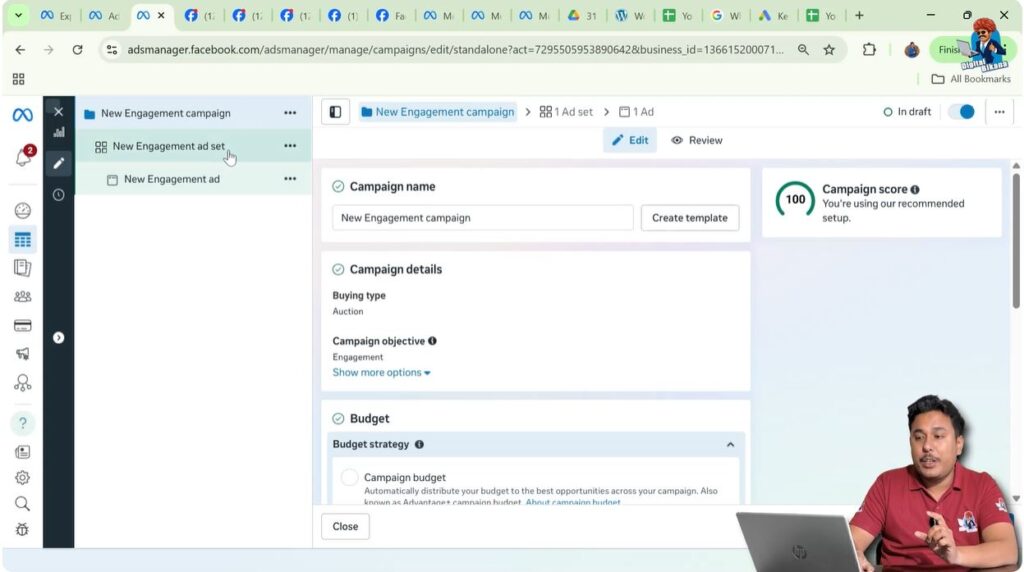
Step 4: Verify the Existing Ad Set
Confirm that the ad set you want to duplicate is correctly configured.
Inside this ad set:
- There is one ad creative
- All settings are already defined
This verification ensures that you are duplicating the correct ad set.
Step 5: Locate the Triple Dot Menu
At the ad set level, look for the triple dot (three dots) option next to the ad set name.
This menu contains multiple actions related to the ad set.

Step 6: Click on the Duplicate Option
Click on the triple dot menu and select the Duplicate option.
This tells Meta Ads Manager that you want to create copies of the selected ad set.

Step 7: Select the Number of Ad Set Copies
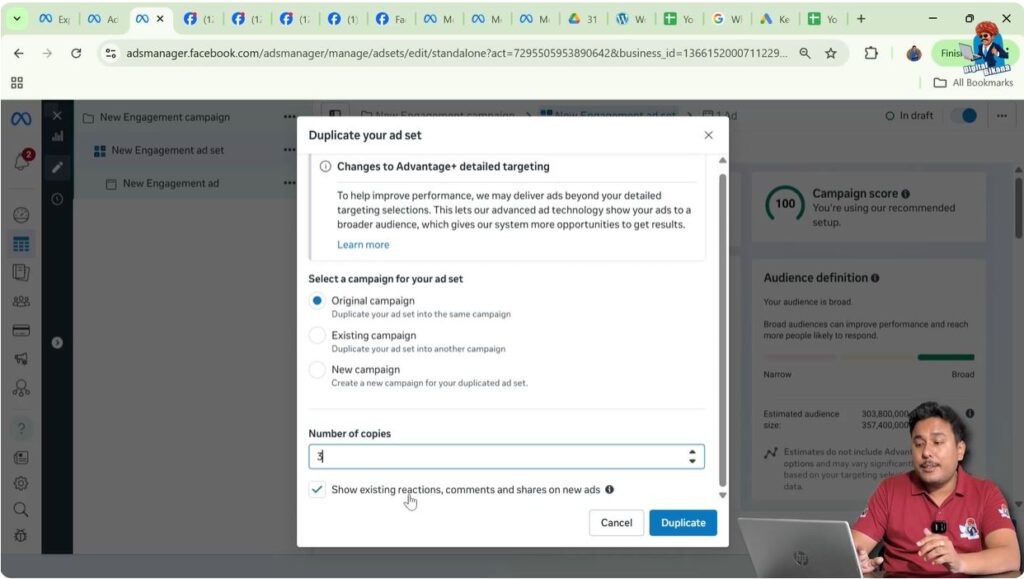
After clicking duplicate, Meta Ads Manager will ask how many copies you want to create.
For example:
- If you choose three copies, the total number of ad sets will become four
- One will be the original ad set
- Three will be duplicated ad sets
Choose the required number of copies based on your testing needs.

Step 8: Choose Where to Duplicate the Ad Set
Next, Meta Ads Manager will ask where you want to duplicate the ad set. You will see three options:
- Duplicate in the original campaign
- Duplicate in an existing campaign
- Create a new campaign with this duplicated ad set
In this case, select the option to duplicate the ad set in the original campaign.
This ensures that all duplicated ad sets remain inside the same campaign.

Step 9: Decide on Existing Reactions, Comments, and Shares
Meta Ads Manager will now ask whether you want to keep the existing reactions, comments, and shares on all ad creatives inside the duplicated ad sets.
If you want the duplicated ad sets to retain the same engagement data, select Yes.
Proceed after making your selection.
Step 10: Complete the Duplication Process
Click on Duplicate to finalize the process.
Once completed, Meta Ads Manager will create the duplicated ad sets.

Step 11: Review the Duplicated Ad Sets
After duplication:
- The campaign now contains multiple ad sets
- Each ad set has one ad creative
- All ad sets exist within the same campaign
You can now see all ad sets listed at the ad set level.
Why Creating Multiple Ad Sets Is Important
Creating multiple ad sets allows you to manage and test different strategies independently.
Below are the main reasons explained step by step.
Reason 1: Separate Budgets for Each Ad Set
Each ad set can have its own budget.
This means:
- You can allocate more budget to high-performing ad sets
- You can reduce or pause budgets for underperforming ad sets
This level of control is not possible with a single ad set.
Reason 2: Different Schedules for Each Ad Set
Each ad set can have its own schedule.
For example:
- One ad set can run during specific days
- Another ad set can run at different times
This allows better timing optimization.
Reason 3: Target Different Cities or Locations
Multiple ad sets allow you to target different locations.
For example:
- One ad set can target New York
- Another ad set can target Las Vegas
This helps you analyze which location is generating better results.
Reason 4: Better Audience Performance Analysis
When each audience is placed in a separate ad set, you can clearly see:
- Which ad set is performing well
- Which ad set is delivering better results
- How much result each ad set is generating
This makes performance comparison easier.
Reason 5: Target Different Placements
You can also create multiple ad sets to test different placements.
For example:
- One ad set can target feeds
- Another ad set can target stories and reels
- Another ad set can target Facebook and Instagram homepages
Each placement attracts a different type of audience and delivers different results.
Understanding Audience Behavior Through Ad Sets
Different users have different browsing habits.
Some users scroll stories and reels more frequently, which is often common among younger audiences.
Other users prefer scrolling Facebook and Instagram homepages.
By separating these behaviors into different ad sets, you can understand which placement and audience type works best for your campaign.
Final Summary
Duplicating ad sets in a single Meta ad campaign is a powerful strategy for better testing, targeting, and analysis. By using the duplicate option at the ad set level, you can quickly create multiple ad sets inside the same campaign.
Each duplicated ad set can have its own budget, schedule, audience, and placement. This helps you analyze performance at a deeper level and make informed decisions to improve your ad results.
By following the step-by-step process explained above, you can confidently duplicate ad sets in Meta Ads Manager and manage your campaigns more effectively.

Related Posts