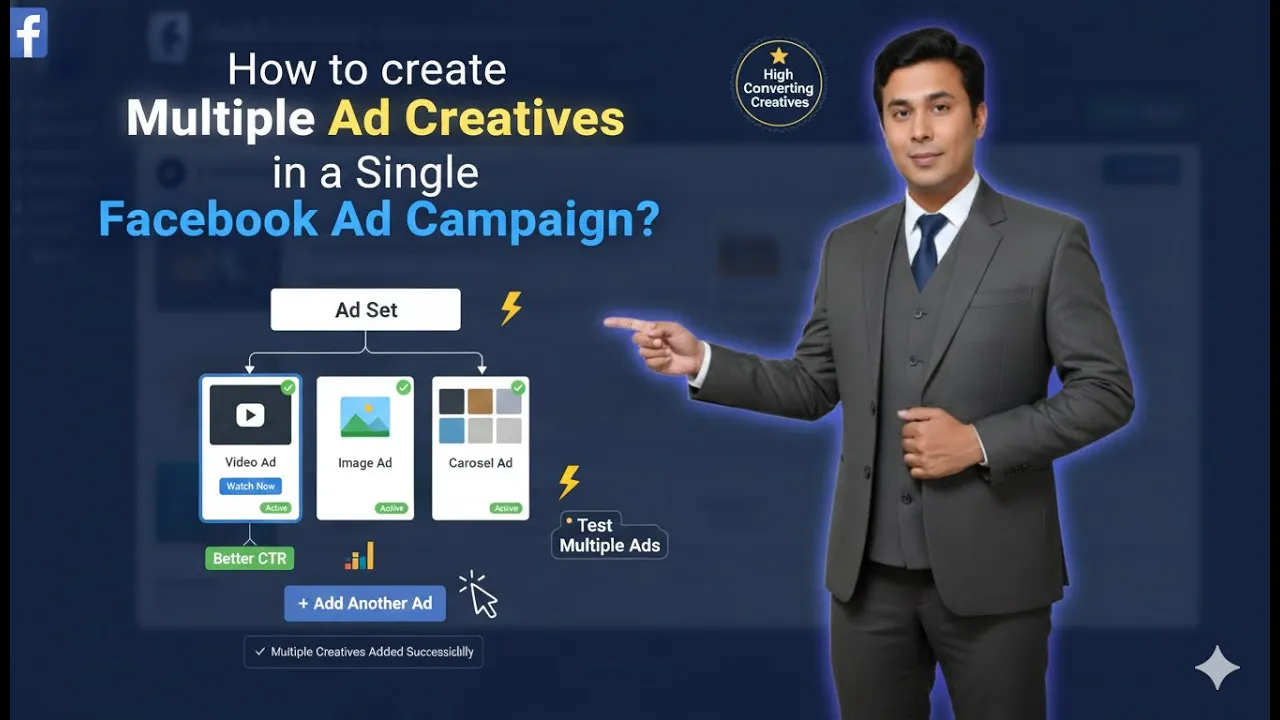
Creating multiple ad creatives in a single ad set or a single ad campaign is a very important practice in Meta Ads. When the same ad creative is shown again and again to the same audience, people often lose interest, which can negatively affect ad performance. To avoid this issue, Meta Ads Manager provides a simple option to duplicate ad creatives and create multiple variations.
How to Create Multiple Ad Creatives in a Single Ad Set or Campaign in Meta Ads?
In this article, we will understand how to create multiple ad creatives in a single ad set or campaign, explained step by step, exactly as the process happens inside Meta Ads Manager. Each step is explained in detail to help you clearly understand the concept and execution.
Step 1: Open Meta Ads Manager
First, log in to your Meta Ads Manager using your Facebook account.
After logging in, you will land on the Ads Manager dashboard where all your advertising activities are managed.
From here, you can either create a new campaign or continue working on an existing one.
Step 2: Start Creating a New Campaign
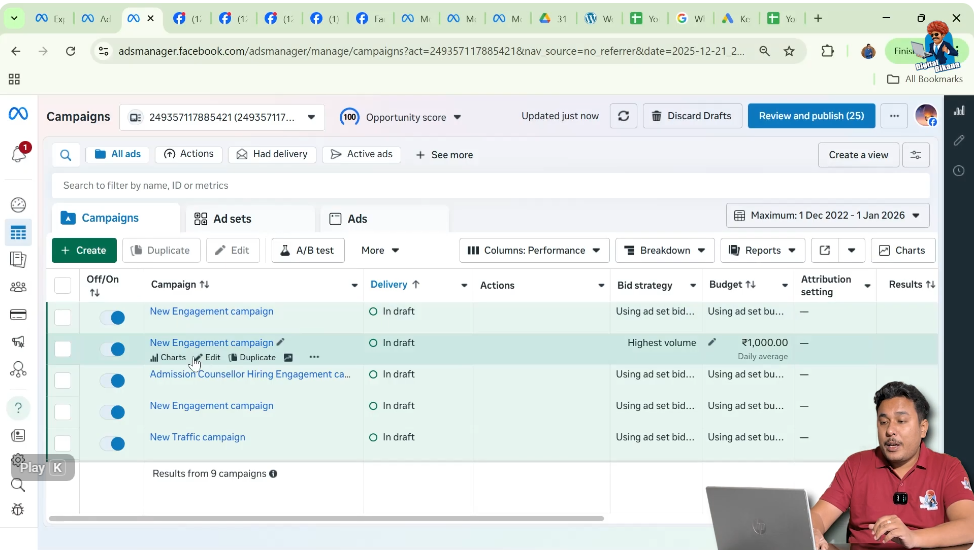
Click on the Create button to start creating a new Meta ad campaign.
Meta Ads Manager will take you through the campaign creation process. During this flow, you will see that every campaign is divided into three levels:
Each level serves a different purpose in running ads.
Step 3: Reach the Ad Creative Level
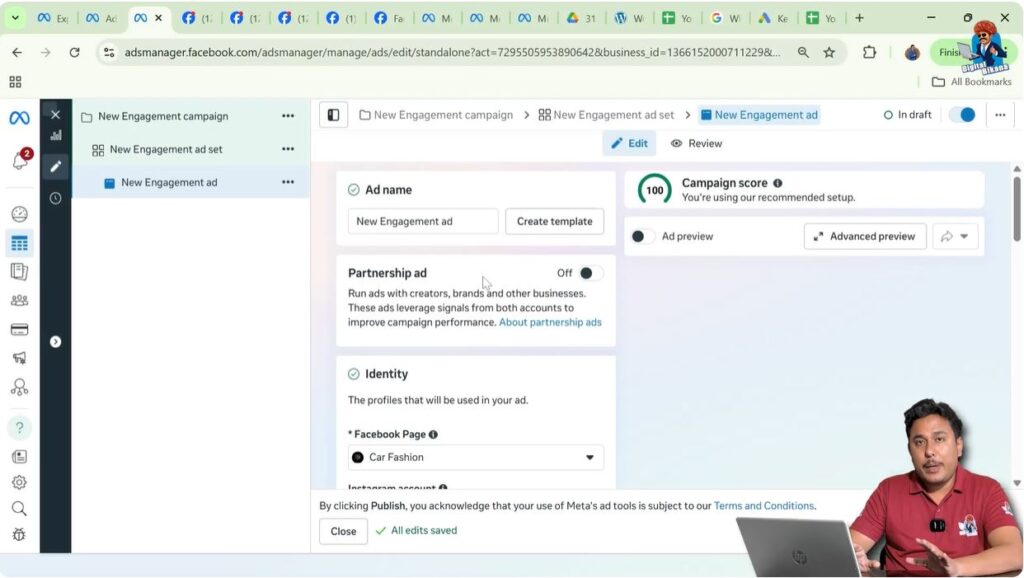
Continue setting up the campaign and ad set until you reach the ad creative level.
At this point, the ad creative level will be highlighted, clearly indicating that you are now working on the ads that will be shown to users. This is the section where you manage visuals, text, and CTA buttons.
By default, Meta creates one ad creative at this stage.
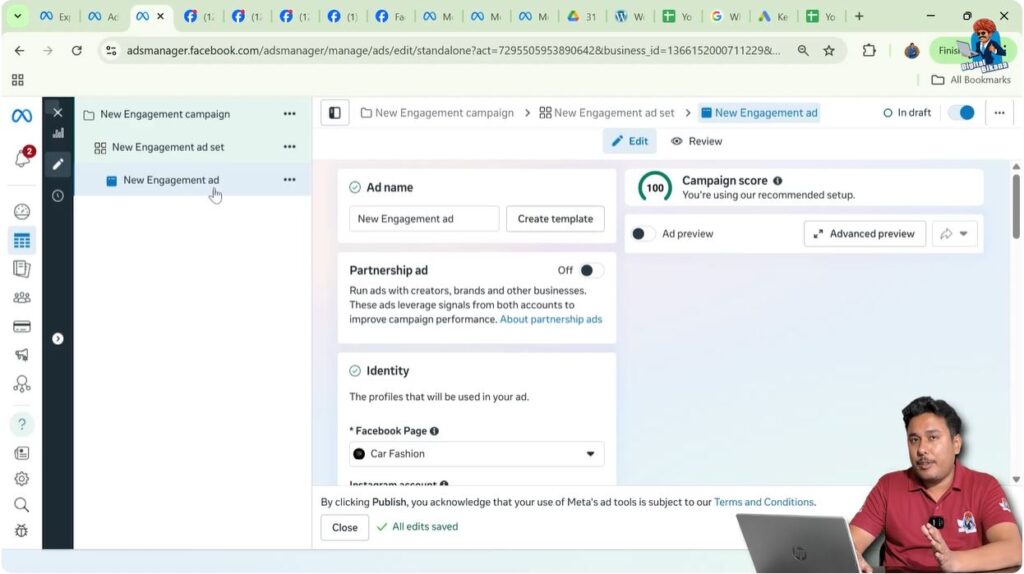
Step 4: Understand the Existing Ad Creative
The initially created ad creative is your original or base ad creative.
It already contains:
- A banner or a video
- A headline
- A caption
- A CTA button
Instead of creating new ad creatives from scratch, Meta allows you to duplicate this existing creative, which saves time and effort.
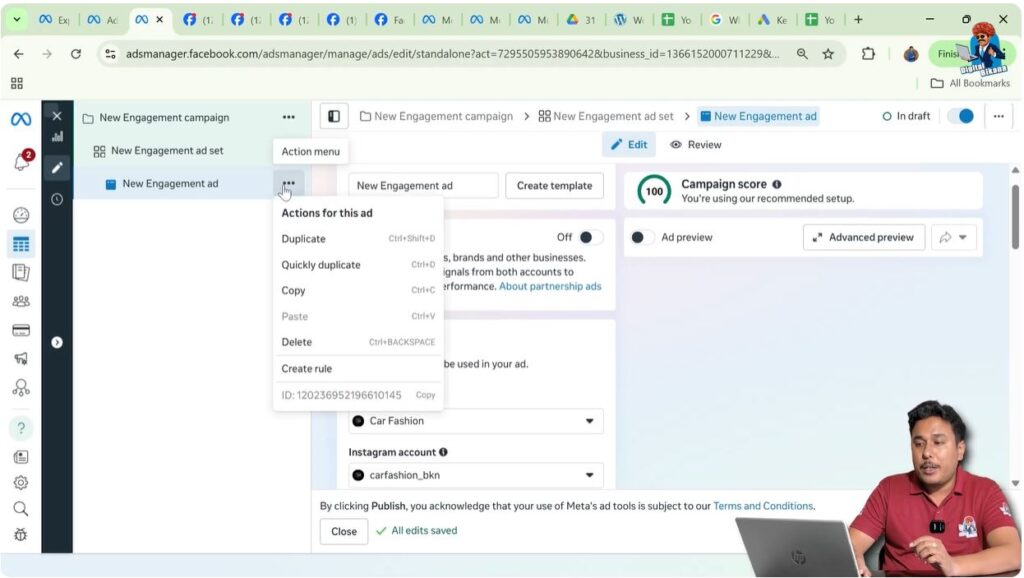
Step 5: Click on the Triple Dot Menu
At the ad creative level, look for the triple dot (three-dot) icon next to the ad creative.
This menu provides additional actions that you can perform on that specific ad creative.
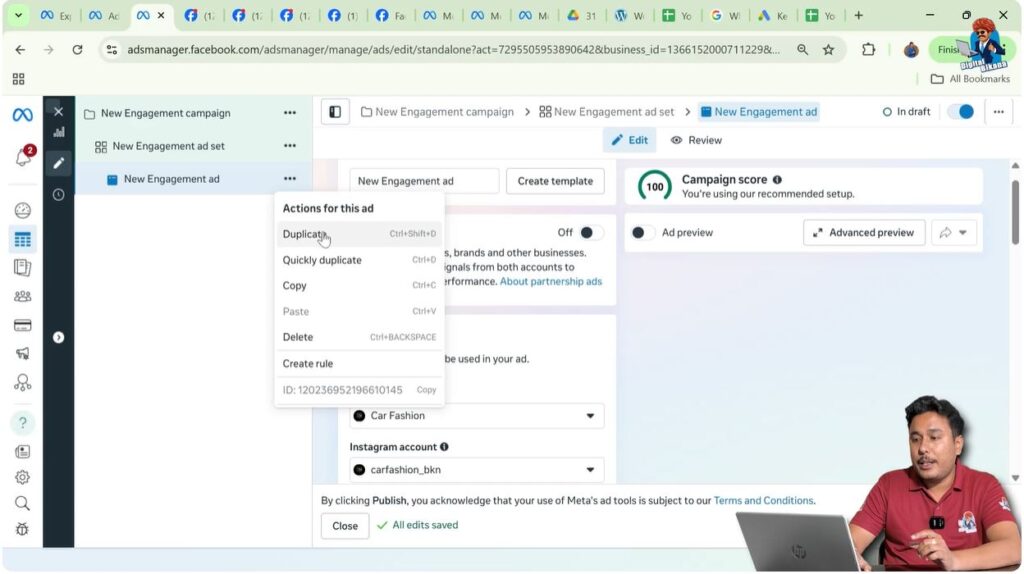
Step 6: Select the Duplicate Option
From the triple dot menu, click on Duplicate.
This option allows you to create exact copies of the selected ad creative. All settings of the original creative are copied into the new ones.
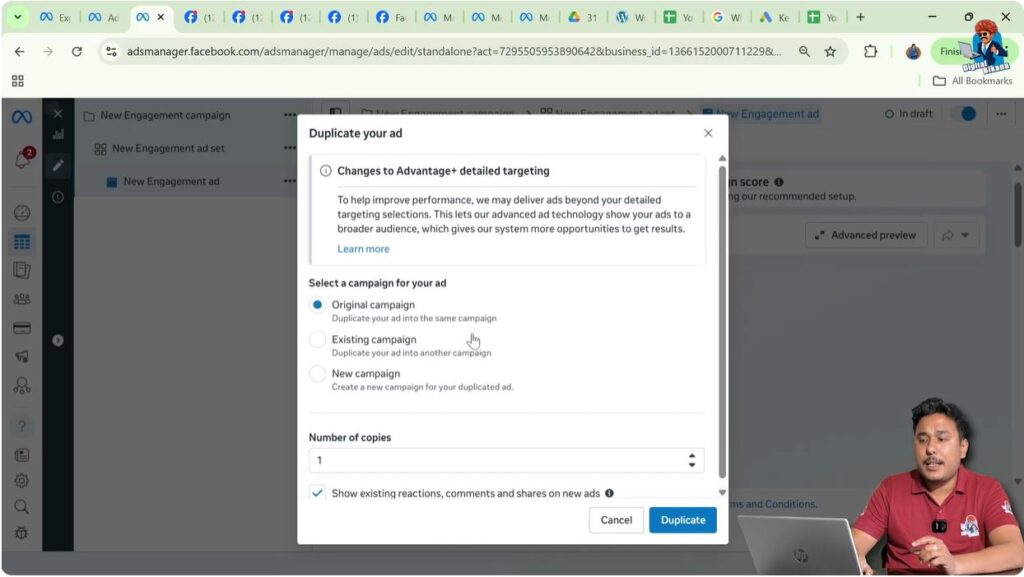
Step 7: Choose Where to Duplicate the Ad Creative
After clicking duplicate, Meta Ads Manager asks where you want to duplicate the ad creative.
You will see multiple options:
- Duplicate in the original campaign
- Duplicate in another existing campaign
- Create a new campaign using this ad creative
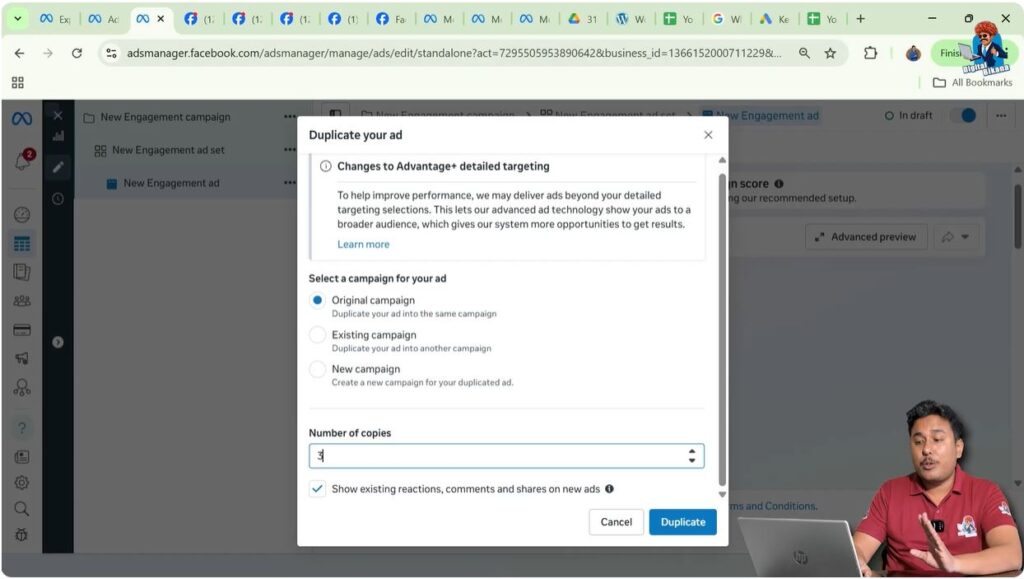
For this process, select duplicate in the original campaign, because the goal is to create multiple ad creatives within the same ad set or campaign.
Step 8: Decide the Number of Copies
Next, Meta asks how many copies you want to create.
For example:
- Original ad creative: 1
- Copies selected: 3
This means the total number of ad creatives will become four:
- One original ad creative
- Three duplicated ad creatives
Enter the number of copies according to your requirement.
Step 9: Choose Whether to Keep Existing Engagement
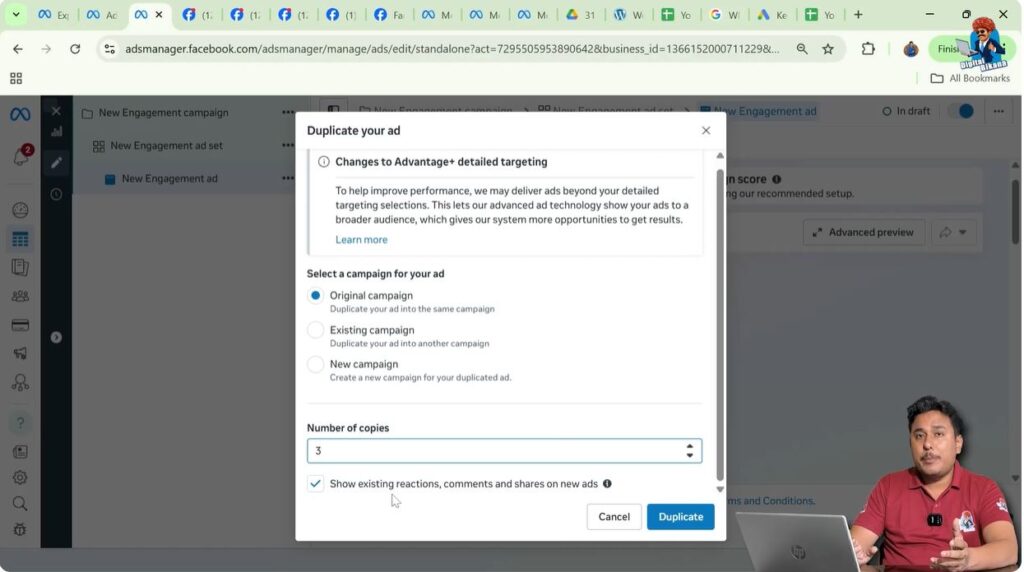
Meta then asks whether you want to show the existing reactions, likes, shares, and comments on all duplicated ad creatives.
If you select Yes, all duplicated creatives will show the same engagement as the original ad creative.
If you select No, the duplicated creatives will start without engagement.
Make your choice based on your campaign strategy.
Step 10: Click on Duplicate to Confirm
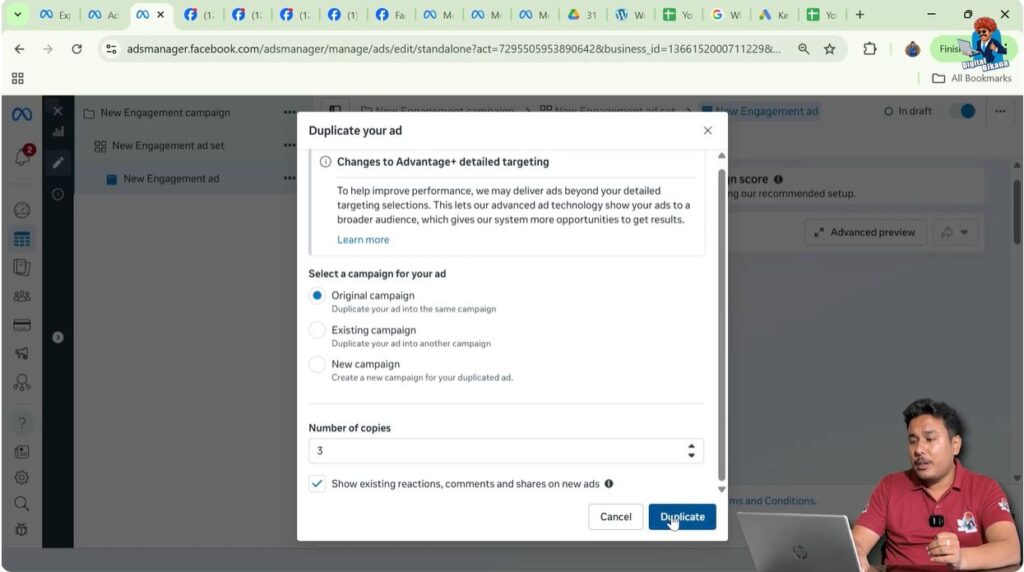
After confirming all the options, click on the Duplicate button.
Meta Ads Manager will now process your request and create the duplicated ad creatives automatically.
Step 11: Verify That Multiple Ad Creatives Are Created
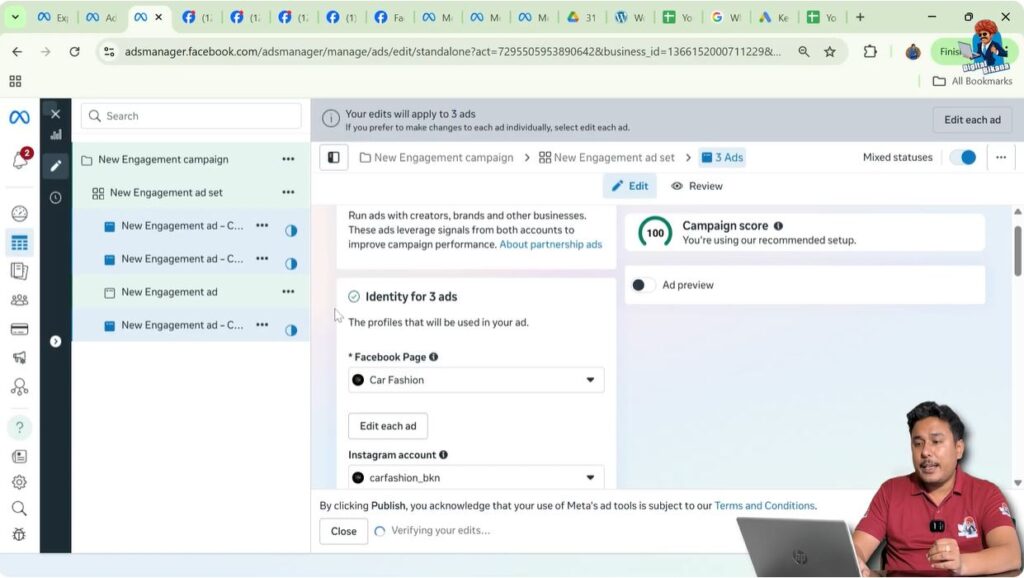
Once duplication is complete, you will see:
- The original ad creative
- The newly duplicated ad creatives
All of them will appear under the same ad set and the same ad campaign. This confirms that multiple ad creatives have been successfully created.
Step 12: Understand Why Multiple Ad Creatives Are Required
Now let us understand why multiple ad creatives are important.
Using multiple ad creatives allows you to show different ads to the same audience. Instead of repeating the same creative, Meta rotates different creatives, which keeps the ads fresh.
Step 13: Showcase Different Banners or Videos
After creating multiple ad creatives, you can:
- Use banner one in one ad creative
- Use banner two in another ad creative
- Use banner three in another
- Use a video ad in a different creative
This gives variety to your audience and improves engagement.
Prevent Ad Fatigue
Ad fatigue happens when users repeatedly see the same ad.
When this happens:
- Users become bored
- Ads start feeling irritating
- Engagement and performance drop
By creating multiple ad creatives, the same audience sees different ads, which prevents ad fatigue.
Understand What Ad Fatigue Means
For example, if you see the same ad from a business many times:
- You may stop paying attention
- You may feel annoyed
- You may ignore the ad completely
This situation is called ad fatigue, and it negatively impacts campaign results.
Maintain Audience Interest
Showing different ad creatives:
- Keeps content fresh
- Maintains audience interest
- Improves the overall ad experience
This is especially important for campaigns running for longer durations.
Test Different Ad Creatives
Every ad creative performs differently.
Some creatives:
- Attract more attention
- Get better engagement
- Deliver better results
Other creatives may not perform well. Creating multiple creatives allows you to test and compare performance.
A. Identify the Best Performing Creative
Once ads start running, you can analyze performance at the ad creative level.
This helps you understand:
- Which ad creative is performing better
- Which creative is generating good results
Based on this data, you can optimize your campaign.
B. Change Settings at the Ad Creative Level
At the ad creative level, you can keep different settings for each creative.
You can change:
- Calling number
- Banner or video
- Headline
- Caption
- CTA button
Each ad creative can be completely different.
C. Test Different Headlines and Captions
Different headlines and captions attract users differently.
By testing multiple versions:
- You learn what messaging works best
- You improve communication with your audience
This helps in improving ad performance.
D. Test Different CTA Buttons
You can also test different CTA buttons such as:
- Call Now
- Learn More
- Contact Us
Each CTA can deliver different results, and testing helps identify the best one.
E. Show All Creatives to the Same Audience
All ad creatives inside a single ad set:
- Target the same audience
- Use the same budget
- Follow the same schedule
Only the creative elements differ.
F. Analyze Results and Optimize
After the campaign goes live:
- Monitor performance of each ad creative
- Compare engagement and results
Pause underperforming creatives and keep high-performing ones active to improve efficiency.
Final Summary
Creating multiple ad creatives in a single ad set or campaign is a simple yet powerful strategy in Meta Ads. By duplicating ad creatives, you can easily create variations, test different banners, videos, headlines, captions, and CTA buttons, prevent ad fatigue, and understand what works best for your audience.
This method improves engagement, maintains audience interest, and helps optimize ad campaigns without increasing complexity.

Related Posts