Managing Facebook advertisements often requires teamwork. Sometimes, you may need to give another person access to your Facebook ad account so they can help create, manage, or monitor ads. Facebook allows this through Ads Manager in a structured and secure way.
In this guide, we will learn how to give Facebook ad account access to someone. The entire process is completed through Facebook Ads Manager, and if the steps are followed carefully, it can be done easily without confusion.
Understanding Facebook Ad Account Access
Facebook ad account access allows another person to work inside your ad account. This access is provided directly from Ads Manager settings. Once access is granted and accepted, the added person becomes a member of the ad account and can work on ads based on the permissions given.
Before starting the process, it is important to ensure that:
- You are logged into the correct Facebook account
- You have access to the Facebook page linked with the ad account
- The person you want to add is already in your Facebook friend list
How to get access to client’s Facebook Ad Account?
1. Switching to Your Facebook Page
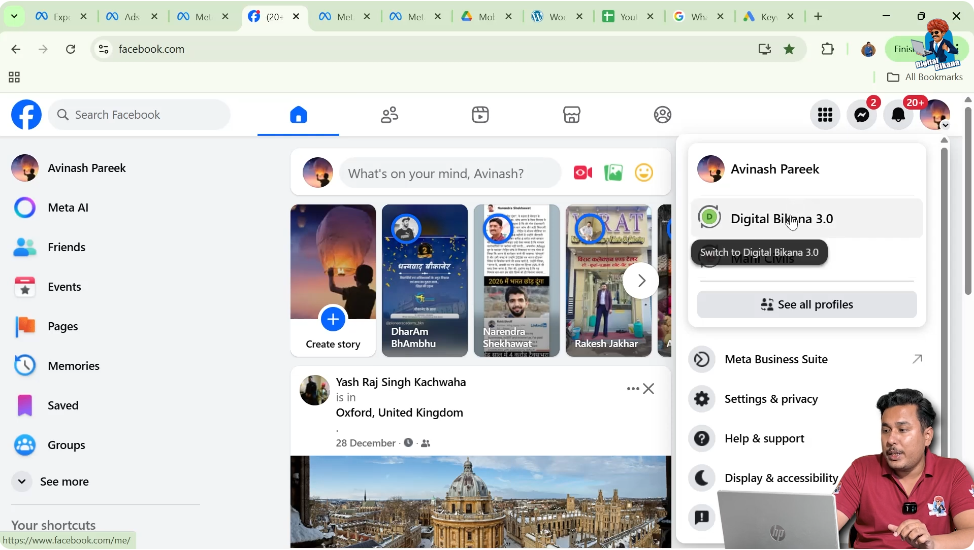
The first step is to switch from your personal Facebook account to your Facebook page.
After logging in to Facebook, look at the top-right corner of the screen. You will see a profile icon. Click on this icon to open the account menu.
In this menu, you will see both:
- Your personal Facebook account
- Your Facebook page name
Click on your Facebook page name. Once selected, Facebook will automatically switch you from your personal profile to your Facebook page. This step is important because ad accounts are connected to pages, not personal profiles.
After switching, you will land on your Facebook page homepage.
2. Opening Ads Manager
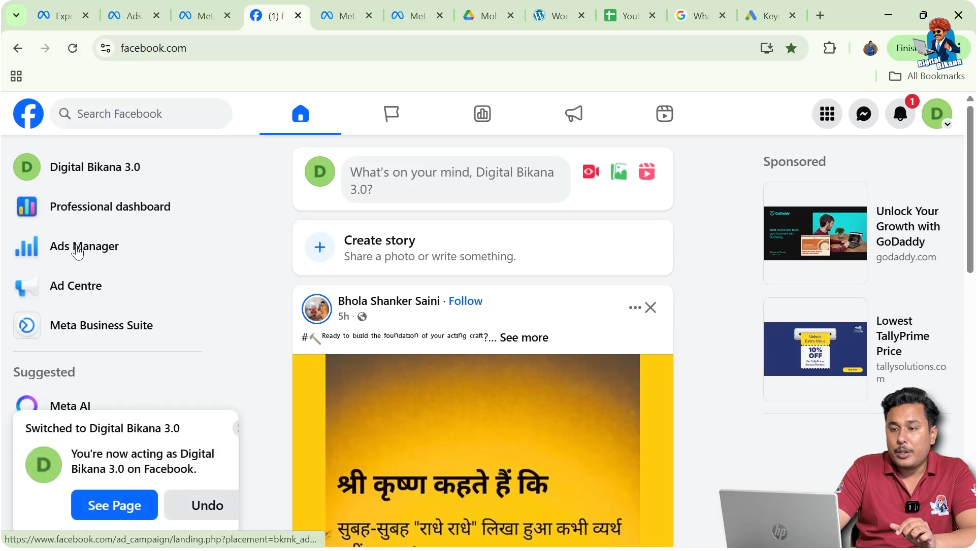
Once you are switched to your Facebook page, go to the Facebook homepage view.
On the left side menu, you will find the Ads Manager option. Ads Manager is the central place where all Facebook advertising activities are managed.
Click on Ads Manager. This will open the Facebook Ads Manager interface, where campaigns, ad sets, ads, billing, and account settings are available.
3. Understanding the Ads Manager Interface
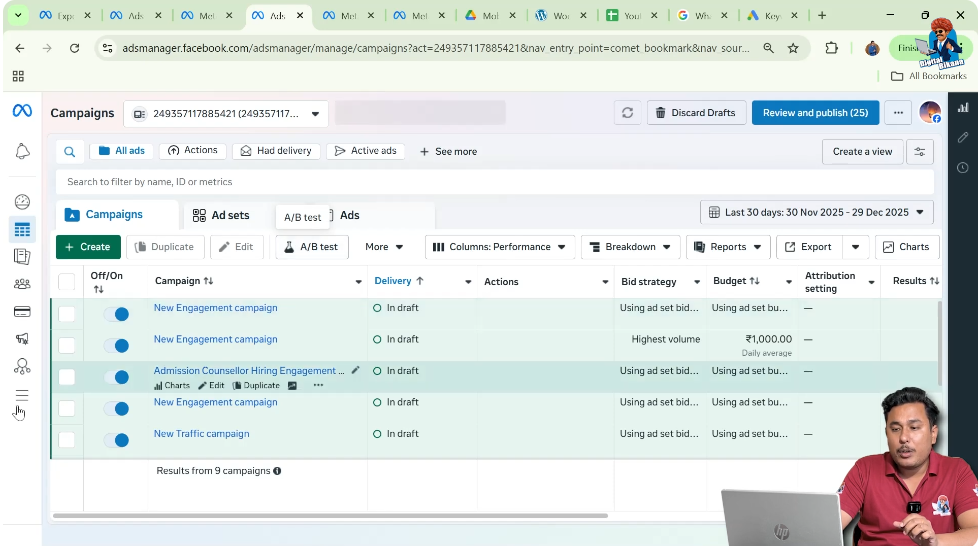
After Ads Manager opens, you are now inside the advertising dashboard.
Here, you can:
- View campaigns
- Manage ads
- Check performance
- Access ad account settings
To give someone ad account access, you need to move to the Ad Account Settings section.
4. Accessing Ad Account Settings
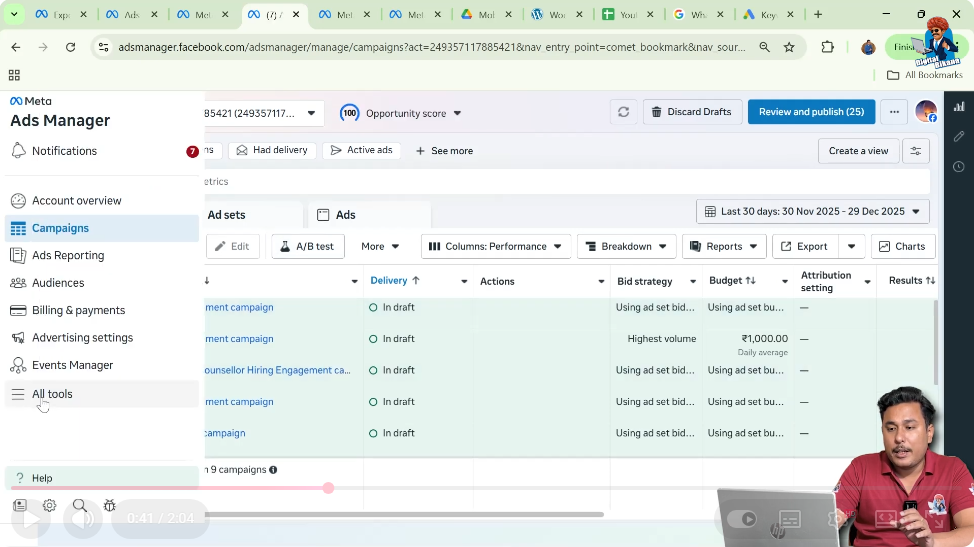
Inside Ads Manager, there are two ways to open the ad account settings.
Method One: Using All Tools
Click on All Tools, then select Settings from the list.
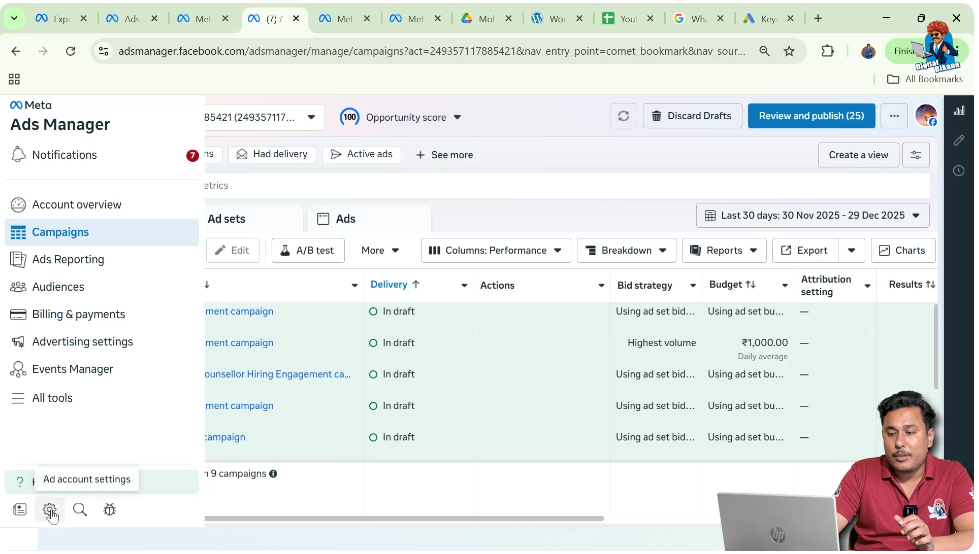
Method Two: Using the Settings Icon
You can also directly click on the Settings icon visible inside Ads Manager.
Both methods will take you to the Ad Account Settings page. This is the section where you can manage people, permissions, and account-level settings.
5. Opening the Add People Option
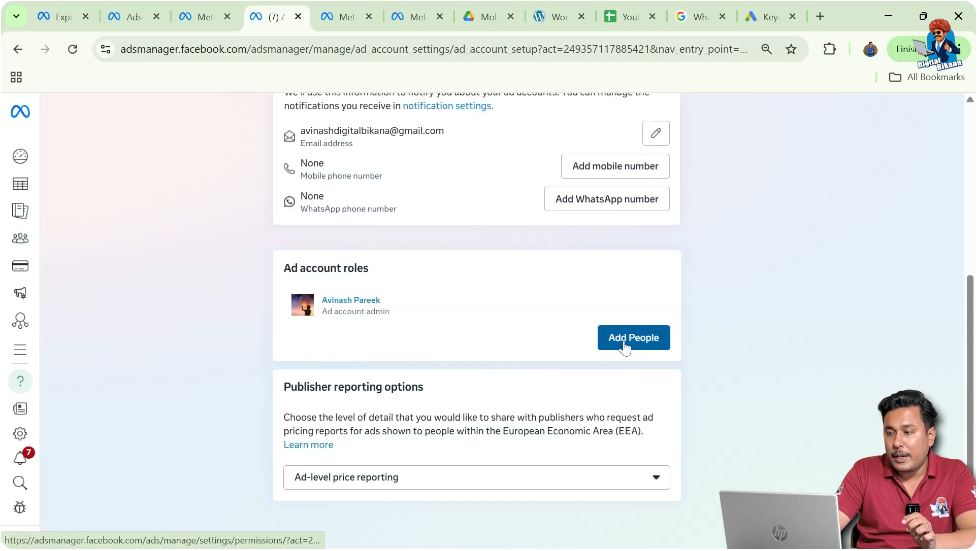
Once you are inside Ad Account Settings, scroll down the page.
As you scroll, you will find an Add option. This option allows you to add new people to your Facebook ad account.
This section is specifically designed for managing access and assigning people to the ad account.
Click on the Add button to proceed.
6. Selecting the Person to Give Ad Account Access
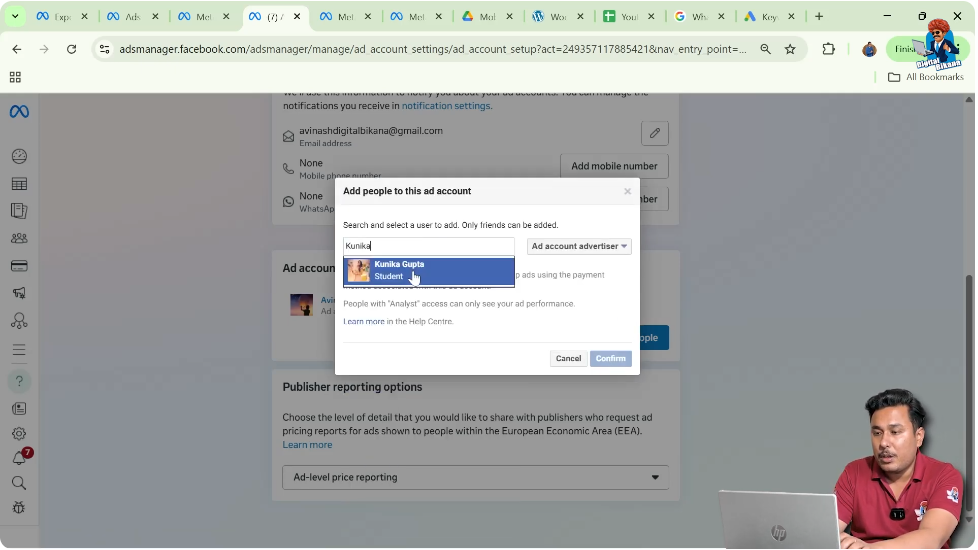
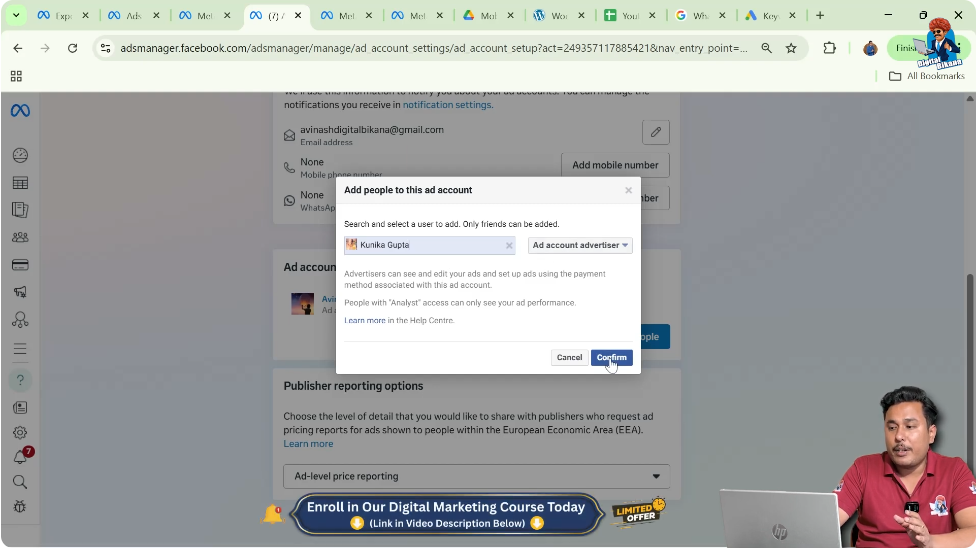
After clicking on Add, Facebook will ask you to search for the person you want to give ad account access to.
Here, you need to type the name of the person.
Important Requirement
The person must already be in your Facebook friend list.
If the person is not your Facebook friend:
- Their name will not appear
- You will not be able to select them
This is a mandatory condition. Before trying to give access, make sure you have added that person as a Facebook friend.
Once the person’s name appears in the search results, select it.
7. Confirming the Ad Account Access Request
After selecting the person’s name, proceed to the next step.
Click on Confirm.
Once you confirm, Facebook sends an ad account access request to that person.
This request is sent to the email address linked to their Facebook account.
At this stage, your part of the process is complete. The next action depends on the other person.
8. Accepting the Ad Account Access Invitation
After the request is sent, the other person needs to check their email.
They will receive an email notification regarding:
- Facebook ad account access
- An invitation to become a member of the ad account
Inside the email, there will be an Accept option.
When the person clicks on Accept, the request is approved, and they are officially added to your Facebook ad account.
What Happens After Acceptance
Once the invitation is accepted:
- The person becomes a member of the ad account
- They can access Ads Manager
- They can work on ads based on the permissions assigned
From this point onward, the added person can collaborate inside the ad account.
Important Points to Remember
Before giving Facebook ad account access, always keep these points in mind:
- The person must be in your Facebook friend list
- You must be switched to your Facebook page
- You must be inside the correct ad account
- The request must be accepted via email
Following these points helps prevent errors and access issues.
Common Reasons Why Access Does Not Work
If you face issues while adding someone, it is usually because:
- The person is not your Facebook friend
- You are inside the wrong ad account
- You are not switched to your Facebook page
- The invitation has not been accepted yet
Double-checking these points usually resolves the problem.
Final Overview of the Entire Process
To summarize the complete process of giving Facebook ad account access:
- Log in to your Facebook account
- Switch to your Facebook page
- Open Ads Manager
- Go to Ad Account Settings
- Scroll down and click on Add
- Search for the Facebook friend
- Confirm the access request
- The person accepts the request via email
Once these steps are completed, the person will have access to your Facebook ad account.
Conclusion
Giving Facebook ad account access to someone is a simple and structured process when done through Ads Manager. By carefully following each step and ensuring that the person is already in your Facebook friend list, you can easily add team members, partners, or collaborators to your ad account.
This method allows smooth collaboration while keeping control within Facebook’s official system.

Related Posts